
Do you want to automatically hide WooCommerce products without a featured image? If you are looking for a step-by-step guide, keep reading this article.
Displaying products without featured images on your WooCommerce shop can make your store look incomplete and unprofessional. When products appear without visuals, it can confuse or deter shoppers, negatively impacting user experience and potentially reducing conversions.
The good news is that you can automatically hide WooCommerce products without a featured image, so they never appear on shop or category pages. In this guide, you will learn how to hide products without a featured image using a simple and efficient code solution.
This approach keeps your store looking polished, improves overall presentation, and helps you deliver a better shopping experience to your customers.
First, let’s see why you should automatically hide WooCommerce products without a featured image.
Table of contents
Why You Should Automatically Hide WooCommerce Products Without a Featured Image
Automatically hiding WooCommerce products without a featured image helps maintain a clean, professional, and conversion-focused online store while reducing unnecessary friction for shoppers.
- Products without a featured image make the WooCommerce shop page look incomplete and can reduce customer trust in your store
- Hiding products without images improves visual consistency across shop and category pages, creating a better browsing experience
- A clean product layout helps customers focus on well-presented items, which can increase engagement and conversion rates
- Automatically hiding these products saves time compared to manually checking and updating each WooCommerce product
- It prevents unfinished or draft products from appearing publicly before they are ready for sale
- Stores with optimized product visuals tend to perform better in terms of user experience and perceived quality
- This approach helps maintain a professional storefront, especially for stores with large or frequently updated product catalogs
How to Automatically Hide WooCommerce Products Without a Featured Image
Now let’s see how to do this. You need to be using a PHP snippet for this task. You need to use a site-specific plugin or a child theme.
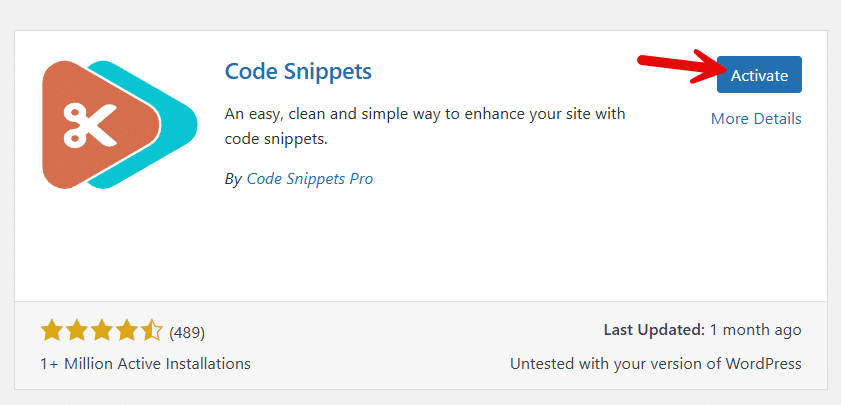
In this tutorial, we will use a dedicated plugin called Code Snippets. The first thing you have to do is install and activate the plugin on your website.
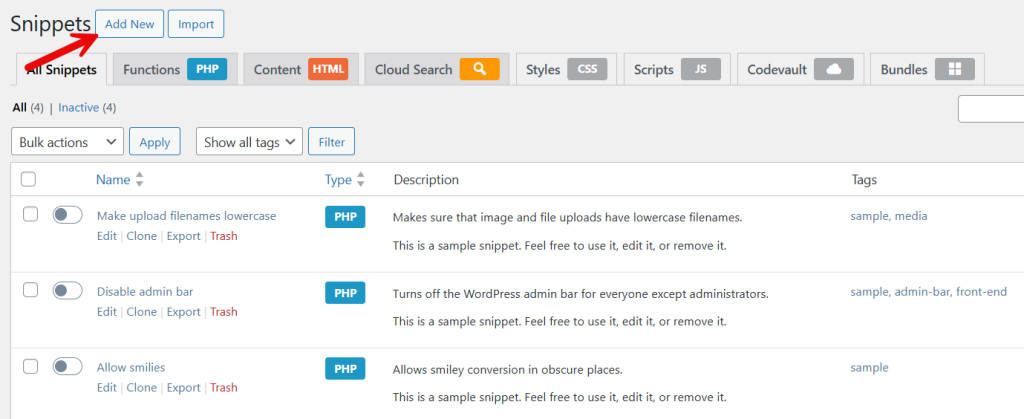
Now, add a new snippet.
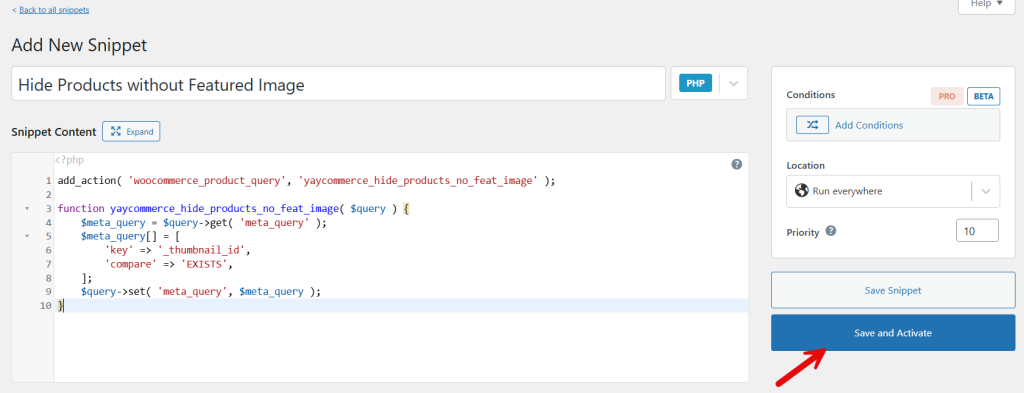
The code you need to use is:
add_action( 'woocommerce_product_query', 'yaycommerce_hide_products_no_feat_image' );

function yaycommerce_hide_products_no_feat_image( $query ) {
    $meta_query = $query->get( 'meta_query' );
    $meta_query[] = [
        'key' => '_thumbnail_id',
        'compare' => 'EXISTS',
    ];
    $query->set( 'meta_query', $meta_query );
}
Paste the snippet and activate it.
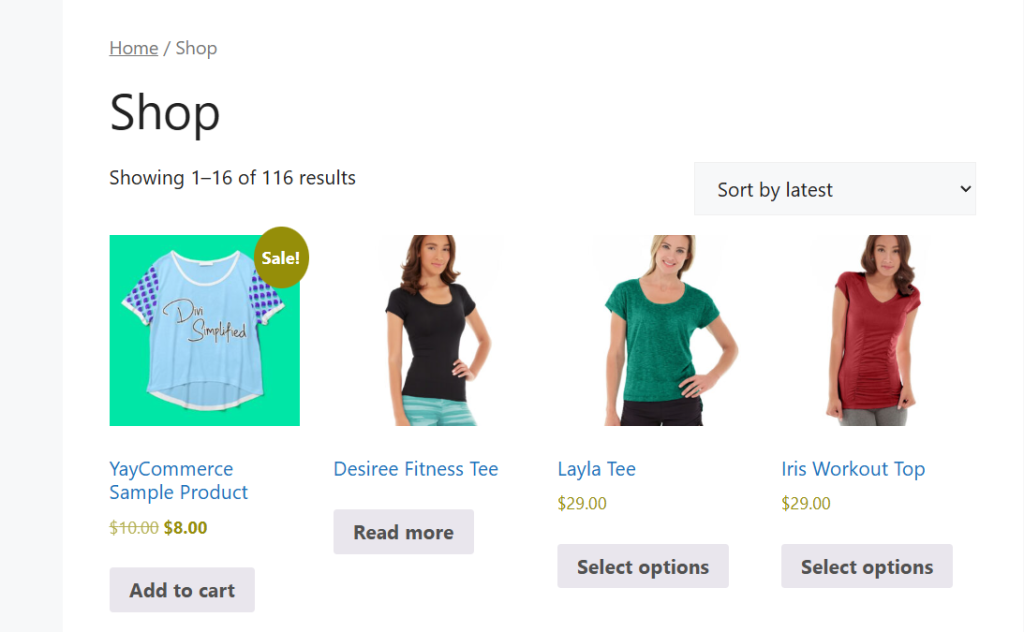
Now you can check the store to see the available products.
Now, let’s remove the product’s featured image and update it.
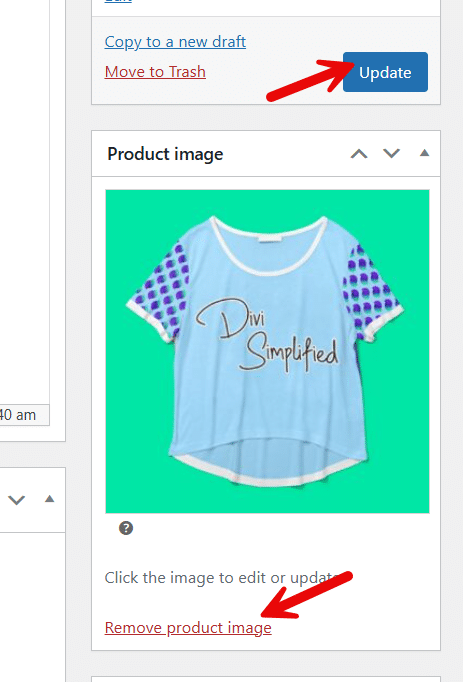
Go to the store, and you will not see the product without a featured image.
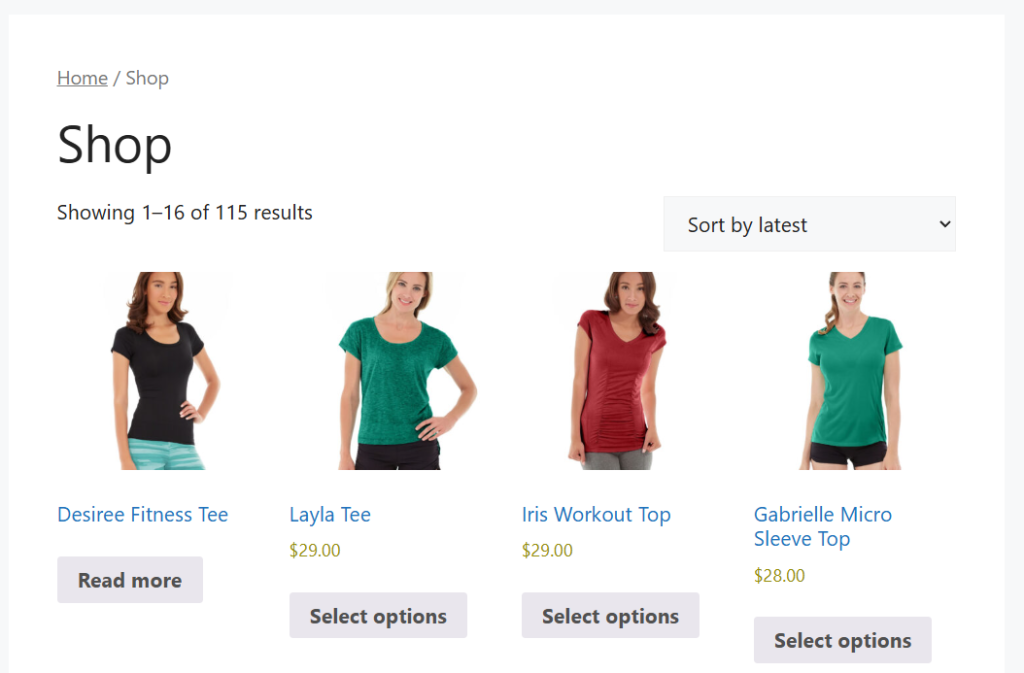
So the code is working perfectly. Unless you upload a featured image for the product, the product will be hidden from the shop archive page.
That’s it!
Here is how to automatically hide WooCommerce products without featured images in the shop.
Frequently Asked Questions
Now, let’s take a look at some of the frequently asked questions and answers regarding this topic.
Hiding WooCommerce products without a featured image prevents them from appearing on the shop page, category pages, or other product listings until a featured image is added. This helps ensure that only visually complete products are shown to customers.
Yes, products without a featured image remain fully visible in the WordPress dashboard. Store owners can edit them, add images, update details, and publish them normally without affecting backend management.
It can have a positive impact by preventing low-quality or incomplete product pages from being indexed. Showing only well-optimized products with images improves user engagement signals and overall store quality.
Yes, as soon as a featured image is added, the product will automatically become visible on the frontend. No additional steps are required to make it available for purchase.
This behavior applies to both existing and newly created products. Any product without a featured image will be hidden until the image is added.
Yes, products without featured images are removed from shop listings, category archives, and product loops. However, they still exist in the database and admin area.
Absolutely. Automatically hiding products without images is especially useful for large stores where managing product quality at scale is important. It helps maintain a consistent storefront without manual checks.
Conclusion
Automatically hiding WooCommerce products without a featured image is a simple yet effective way to maintain a polished and trustworthy online store.
Product images play a key role in how customers perceive your WooCommerce shop, and missing visuals can negatively impact engagement and buying decisions.
By ensuring only fully prepared products appear on the frontend, you create a cleaner shop layout, improve the overall user experience, and reduce distractions from incomplete listings. This approach also helps store owners manage growing product catalogs more efficiently, especially when new products are added frequently.
Keeping your storefront visually consistent not only strengthens brand credibility but also improves conversion rates over time. Taking control of product visibility ensures your WooCommerce store always presents its best content to potential customers.
What else do you need to achieve in your WooCommerce store?
Let us know in the comments.
