
Do you want to add a complete order button in WooCommerce admin page? If you are looking for a simple guide, keep reading this article.
Managing orders efficiently is essential for running a successful WooCommerce store, especially when handling high order volumes or manual payment workflows.
By default, WooCommerce requires store admins to open each order individually to mark it as completed, which can slow down daily operations. Adding a Complete Order button directly within the WooCommerce admin panel streamlines order management and reduces unnecessary clicks.
This guide explains how to add a Complete Order button in WooCommerce admin using a simple code snippet, allowing you to update order statuses faster and improve backend productivity without relying on additional plugins.
First, let’s see why you need to add a complete order button in WooCommerce admin.
Table of contents
Why You Need to Add a Complete Order Button in WooCommerce Admin
Adding a Complete Order button in the WooCommerce admin panel simplifies order management and improves overall workflow efficiency for store owners and administrators.
- It allows admins to complete orders directly from the orders list without opening each order page, saving time during daily order processing.
- It reduces repetitive clicks in the WordPress dashboard, which is especially helpful when managing a high volume of WooCommerce orders.
- It improves backend efficiency by making order status updates faster and more accessible for store managers and fulfillment teams.
- It helps streamline manual payment workflows in which orders must be marked as completed after offline confirmation.
- It minimizes the risk of forgetting to update order statuses, ensuring customers receive order completion emails on time.
- It creates a cleaner, more intuitive WooCommerce admin experience by placing essential actions where they are needed most.
How to Add a Complete Order Button in WooCommerce Admin
Now, let’s see how to add a complete order button in WooCommerce admin. We will use a small amount of PHP code for this task. So, you need to use a child theme or a site-specific plugin to add the code.
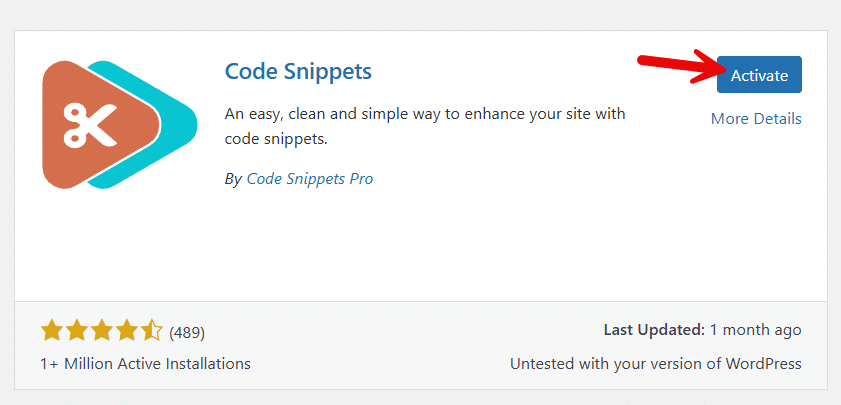
For this tutorial, we will use Code Snippets. It is a free site-specific plugin available for WordPress. The first thing you need to do is install and activate the plugin on your website.
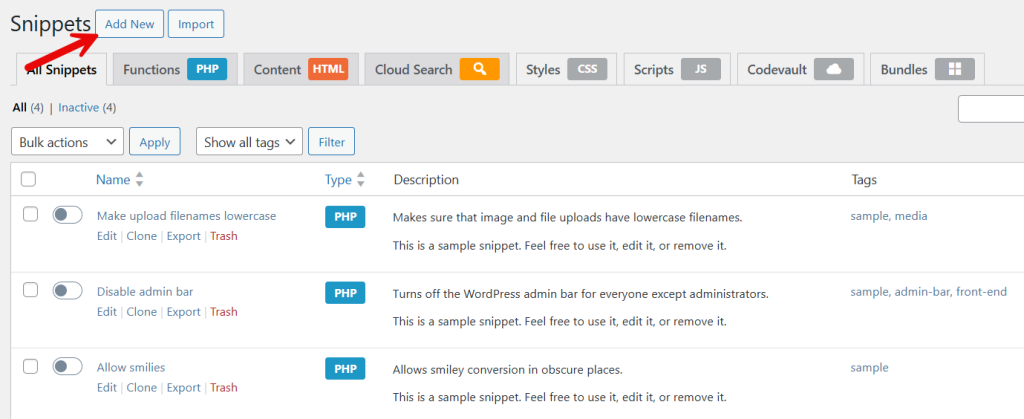
Now, you need to add a new snippet.
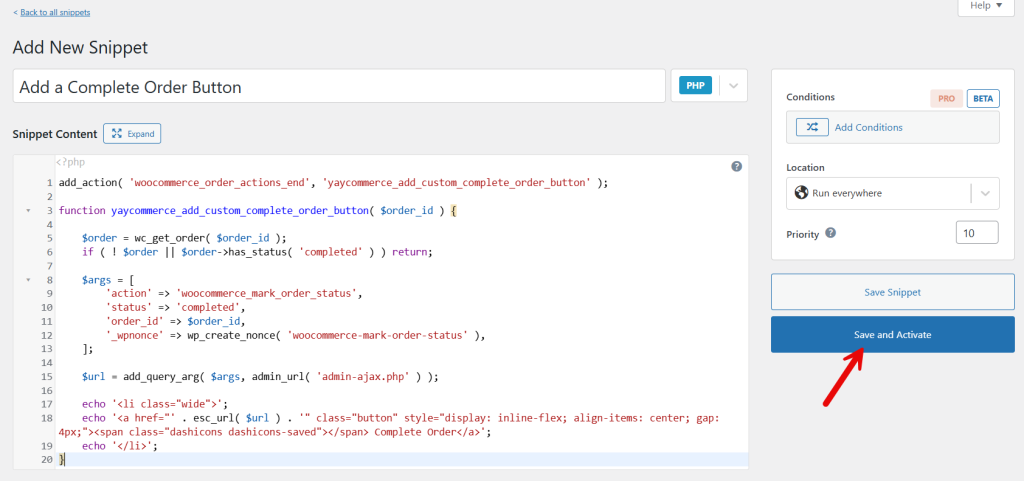
The code you need to use is:
add_action( 'woocommerce_order_actions_end', 'yaycommerce_add_custom_complete_order_button' );

function yaycommerce_add_custom_complete_order_button( $order_id ) {

    $order = wc_get_order( $order_id );
    if ( ! $order || $order->has_status( 'completed' ) ) return;

    $args = [
        'action' => 'woocommerce_mark_order_status',
        'status' => 'completed',
        'order_id' => $order_id,
        '_wpnonce' => wp_create_nonce( 'woocommerce-mark-order-status' ),
    ];

    $url = add_query_arg( $args, admin_url( 'admin-ajax.php' ) );

    echo '<li class="wide">';
    echo '<a href="' . esc_url( $url ) . '" class="button" style="display: inline-flex; align-items: center; gap: 4px;"><span class="dashicons dashicons-saved"></span> Complete Order</a>';
    echo '</li>';
}
Paste the snippet and activate it.
You can now open any orders you have. On the right-hand side, you can see a dedicated complete order button.
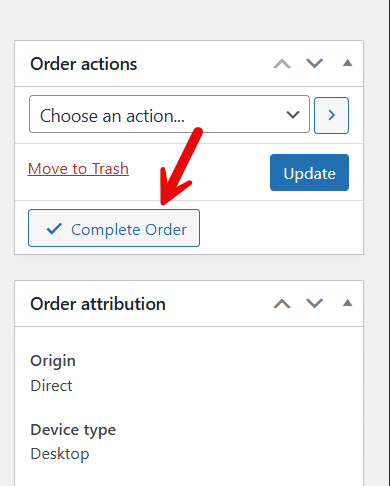
Now, you can complete every order with a single click. You do not need to open the dropdown and select the completed option.
That’s it!
This is how you can add a complete order button in WooCommerce admin page.
Frequently Asked Questions
Now, let’s take a look at some of the frequently asked questions and answers regarding this topic.
Yes, you can add a Complete Order button by using a custom PHP code snippet that hooks into the WooCommerce admin orders list or order actions. This approach avoids extra plugins, keeps the admin interface lightweight, and gives you full control over how and when orders are marked as completed.
No, it does not interfere with the default WooCommerce order workflow. The button simply provides a quicker way to update an order status. And while all existing processes, such as stock reduction, order notes, and status tracking, continue to work as expected.
The button is typically used for processing or on-hold orders, where the order is ready to be completed. You can also customize the code to control which order statuses should display the button in the WooCommerce admin.
Yes, when an order is marked as completed using the Complete Order button, WooCommerce automatically sends the order completion email to the customer, just like it would when the status is changed manually.
Yes, it is particularly useful for stores that accept cash on delivery, bank transfers, or custom payment methods, where orders often require manual review before being marked as completed in the WooCommerce admin.
Yes, you can adjust the code to ensure that only administrators or shop managers can see and use the Complete Order button, thereby maintaining proper access control in the WordPress dashboard.
Yes, it is safe when implemented correctly. Always test code in a staging environment first, and add it via a child theme or a trusted code snippets solution to avoid issues during theme updates.
Conclusion
Adding a Complete Order button in the WooCommerce admin is a simple yet highly effective way to streamline order management and reduce unnecessary clicks for store managers.
Instead of navigating multiple screens to update order statuses, this small customization lets you complete orders directly from the admin interface faster and more accurately.
It is especially valuable for stores that handle manual payments, process high order volumes, or rely on quick fulfillment workflows. Since the feature works seamlessly with existing WooCommerce processes, customers still receive their order completion notifications, and all order actions are logged correctly.
When implemented with clean, well-tested code, this enhancement improves efficiency without disrupting your store’s core functionality, making daily order processing faster, smoother, and more reliable.
How else would you customize your WooCommerce store to improve usability?
Let us know in the comments.
