
Do you want to add content below WooCommerce shop page products? If you are looking for a simple guide, keep reading this article.
The WooCommerce shop page is often the first place customers explore when browsing your products, but by default, it only displays product listings.
Adding custom content below the WooCommerce shop page products allows store owners to provide extra context, highlight promotions, share trust signals, or guide visitors toward specific actions. This additional content can improve user experience, strengthen internal linking, and support conversion-focused messaging without disrupting the product grid.
In this guide, you will learn how to add content below shop page products using a simple, reliable approach that works with most themes and requires no additional plugins.
Before we move forward, let’s see why you should add content below shop page products.
Why You Should Add Content Below WooCommerce Shop Page Products
Adding content below WooCommerce shop page products helps store owners extend the value of the shop page beyond product listings and improve overall store performance.
- It allows you to display helpful information such as shipping details, return policies, or FAQs that support buying decisions without interrupting the product grid.
- Use the space to add promotional messages, seasonal offers, or category-specific highlights to encourage users to continue shopping.
- Adding custom content improves internal linking by directing visitors to important pages, collections, or featured products.
- It enhances SEO by providing search engines with more contextual content for your WooCommerce shop page.
- You can build trust by showcasing testimonials, guarantees, or brand messaging directly below your products.
- The additional content helps guide users who reach the bottom of the shop page and keeps them engaged instead of leaving the store.
How to Add Content Below WooCommerce Shop Page Products
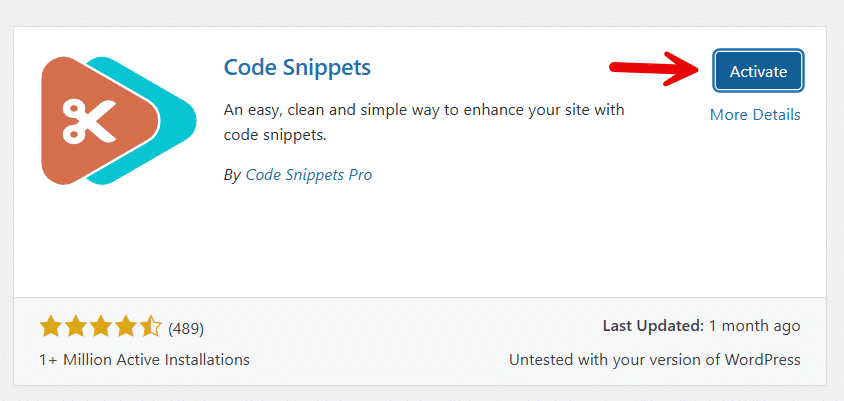
Now, let’s move to the tutorial. We will use a small snippet to complete the task. You need to use a site-specific plugin or a child theme. In this case, we will use Code Snippets. So install and activate the plugin first.
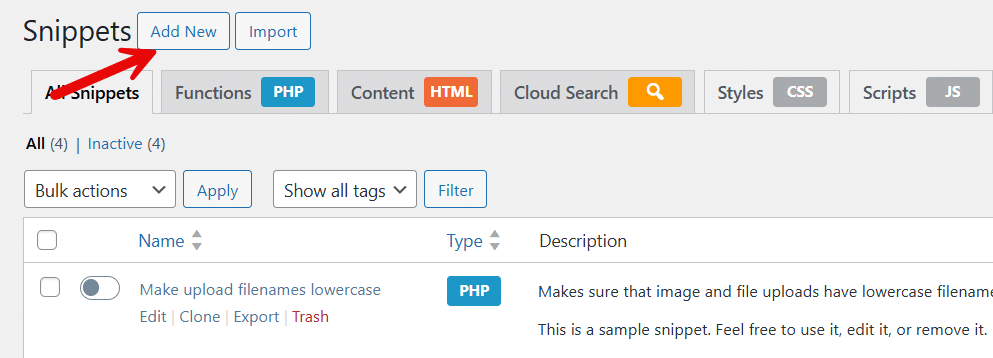
After activation, you need to add a new snippet.
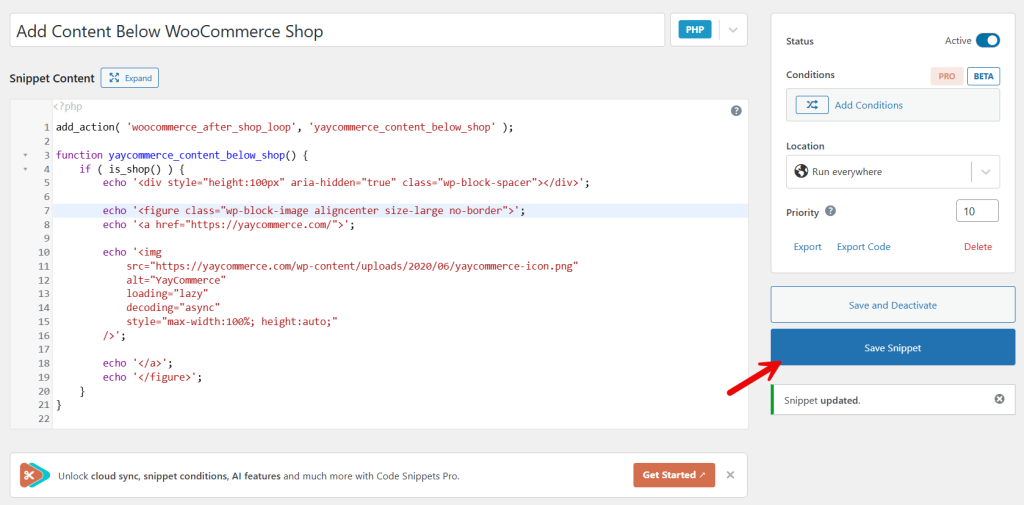
The code you need to be using is:
add_action( 'woocommerce_after_shop_loop', 'yaycommerce_content_below_shop' );

function yaycommerce_content_below_shop() {
    if ( is_shop() ) {
        echo '<div style="height:100px" aria-hidden="true" class="wp-block-spacer"></div>';

        echo '<figure class="wp-block-image aligncenter size-large no-border">';
        echo '<a href="https://yaycommerce.com/">';

        echo '<img
            src="https://yaycommerce.com/wp-content/uploads/2020/06/yaycommerce-icon.png"
            alt="YayCommerce"
            loading="lazy"
            decoding="async"
            style="max-width:100%; height:auto;"
        />';

        echo '</a>';
        echo '</figure>';
    }
}
Paste this code and activate the snippet.
And you will get an image like this:
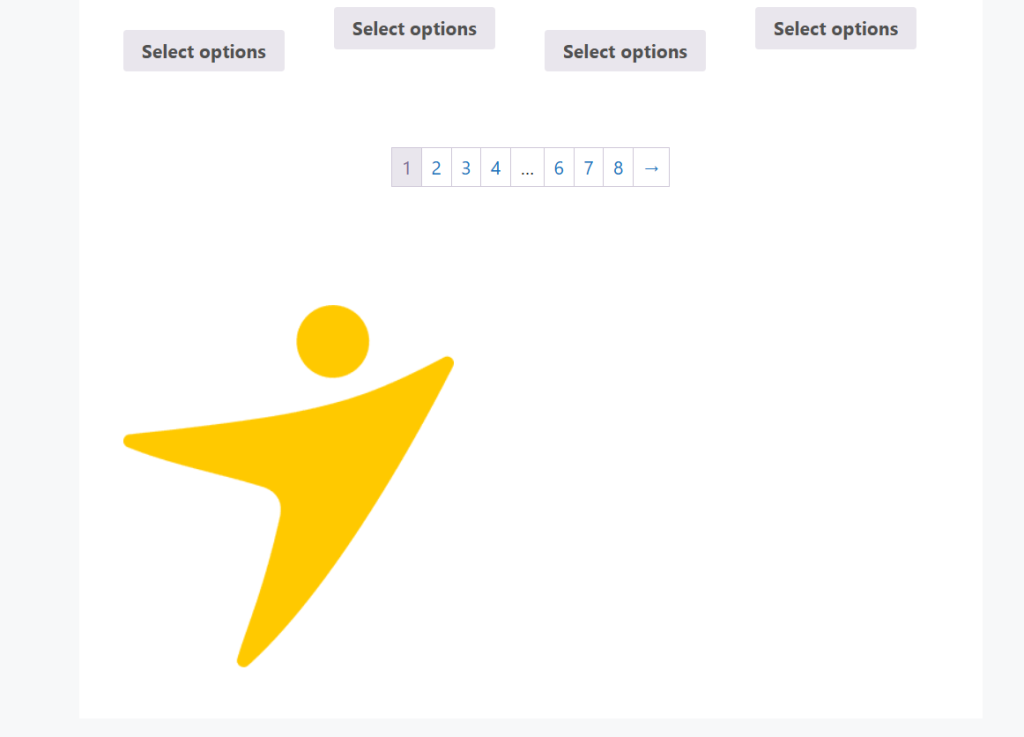
You can always change the content, the image URL, and ALT text based on your preferences.
That’s it!
This is how to add content below WooCommerce shop page products. As you can see, this is an easy task.
Frequently Asked Questions
Now, let’s take a look at some of the frequently asked questions and answers regarding this topic.
Yes, you can add custom content below the shop page products without changing how products are displayed. The content appears after the product loop, so your product grid remains intact while additional text, images, or sections are shown beneath it.
Content such as brand information, buying guides, FAQs, promotional banners, trust badges, or internal links works well. This helps customers understand your products better and improves engagement without distracting from the main product listings.
Yes, adding relevant and keyword-focused content below the WooCommerce shop page products can improve SEO. It helps search engines better understand your store and gives you room to naturally target important keywords.
You can show different content based on product categories, conditions, or page context using conditional logic. This allows you to tailor messages for specific product types or audiences.
No, adding simple text or lightweight content does not significantly impact performance. As long as you avoid heavy scripts or unoptimized media, the shop page will load normally.
The default WordPress editor does not control the content area on the WooCommerce shop page. You usually need to use code snippets or theme-level customization to insert content below the product listings.
Yes, this approach works well for most WooCommerce stores, especially those looking to improve SEO, educate customers, or promote offers. It is particularly useful for stores with competitive products where additional context can influence buying decisions.
Conclusion
Adding content below WooCommerce shop page products is a simple yet effective way to enhance your store’s layout, usability, and overall performance.
While the default shop page focuses solely on product listings, adding custom content lets you provide helpful information, highlight promotions, and guide visitors toward meaningful actions. This approach improves user engagement, supports SEO efforts, and helps communicate your brand message more clearly.
By placing relevant content at the bottom of the shop page, you create a more informative and complete shopping experience that encourages customers to stay longer and explore more of your WooCommerce store.
How else would you customize your WooCommerce store?
Let us know in the comments.
