
Do you want to import and export WooCommerce products? If you are looking for a simple guide, keep reading this article.
Managing product data efficiently is essential for running a successful WooCommerce store. Importing and exporting products allows you to update inventory in bulk, migrate products between sites, and create reliable backups without manual work.
In this guide, you will learn how to import and export WooCommerce products properly using built-in tools and best practices to avoid errors and keep your store data accurate.
First, let’s see when you should import and export WooCommerce products.
Table of contents
When Should You Import and Export WooCommerce Products
Importing and exporting products is useful when you need to manage large amounts of product data without editing each item manually. It helps store owners save time, reduce mistakes, and keep product information consistent across different systems or environments.
- When you are migrating your WooCommerce store to a new domain or hosting provider
- When you want to move products from a staging site to a live store
- When you need to bulk update product prices, stock levels, or descriptions
- When you are adding hundreds of new products at once from a supplier file
- When you want to back up your product catalog before making major changes
- When you manage multiple WooCommerce stores and need to sync product data
- When you need to edit product attributes, categories, or SKUs using a spreadsheet
- When you want to clean up product data and reupload it in a structured format
- When you are preparing your store for seasonal sales or large promotions
- When you need to transfer product data into external systems, such as ERP or inventory tools
How to Import and Export WooCommerce Products
The plugin we are going to use is: Import Export Product CSV Suite. It is a freemium WordPress plugin. For this tutorial, we will be using the free version of the plugin.
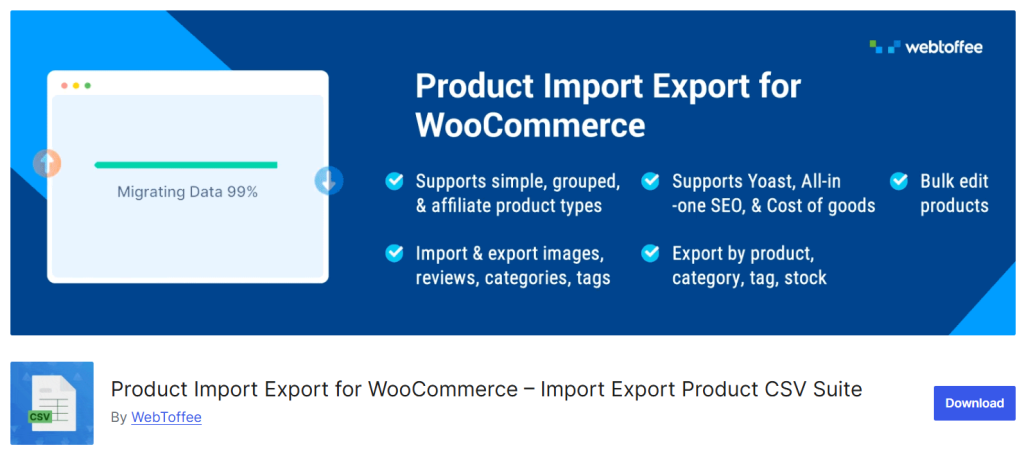
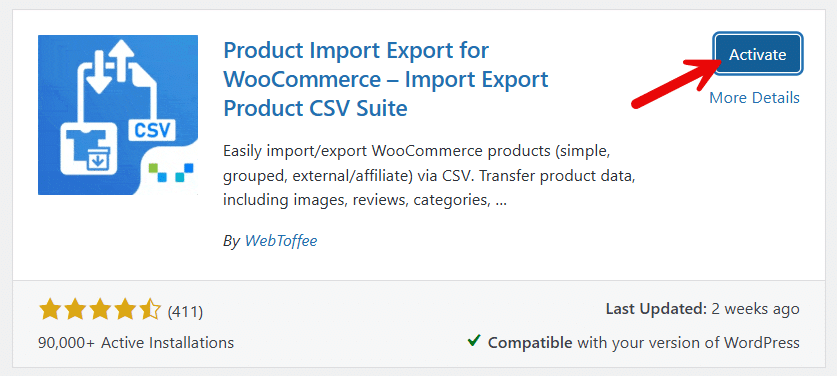
The first thing you need to do is install and activate the plugin on your WooCommerce store.
After activating the plugin, you can see the settings on the left-hand side.
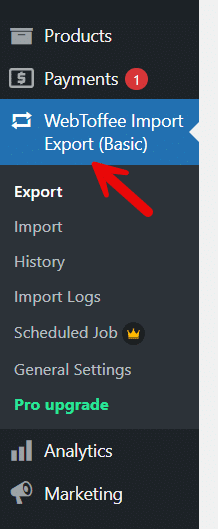
Let’s take a closer look at each option.
1. How to Export Products
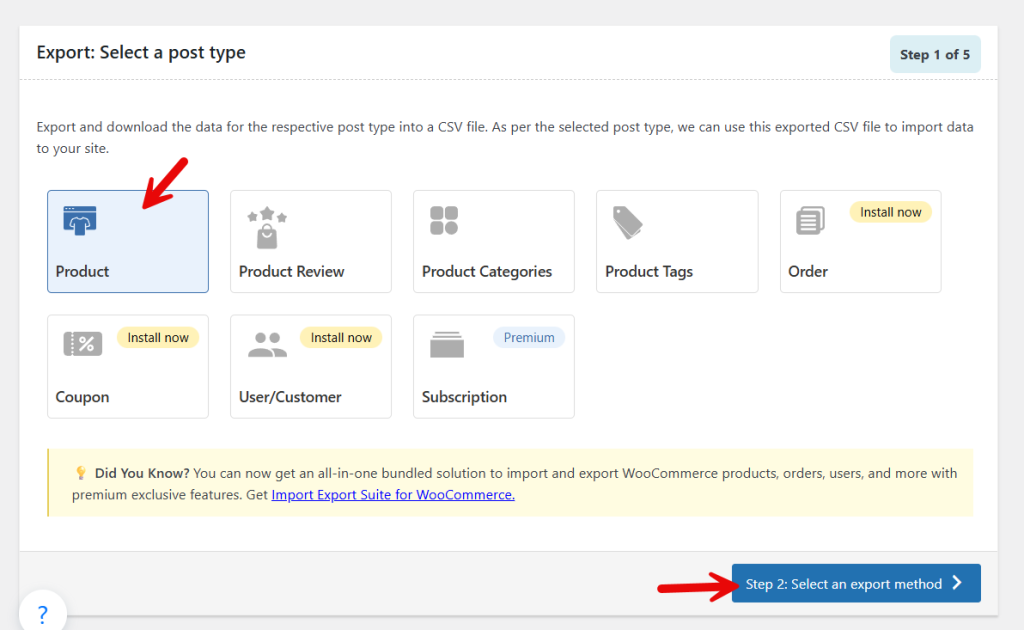
First, you have to choose the product type. Since we are going to export the WooCommerce products, we will be choosing the products post type.
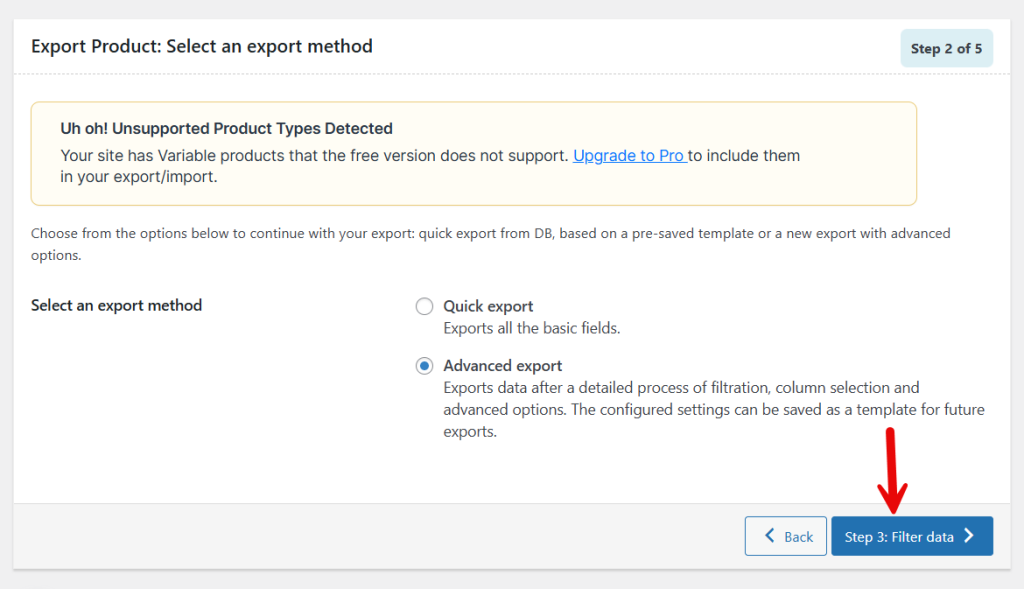
Next, choose the export method. You can either choose the basic method or the advanced method.
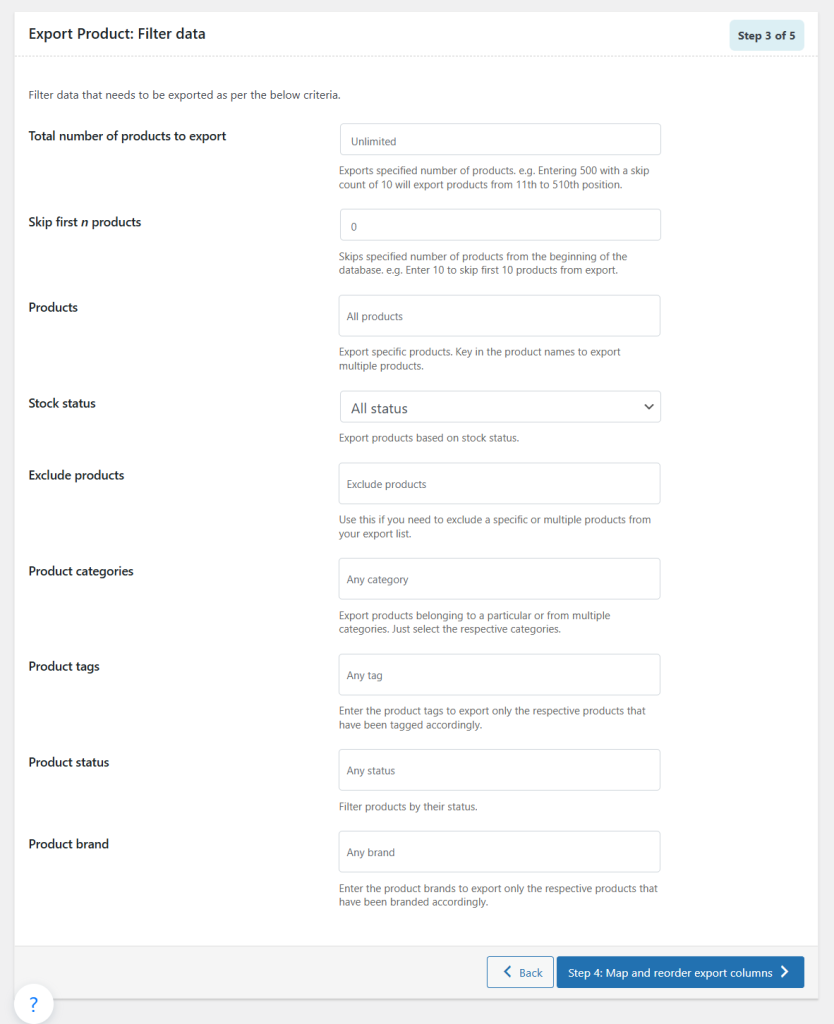
Now you will be moved to the filter data options. If you need to filter products based on custom criteria, you can use this option. If you need to export all the products, leave it untouched.
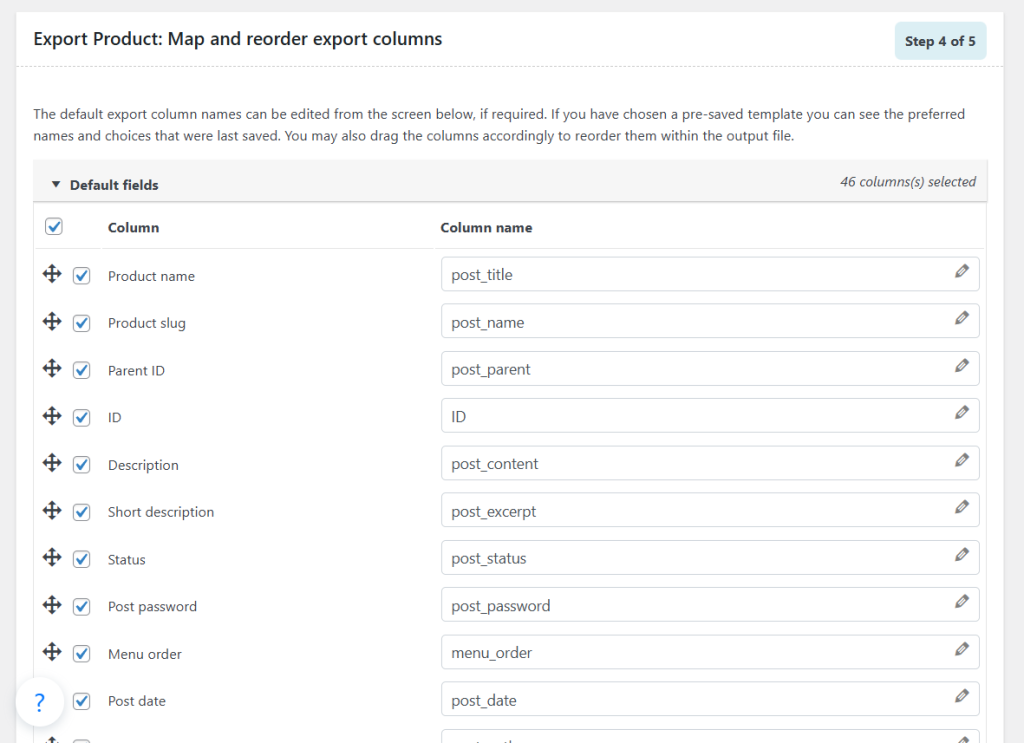
On the next page, you will see an option to map and reorder the product data.
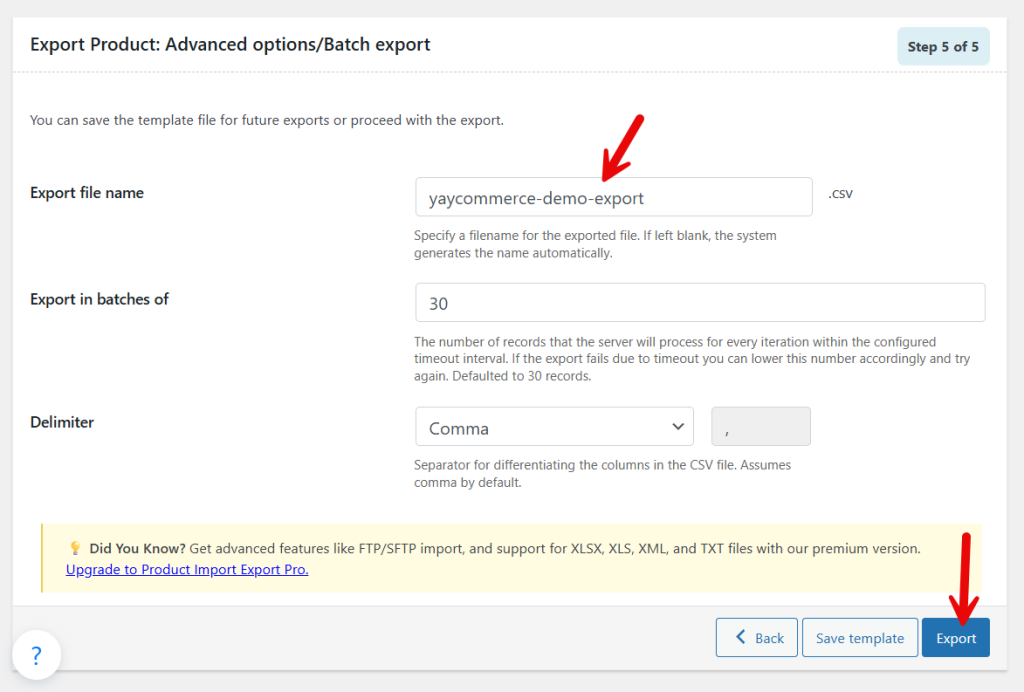
Now, you can start the export process. All you need to do is name the file. If you left it blank, the system will give a random name for it.
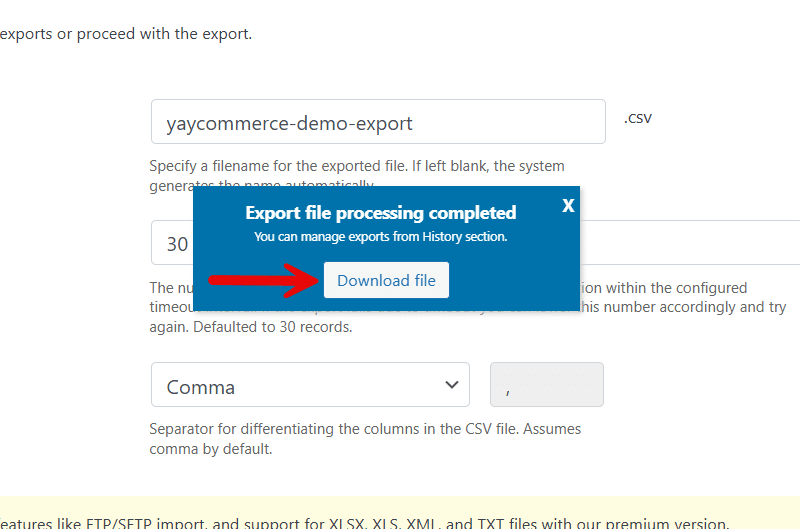
It might take a while to finish the process. Once the plugin finishes the export process, you can download it from the same page.
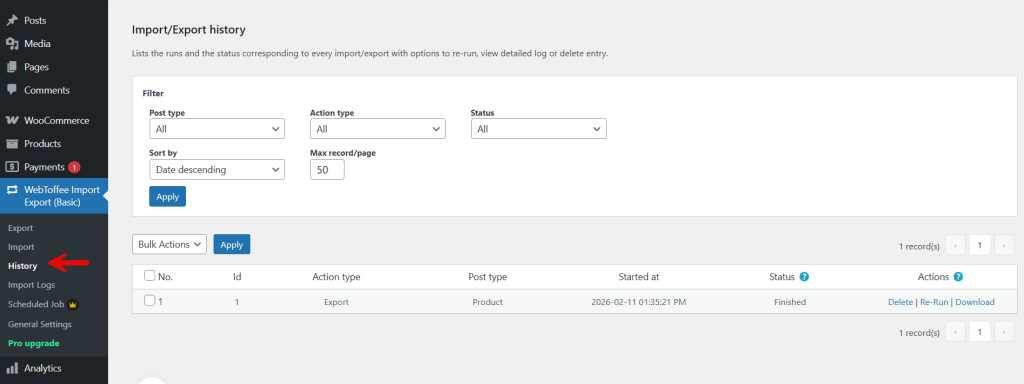
You can also see the exports in the history section.
This is how you can export WooCommerce products. Now, let’s see how to import them on a website.
2. How to Import Products
So in the above, we have learned how to export WooCommerce products. This is the time to learn how to import the exported files to your WooCommerce store properly.
For this, we will be using a fresh WooCommerce installation. And also, we have installed the Import Export Product CSV Suite plugin. This time, choose the import option.
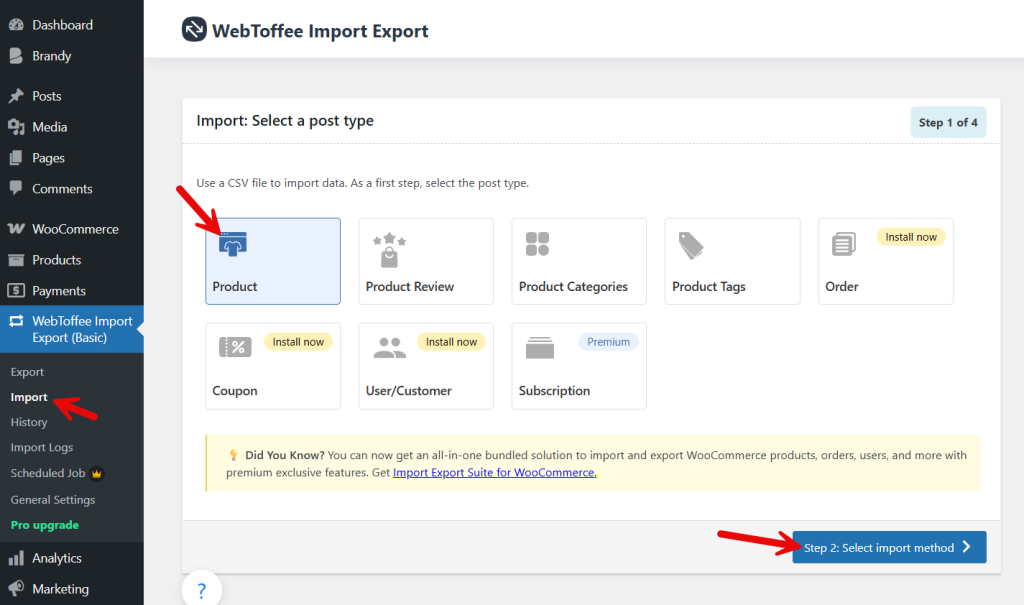
Next, select the import method and upload the exported file.
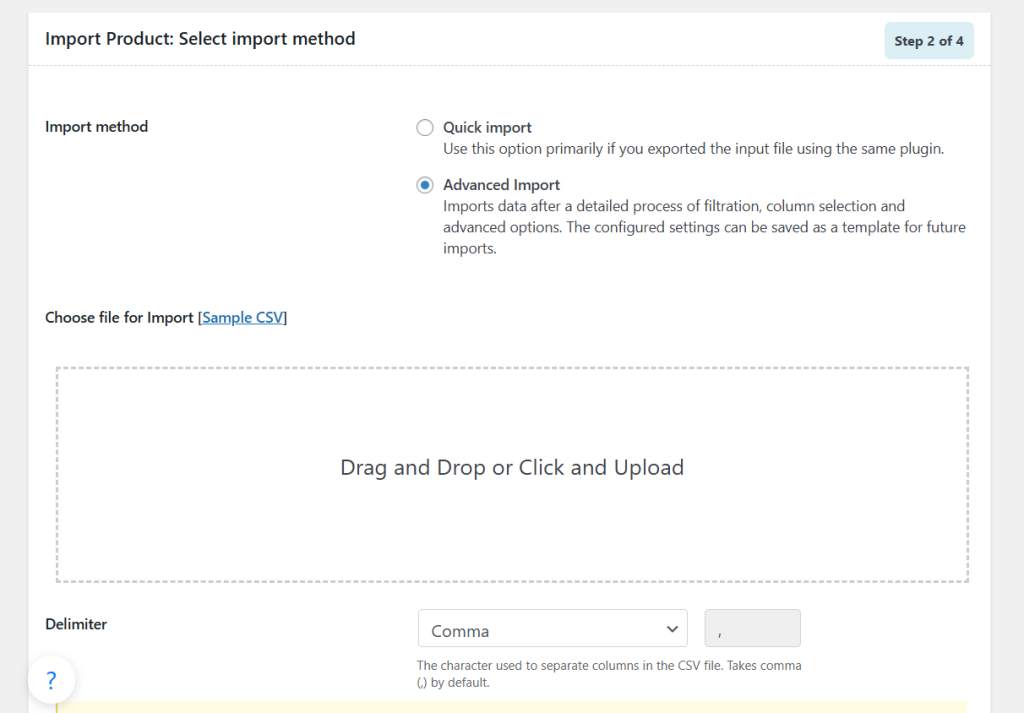
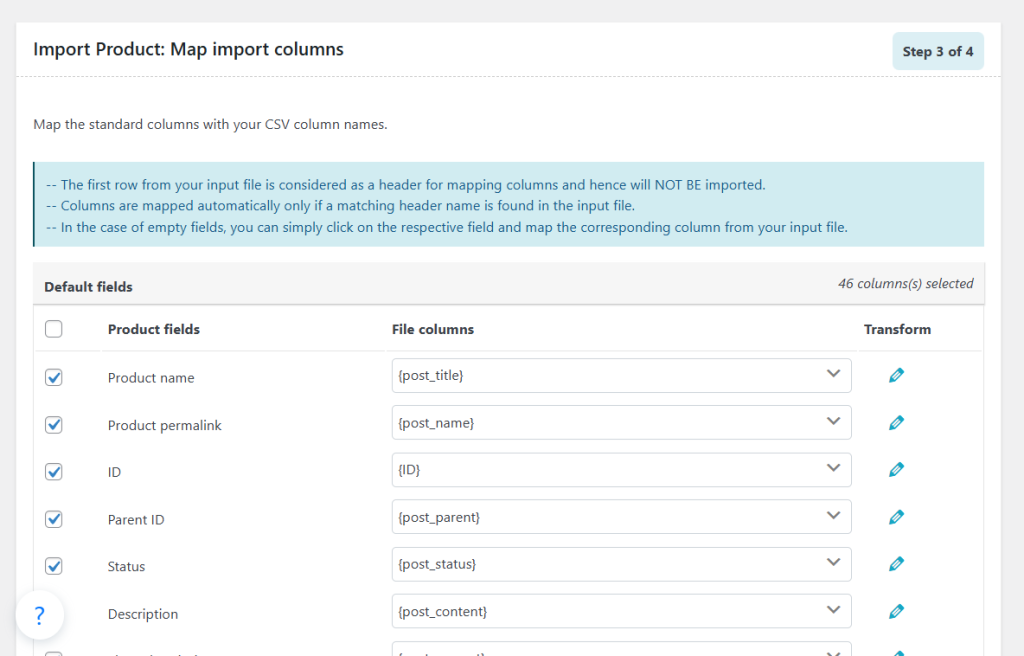
Next, we will be asked to map the columns.
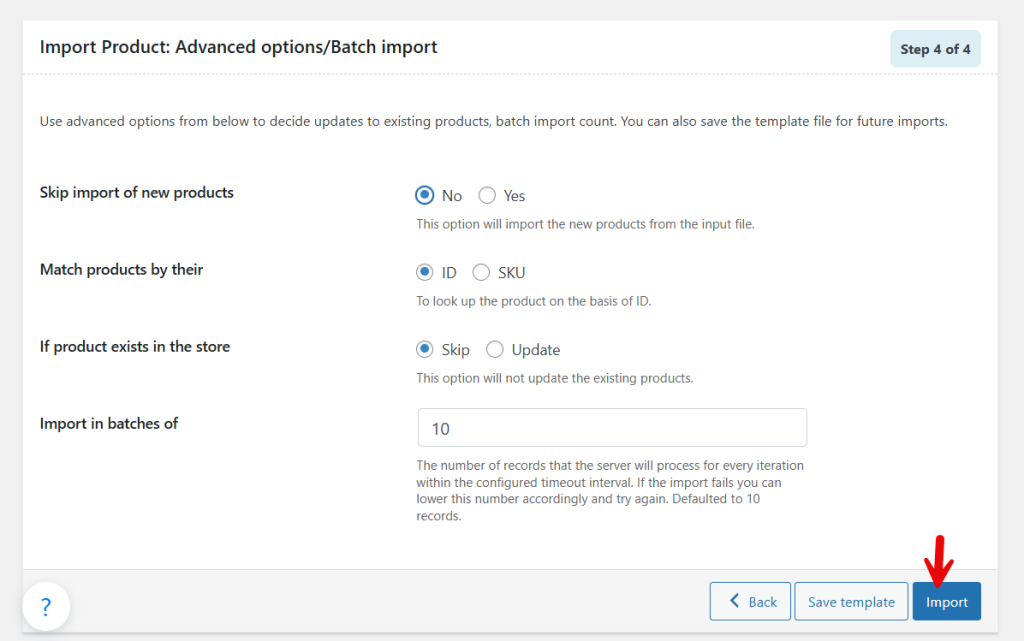
On the next step, you can start the import process.
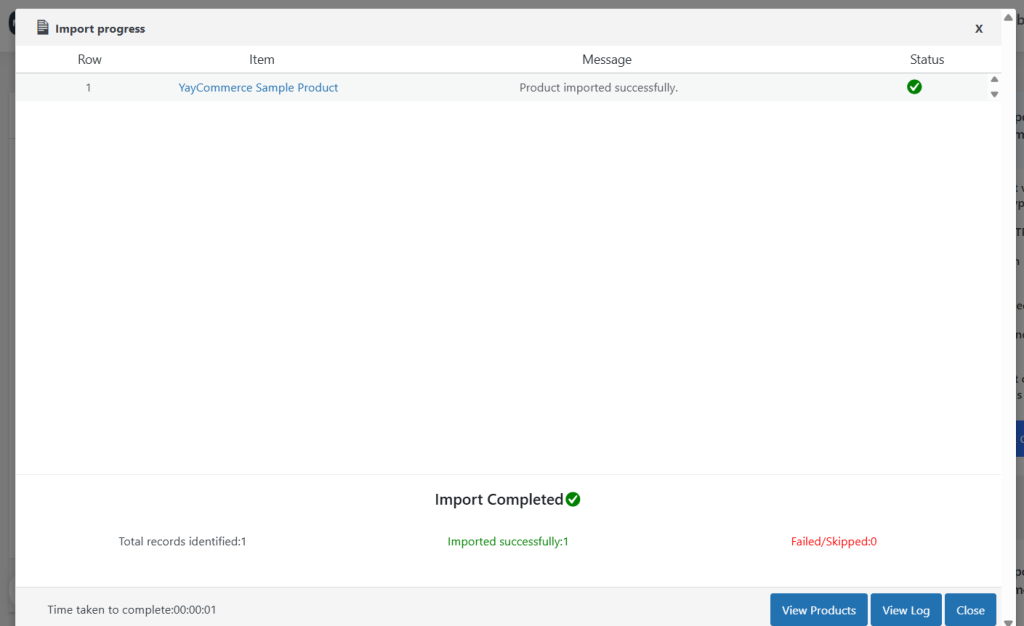
Within a few minutes, the process will be completed.
You can also check your WooCommerce products page to see all the active products we have imported. That’s it! This is how you can import WooCommerce products efficiently.
Here are some related articles you might find useful:
- How to Set Up Restricted WooCommerce Discount Coupons Based on Advanced Quantity
- How to Create a Distraction-Free WooCommerce Admin Panel
- How to Add a Refund Request Button to WooCommerce
- How to Allow Only Simple Products in WooCommerce
- How to Programmatically Mark Products as Featured in WooCommerce
Frequently Asked Questions
Now let’s take a look at some of the frequently asked questions and answers regarding this topic.
WooCommerce includes a basic built-in importer and exporter, but it has limited control over fields and formatting. A plugin like Product Import Export for WooCommerce is recommended if you want better mapping options, support for complex product data, and more reliable handling of images, attributes, and variations.
You can import and export product names, prices, SKUs, descriptions, stock status, categories, tags, images, attributes, and product variations. Most import export plugins also support custom fields and metadata used by themes and other WooCommerce extensions.
Yes, product images can be imported if the image URLs are included in the CSV file or if the images already exist in your media library. The plugin fetches the images and assigns them to the correct products during the import process.
It is safe if you follow best practices, such as backing up your site before importing data and testing the import file on a staging site first. This helps prevent issues like duplicate products, incorrect pricing, or broken product links.
Yes, you can update existing products by matching them using a unique identifier such as SKU or product ID. This is useful when you want to change prices, stock levels, or descriptions in bulk without editing each product manually.
Yes, Product Import Export for WooCommerce supports simple products, variable products, and grouped products. It also allows you to import product attributes and variations so your variable products work correctly after import.
Import and export are best when you are migrating products to a new site, making bulk updates, syncing product data with another system, or creating backups of your product catalog. It saves time, reduces manual errors, and keeps product data consistent across your store.
Conclusion
Importing and exporting products is an essential skill for any WooCommerce store owner who wants to manage large catalogs efficiently, perform bulk updates, or migrate data between environments.
While WooCommerce includes basic import/export functionality, using a dedicated tool like Product Import Export for WooCommerce gives you more control, better field mapping, and smoother handling of complex product details, including images, attributes, and variations.
With this plugin, you can streamline your workflow, reduce manual errors, and keep your product data up to date without unnecessary effort.
By following the steps in this guide, you can confidently import and export products properly, saving time and maintaining accuracy as your store grows.
We hope you found this article helpful and enjoyed reading it. If you need to learn more WooCommerce tips and tricks, check out the YayCommerce blog. Also, feel free to check out our social media handles, such as Facebook, X, Instagram, and YouTube, for more interesting content.
