
Do you want to add a handling fee to Christmas orders? In this post, we are going to show you the step-by-step guide to do it with the YayPricing plugin.
Christmas orders often need extra packaging, faster handling, and more careful shipping. Adding a handling fee helps cover those costs without changing your product prices.
With YayPricing, you can create a simple rule that adds the fee only during the holiday period and only on the orders you choose. The fee is clearly displayed in the cart, so customers know what they are paying for. This guide shows you how to set it up step by step so you can start using it before the busy season begins.
First, let’s see why you should add a handling fee to Christmas orders.
Table of contents
Why Add a Handling Fee to Christmas Orders
Adding a handling fee during Christmas helps cover the extra costs that come with the busy season. Packaging materials, gift wrapping, extra labor, and careful shipping all cost more when order volume rises.
Instead of raising product prices for the whole year, a temporary handling fee lets you recover those costs only when you need them.
- Extra packaging and protective materials become more expensive during the holidays. A handling fee helps cover the cost of boxes, filler, and gift wrapping without changing your regular product prices.
- Order volume usually jumps in December, which means more staff time for packing and labeling. The fee helps offset the higher labor cost that comes with faster and more careful processing.
- Shipping carriers often charge more for holiday deliveries or require extra care for fragile gifts. Adding a handling fee gives you a simple way to recover part of those higher shipping-related expenses.
- Customers already expect some extra costs during Christmas, especially for gift orders. A clear handling fee is usually easier to accept than a sudden increase in product prices.
- You can limit the fee to specific dates so it only runs during the peak season. This keeps the rest of the year free from extra charges while still protecting your margins in December.
- The fee appears as a separate line in the cart, which keeps pricing transparent. Customers see exactly what they are paying for, rather than wondering why the total is higher than the product price.
How to Add a Handling Fee to Christmas Orders in YayPricing
We think you already have the YayPricing plugin. If you don’t have it yet, you can purchase a license from here. It is the best dynamic pricing plugin for WooCommerce. Once you have it, install and activate it. Don’t forget to verify your license key too. Now, on the left-hand side, you can see the YayPricing settings.
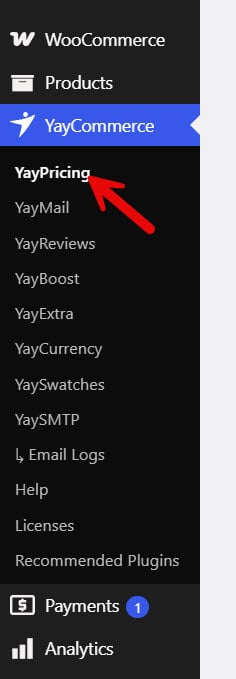
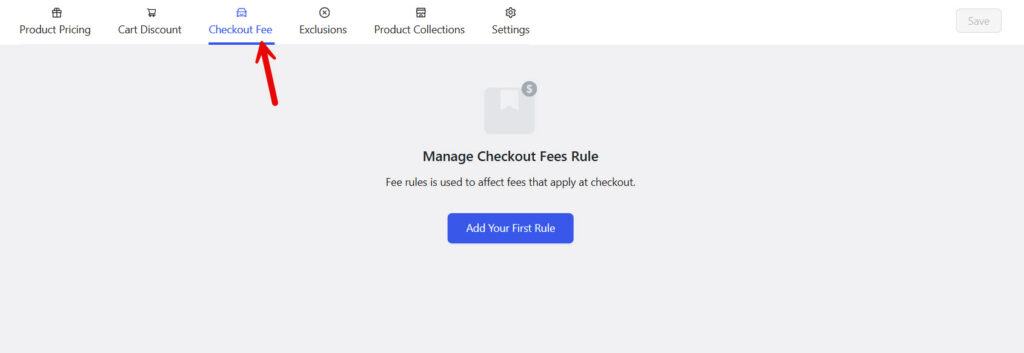
Now you will see options like:
- Product Pricing
- Cart Discount
- Checkout Fee
- Exclusions
- Product Collections
- Settings
From there, you need to choose Checkout Fee.
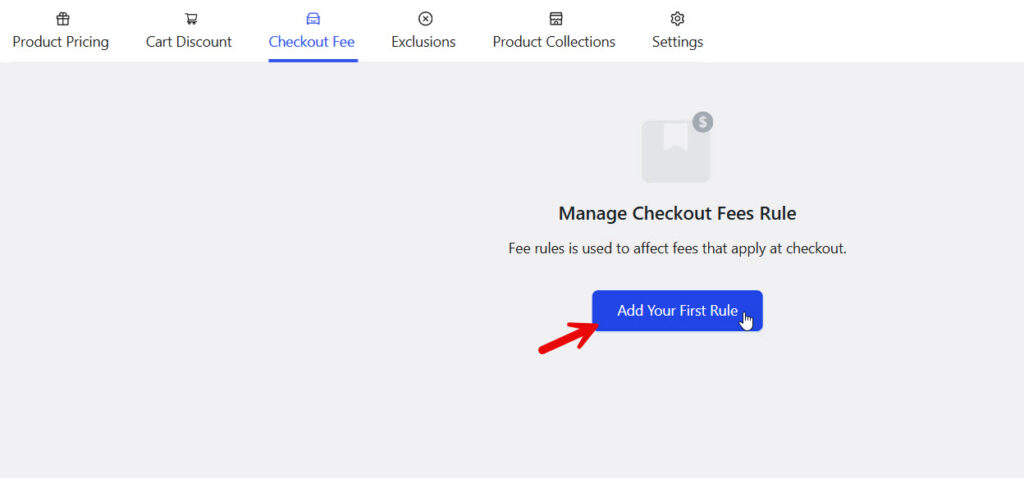
Now you need to add your first rule.
You will see several pre-made options.
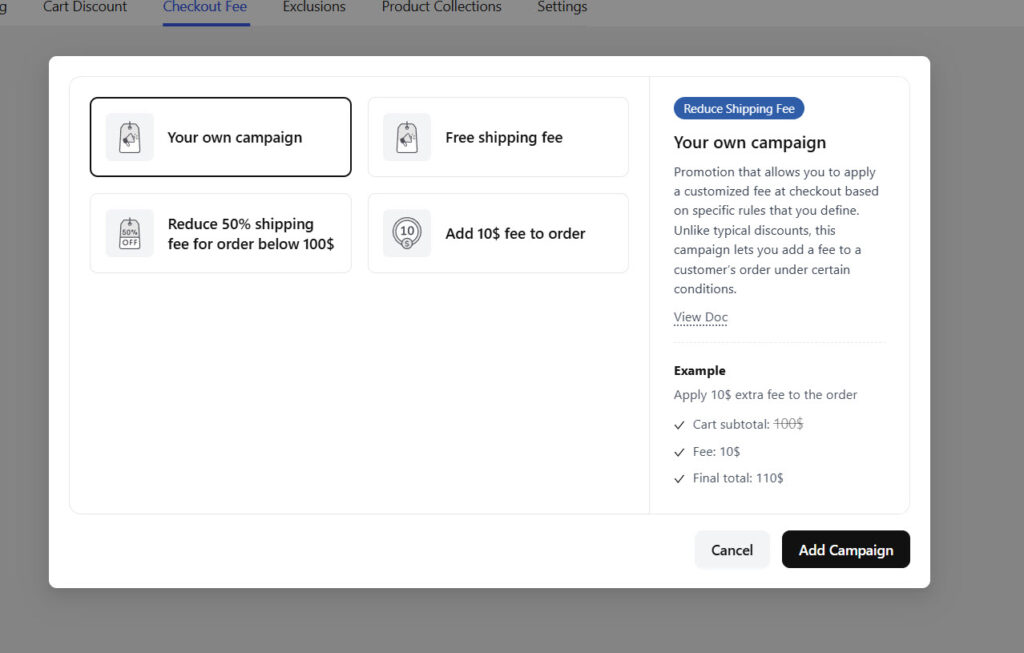
You can choose a blank template or the fourth one mentioned. We will choose the add $10 fee to order campaign.
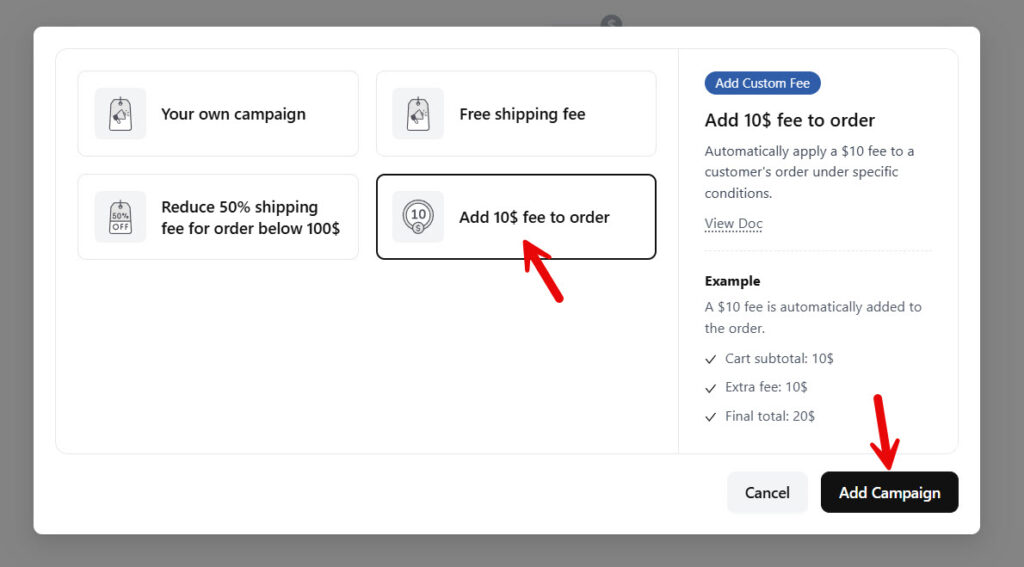
You will now be redirected to the campaign builder.
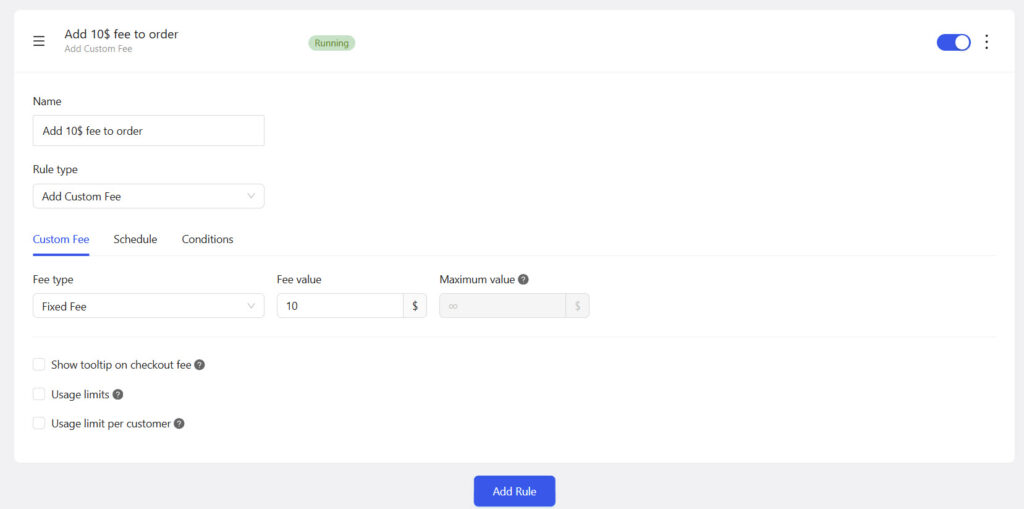
You can choose a campaign name. We will pick something like “Handling Fee”. The rule type should remain as “Add Custom Fee”. Now, under custom fee, choose whether it is a fixed fee or percentage-based fee.
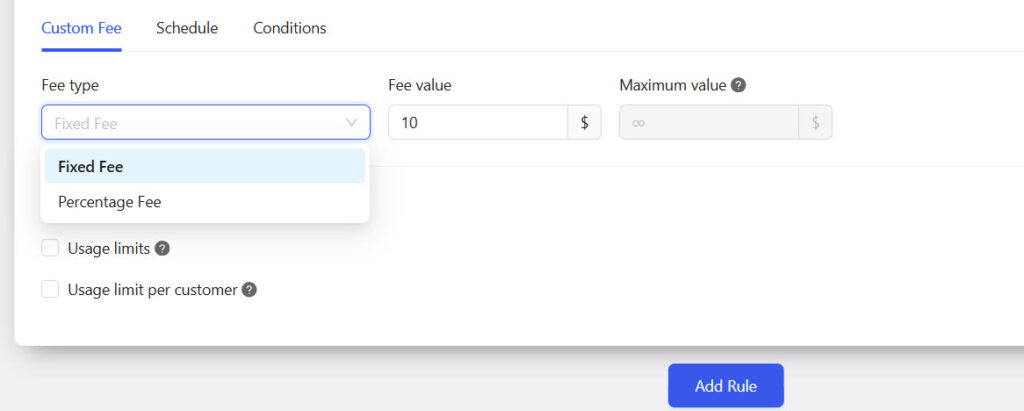
We will stick with the fixed fee. And the next thing you need to do is choose how much you need to charge. For this tutorial, we will add a $6.99 handling fee. So update the fee value accordingly.
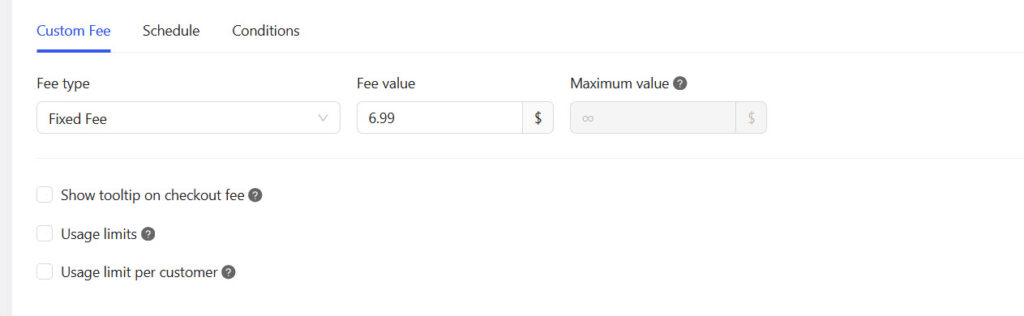
You can also see further options, such as displaying a tooltip at checkout and setting usage limits per customer. Next, we will move to the schedule tab to specify when the handling fee should be applied.
Enable the schedule option and choose the start and end dates.
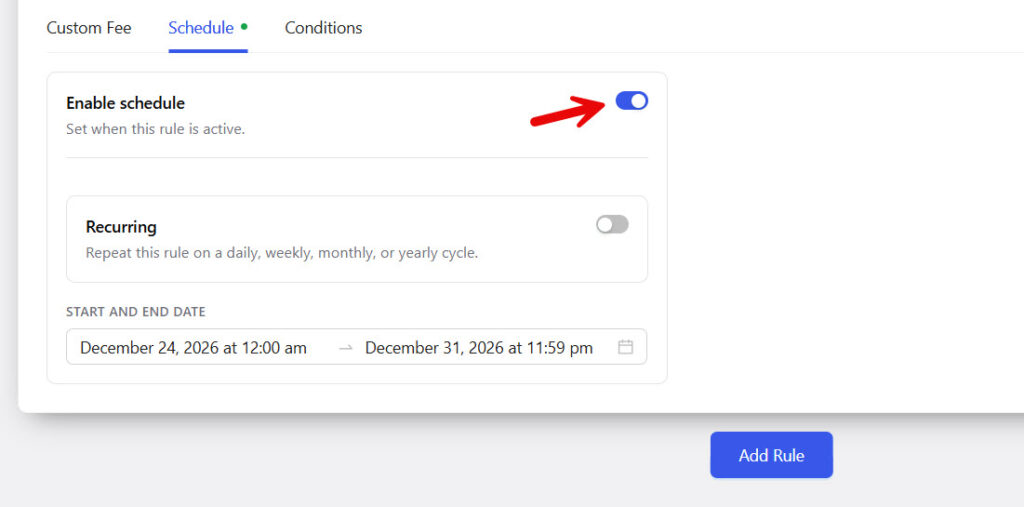
Here, we will be choosing the whole week. The next thing you need to do is decide whether we are going to apply this to the whole store or to specific products/categories. If you are applying the handling fee to the whole store, save the campaign, and you are done. On the other hand, if you are applying this to specific categories or products, it is time to use the conditional logic feature available in YayPricing.
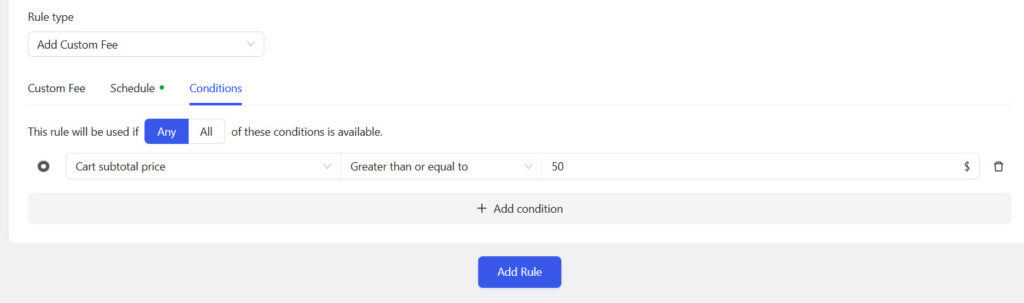
Here, we will choose a condition in which a cart contains more than $50 in products; the handling fee will be applied. So, add a condition.
Here, we will be only choosing a condition where a cart contains products more than $50, the handling fee will be applied.
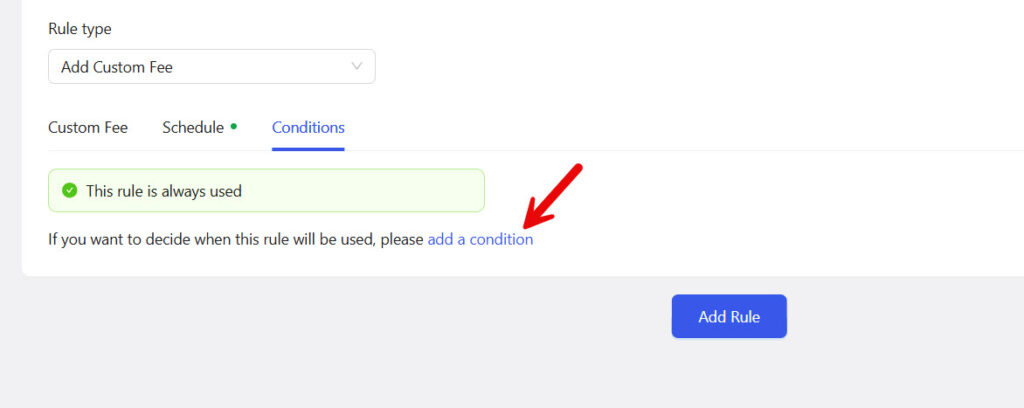
Now choose the condition and configure it.
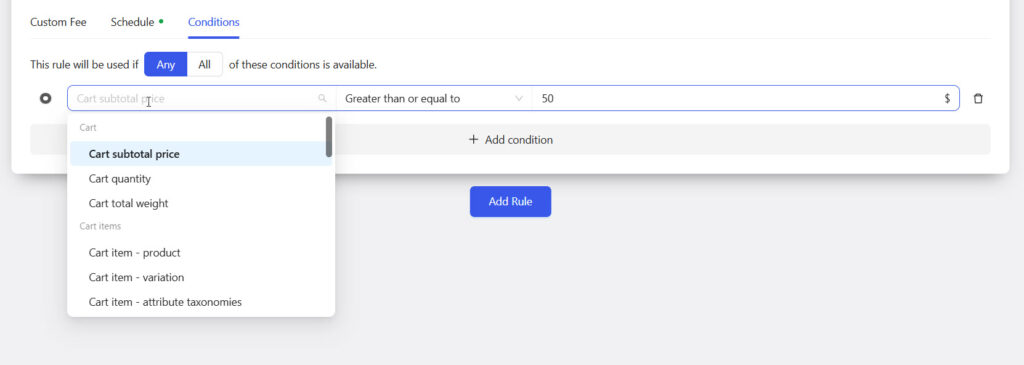
If you plan to add any other conditions, select one from the dropdown and configure it.
Once you are done, save the changes.
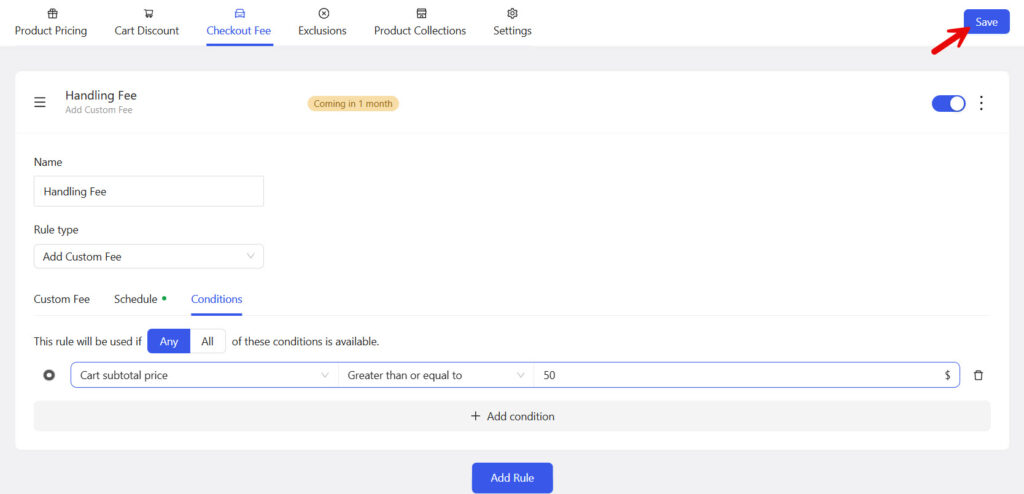
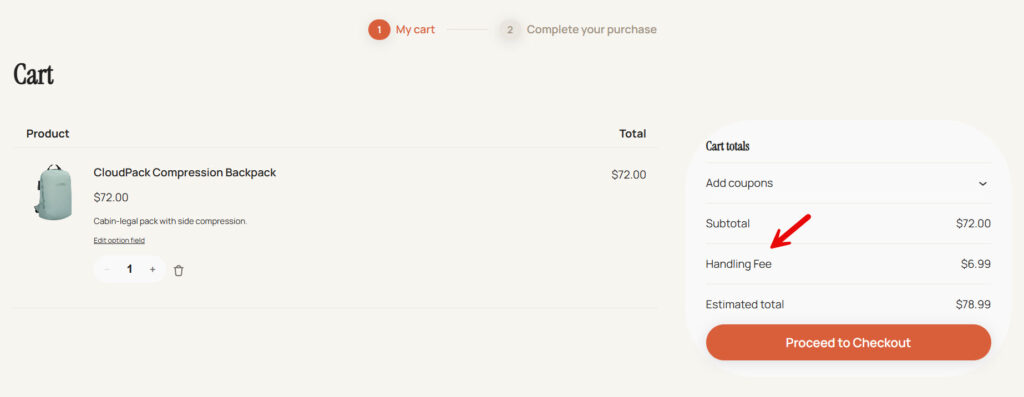
Here, we will turn off scheduling for now to test it. Add any product to your cart that suits the conditions you mentioned. On the cart page, you can see the handling fee.
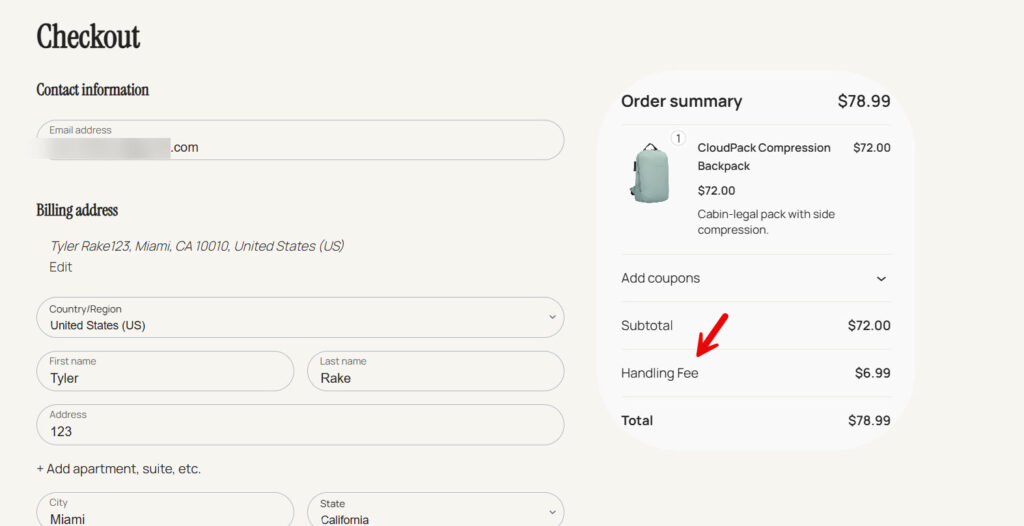
You can also move to the checkout page and see the same fee there.
That’s it!
This is how you can add a handling fee to Christmas orders using YayPricing. As you can see in this tutorial, it is a pretty easy, straightforward method.
Best Practices for Christmas Handling Fees
Clear and fair handling fees work better than hidden costs during the Christmas rush. Customers are more likely to accept the fee when they understand what it covers and when it applies. Following a few simple practices keeps the experience smooth and protects your margins.
- Label the fee clearly in the cart and checkout so customers know what they are paying for. Use a name like “Christmas Handling Fee” instead of a vague term that leaves people guessing.
- Keep the amount reasonable compared to the order value. A small fixed fee or a low percentage feels fairer than a large charge that makes the total jump unexpectedly.
- Limit the fee to a specific date range, so it appears only during the holiday period. This avoids charging customers extra in January and keeps the rule easy to manage.
- Test the fee on different product types and cart sizes before you go live. Make sure it calculates correctly and shows up in a clear place on both desktop and mobile.
- Combine it carefully with other discounts or free shipping offers. Check that the handling fee still appears as expected when coupons or promotions are applied.
- Mention the fee on your product pages or in a short notice if many of your orders are gifts. A quick heads-up reduces surprise at checkout and can lower support questions.
Common Mistakes to Avoid
Most issues with Christmas handling fees stem from overlapping rules or fees that surprise customers at checkout. A few common mistakes can lead to confusion, incorrect totals, or extra support tickets during the busy season. Checking your setup against these points before you go live helps the fee work smoothly.
- Forgetting to set a clear date range is a common problem. The fee stays active after Christmas and starts charging customers in January when they no longer expect it.
- Using a vague fee name like “Extra Charge” or “Processing” leaves customers guessing. A clear label such as “Christmas Handling Fee” reduces questions and makes the total easier to accept.
- Creating multiple overlapping rules can cause the fee to appear twice or calculate incorrectly. Keep one main rule for the holiday period and turn off any older seasonal rules that might still be active.
- Setting the fee too high compared to the order value often leads to abandoned carts. A small fixed amount or a low percentage usually works better than a large charge that dramatically changes the total.
- Not testing the fee with coupons, free shipping, or different product types can hide calculation problems. Always place a test order that includes a discount to confirm the fee still shows correctly.
- Leaving the fee active on products that do not need extra handling creates unnecessary charges. Limit the rule to gift items or seasonal categories if the rest of your catalog does not require the same packaging.
Here are some similar posts you should check out:
- How to Add Sale Badges and Custom Product Labels in WooCommerce
- How to Add a Handling Fee to Christmas Orders with YayPricing
- 7 Best WooCommerce License Manager Plugins in 2027
- Cross-Sells vs Upsells vs Order Bumps: Best Practices and More
- Photo & Video Reviews in WooCommerce: Why They Convert Better Than Text
Frequently Asked Questions
Now, let’s take a look at some frequently asked questions and their answers.
Create a new pricing rule in YayPricing and add a date condition that covers your holiday period. The fee will only show in the cart between the start and end dates you set. Once the end date passes, the fee stops automatically.
Yes, you can limit the rule to specific products, categories, or tags so it runs only on gift items or seasonal products. The rest of your catalog stays free from the extra charge. This works well if only some products need special packaging.
YayPricing adds the fee as a separate line item so customers see the amount before they pay. You can also change the fee name to something clear like “Christmas Handling Fee”. This keeps the total transparent and reduces support questions.
Both options are available inside the rule settings. A fixed amount works well for most stores, while a percentage fee grows with larger orders. You can switch between them at any time if your needs change.
Yes, the fee still applies when customers use a coupon or free shipping offer. Place a test order with a discount to confirm that the total calculates as you expect. This helps you catch any conflicts before real customers place orders.
Set an end date on the rule or simply deactivate it once Christmas orders slow down. The fee disappears from the cart as soon as the condition is no longer met. You can turn it back on next year with the same rule.
Yes, you can create separate rules for different product groups if some items need more packaging than others. Just make sure the rules do not overlap on the same products. Overlapping rules can cause the fee to appear twice.
The fee is included in the order total and shows in the order details that WooCommerce sends to the customer. Check a test order email to see exactly how it looks. This helps you confirm the customer receives a clear breakdown.
You can use user role or logged-in conditions if you only want the fee on guest or retail orders. Most stores simply apply it to everyone during the holiday period. Role-based rules are useful if you have wholesale customers who should not pay the fee.
Check that the rule is active, the date condition is correct, and the products in the cart match the rule settings. Clear any cache and place a fresh test order to confirm. If it still does not show, review the rule priority to see if another rule is overriding it.
Conclusion
Adding a handling fee to Christmas orders is a simple way to cover extra packaging, labor, and shipping costs without raising your regular product prices. YayPricing lets you create a clear rule that runs only during the holiday period and appears as a separate line in the cart.
Customers see exactly what they are paying for, and you can adjust the amount or date range whenever you need. Set the fee up before the busy season starts so you are ready when orders increase.
A well-labeled, reasonably priced handling fee keeps the checkout experience smooth while protecting your margins during peak periods. If you are just starting out, check out YayPricing Lite.
What else would you do to boost your conversions and revenue?
Let us know in the comments.
