If you have ever managed a WooCommerce store with multiple product types enabled, you already know how quickly things can become overwhelming.
Variable products, grouped products, and external products – each adds layers of settings, tabs, and options that are often unnecessary for many stores. As someone who has worked with WooCommerce stores of all sizes, I’ve seen this problem countless times. Store owners don’t need more features, they need clarity.
The good news is that WooCommerce can be intentionally simplified. By restricting your store to simple products only, you can create a cleaner backend, improve accuracy, and dramatically speed up daily product management.
This article walks you through a practical, step-by-step process, shows you how to allow only simple products in WooCommerce, and provides a much more enjoyable product-management experience, even if you’re not tech-savvy, using safe code snippets to tailor WooCommerce specifically for simple products.
Why You Should Limit WooCommerce to Simple Products Only?
Before touching any code, it’s essential to understand the strategic benefit of this approach. You have to define your goals and understand your target audience.
A Cleaner Product Editing Experience
When your store does not use variations or bundled products, those options become visual noise. Removing them helps you and your team focus only on what matters.
This leads to:
- Fewer mistakes during product creation, add extra options, or create dynamic pricing rules.
- Faster onboarding for new staff
- A more intuitive editing interface
Faster and More Consistent Workflows
Without multiple product types to choose from, every product follows the same structure, such as Product name → Price → Publish. This consistency improves efficiency and ensures that tons of your products are published correctly every time, with no dropdowns to think about.
Ideal for Small Teams and Non-Technical Users
If your store is run by a small team or by team members without technical backgrounds, simplifying WooCommerce can really help reduce confusion and support requests. By removing unused product types, you can completely eliminate this risk, making everything easier and smoother for everyone involved.
Before You Begin: Where to Add These Snippets to Restrict Product Types
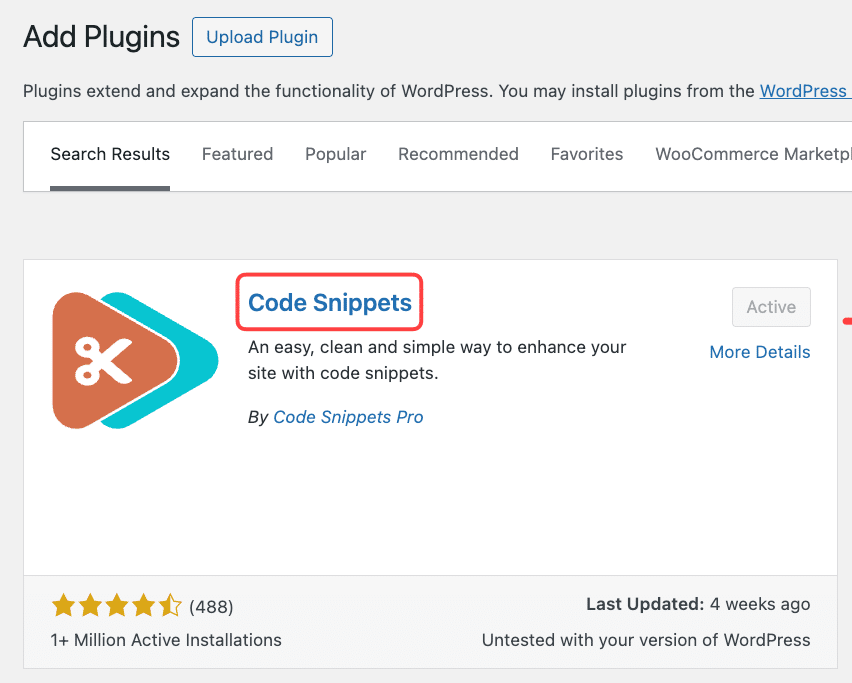
We want this guide to be practical for non-technical users, so we will introduce the simplest way to add these snippets to WordPress sites. Thus, we will use the Code Snippets plugin – safer for beginners.
Just install and activate this plugin, and you can add any PHP snippets to the WooCommerce website with ease.
How to Allow Only Simple Products in WooCommerce?
Now, let’s explore 2 practical methods to restrict WooCommerce to simple products only, using safe PHP snippets. These methods will help you create a focused, efficient product workflow without touching core files.
Method 1: Remove All Product Types Except “Simple Product”
This method is the best choice if you want to fully prevent mistakes. By default, WooCommerce lets you choose between several product types from the dropdown list. If your store never uses them, it makes sense to remove those options completely.
Here’s the snippets:
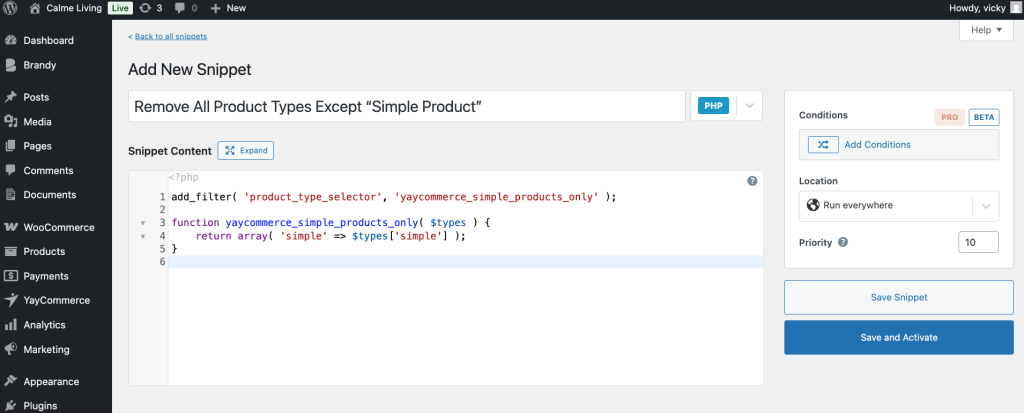
add_filter( 'product_type_selector', 'yaycommerce_simple_products_only' );

function yaycommerce_simple_products_only( $types ) {
    return array( 'simple' => $types['simple'] );
}
Add this snippet and make it work on your WordPress site with the Code Snippets plugin.
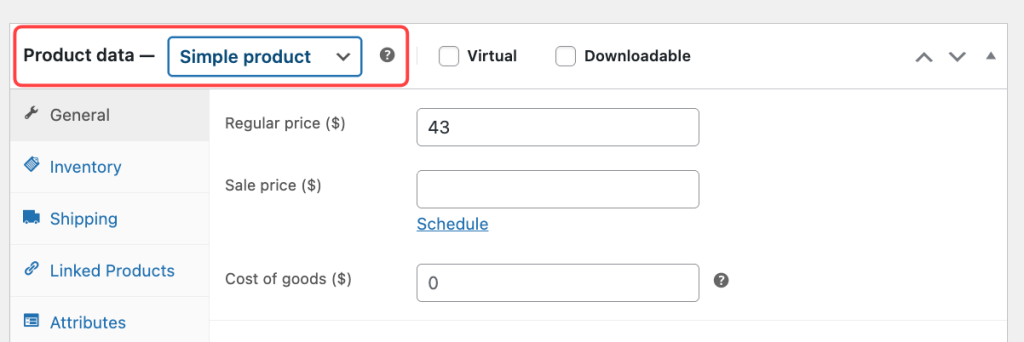
Once you’re done, the product type dropdown will now only display Simple products. If your WooCommerce store has previously had Variable or Grouped products, just be sure to resave them so they switch over to Simple.
This is a great option if multiple people add products to your store.
Method 2: Hide the Product Type Selector Completely
This method is the best choice if every product is always simple. If you want an even cleaner interface, you can hide the product type selector altogether. WooCommerce will still use simple products, but users won’t see the option at all.
Here’s the snippets:
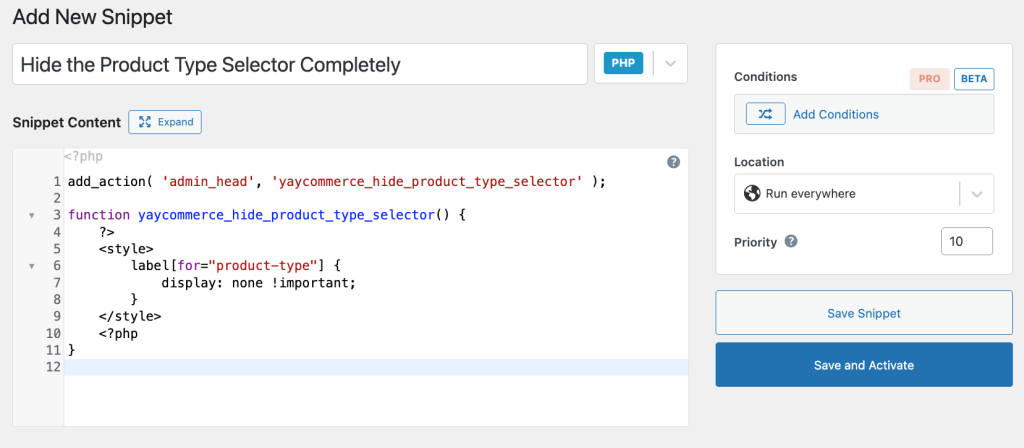
add_action( 'admin_head', 'yaycommerce_hide_product_type_selector' );

function yaycommerce_hide_product_type_selector() {
    ?>
    <style>
        label[for="product-type"] {
            display: none !important;
        }
    </style>
    <?php
}
Similarly, insert this PHP snippet into the Code Snippet plugin and activate it.
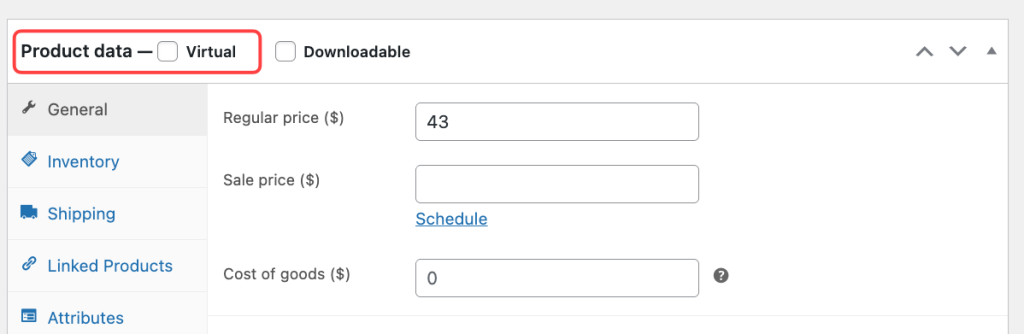
Let’s see how it works! Now, on the product dashboard, the product type selector is no longer visible; all products default to a simple product, and the UI becomes much cleaner and less intimidating.
Frequently Asked Questions
No worries. Existing products will stay exactly the same. These snippets mainly affect the product editor and new products.
Yes. You just simply deactivate the snippet on the Code Snippet plugin, and WooCommerce will restore all product types automatically.
Yes. These snippets use WooCommerce hooks and do not modify core files, so updates won’t overwrite them.
For more online store tips, see our other WooCommerce guides:
- How to Programmatically Mark Products as Featured
- How to Add Attachments to WooCommerce Order Email Invoice
- How to Improve Speed Index in WooCommerce
- How to Fix Cumulative Layout Shift in WooCommerce
If you enjoyed this tutorial and want to keep learning, come hang out with us on YayCommerce’s social channels: YouTube, Facebook! We regularly share bite-sized WooCommerce tips, plugin updates, real store examples, and smart ideas to help you sell more with less effort. It’s a great place to pick up extra tricks, stay in the loop with new features, and connect with other store owners using our products.
Final Thoughts
WooCommerce is designed to support many business models, but not every store needs every feature.
When your business sells simple products only, keeping variable, grouped, and external product options around adds unnecessary complexity. These extra features don’t increase value; instead, they create friction, slow down your workflow, and make product management harder than it needs to be.
By restricting WooCommerce to simple products, you are intentionally designing your store around your real business needs. The backend becomes cleaner. Product creation becomes faster. And most importantly, the risk of human error drops significantly, especially when multiple people are involved in managing products.
Just leverage the plugin, copy-paste simple snippets, and we can make WooCommerce more welcoming for non-technical users. Whether you’re training a new team member, outsourcing product uploads, or managing everything yourself, a simplified environment builds confidence and consistency.
A focused store is easier to maintain, easier to scale, and easier to adapt as your business grows. And if your product strategy changes in the future, WooCommerce’s flexibility means you can always re-enable advanced features later.