
Do you want to add a buy now button in WooCommerce? If you are looking for a simple guide, read on.
Adding a Buy Now button in WooCommerce streamlines the purchase process by directing customers to the checkout page instead of the cart.
This reduces unnecessary steps in the buying journey and minimizes cart abandonment, especially for single-product purchases or quick-buy scenarios.
A Buy Now button also improves conversion by allowing shoppers to complete their order faster, which is particularly effective for mobile users and impulse purchases.
For WooCommerce store owners looking to boost sales, improve the user experience, and streamline checkout, adding a Buy Now button can be a simple yet highly effective optimization.
That is why, in this article, we will show you how to add a buy now button in WooCommerce with minimal effort.
First, we will see why you should do it.
Table of contents
Why You Should Add a Buy Now Button in WooCommerce
Adding a Buy Now button in WooCommerce is an effective way to simplify the purchase flow, reduce cart abandonment, and improve overall conversion by sending customers directly to checkout.
- A Buy Now button lets customers skip the cart page and proceed to direct checkout, streamlining the process and reducing cart abandonment.
- Adding a Buy Now button to the product page enhances the shopping experience for users who prefer a quick purchase option over the default Add to Cart button.
- A Buy Now button for WooCommerce is valid for single-product purchases, impulse buys, and landing pages where speed matters.
- Store owners can add a Buy Now button using a plugin, code snippets, or, for simpler setups, WooCommerce without a plugin, depending on customization needs.
- Placing the button next to the add-to-cart button on the shop and product pages helps boost sales by giving customers multiple ways to complete a purchase.
- Customizing the button text, style, and behavior lets you align the Buy Now button with your WooCommerce store branding and checkout flow.
- A quick Buy Now button reduces friction in the ecommerce purchase process and increases conversions by directing customers directly to checkout.
- Adding a Buy Now button in WordPress and WooCommerce gives store owners more control over how customers buy products and complete orders.
If you want, we can move on next to methods for adding a Buy Now button in WooCommerce, starting with a button in WooCommerce without a plugin, then with a plugin.
How to Add a Buy Now Button in WooCommerce
Now, let’s see how to add a buy now button in WooCommerce without plugin. If you check your WooCommerce store, you will only see the Add to Cart button.
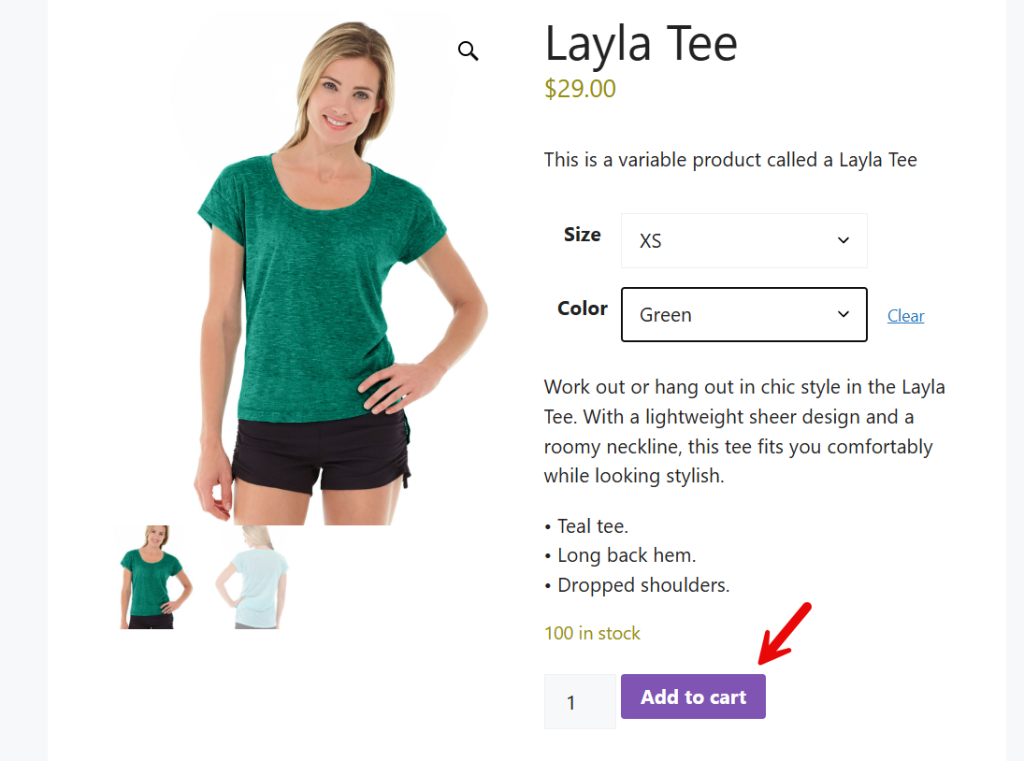
On the other hand, if you check another website, such as Amazon, you can see the “Buy Now” button, which skips a few steps when you need to buy something.

Let’s see how we can do the same in WooCommerce. Since we are not using a plugin, we need to use a small snippet for this task.
The snippet we are going to use is:
add_action( 'woocommerce_after_add_to_cart_button', 'yaycommerce_buy_now_button', 1 );
function yaycommerce_buy_now_button() {
global $product;
$checkout_url = wc_get_checkout_url();
$product_id = $product->get_id();
$buy_now_url = esc_url( add_query_arg(
array(
'products' => $product_id . ':' . 1,
),
'/checkout-link/'
) );
echo ' — OR — <a href="' . $buy_now_url . '" class="single_add_to_cart_button button buy_now_button" data-product-id="' . $product_id . '">Buy Now</a>';
wc_enqueue_js( "
function updateBuyNowURL() {
var qty = $('form.cart').find('input.qty').val() || 1;
var productId = $('a.buy_now_button').data('product-id');
var variationId = $('form.cart').find('input[name=\"variation_id\"]').val();
if (variationId && variationId !== '0') {
productId = variationId;
}
var newUrl = '/checkout-link/?products=' + productId + ':' + qty;
$('.buy_now_button').attr('href', newUrl);
}
// Quantity change
$(document).on('change input', 'form.cart input.qty', updateBuyNowURL);
// Variation change
$('form.cart').on('show_variation hide_variation', updateBuyNowURL);
// Initialize once on load
updateBuyNowURL();
" );
}We need to add it to the child theme’s functions.php file or to a site-specific plugin such as Code Snippets. You can choose a method that suits you. In this case, we will use the Code Snippets method.
First, install and activate the plugin on your website. If you are already using it, skip this step.
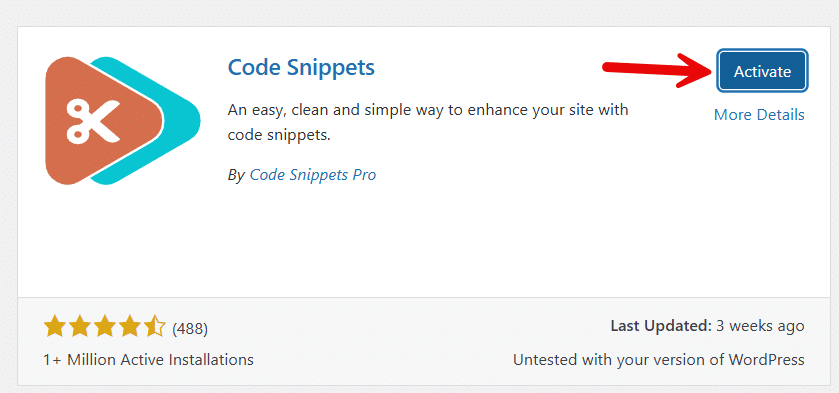
After activation, you need to add a new snippet.
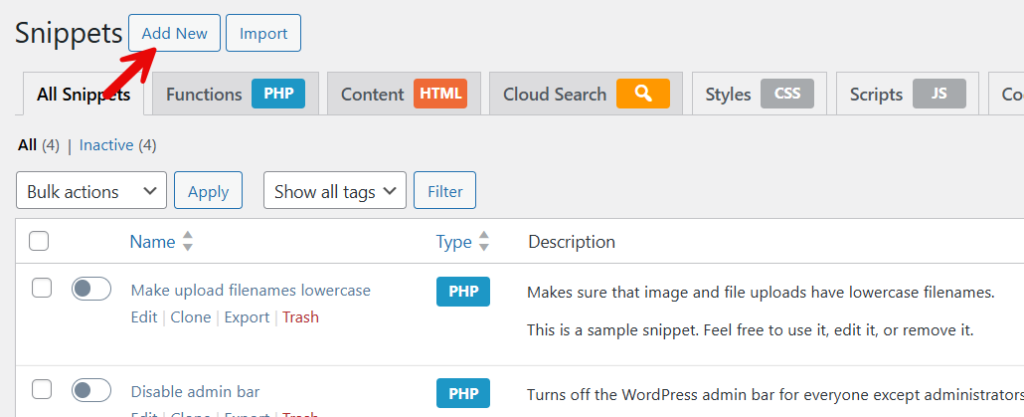
Next, you can name the snippet, paste the code, and activate it.

You should check the product from the front end. You will see the buy now button there.
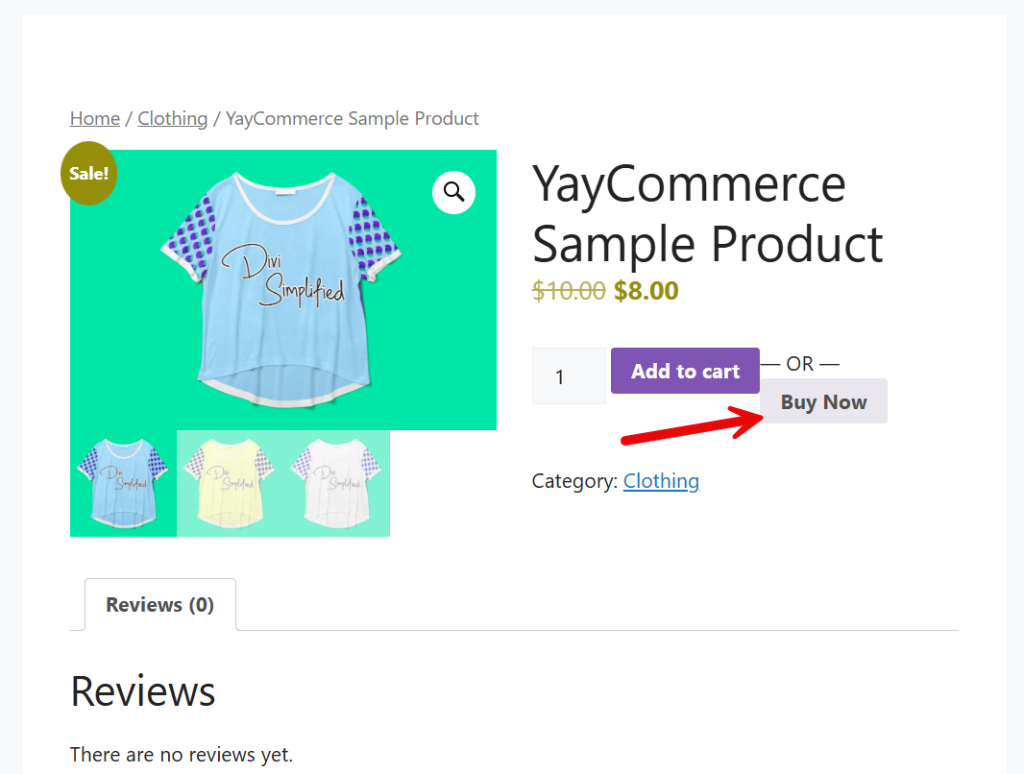
When they click it, they will be redirected directly to the checkout page.

This way, the customer can skip the cart page, and you can improve the chance of conversion.
That’s it!
This is how you can add a buy now button in WooCommerce.
Common Mistakes to Avoid
When adding a Buy Now button in WooCommerce, small implementation mistakes can negatively impact usability, conversions, and the overall shopping experience.
Avoiding the following issues will help ensure your Buy Now button works as intended and supports a smooth checkout process.
- Adding the Buy Now button without clearly differentiating it from the Add to Cart button can confuse customers on the product page.
- Redirecting users directly to checkout for every product without considering scenarios where customers want to purchase multiple items.
- Placing the Buy Now button in inconsistent locations across the shop and product pages disrupts user expectations.
- Using the Buy Now button, WooCommerce code, or plugins that are not compatible with your theme or WooCommerce version.
- Skipping mobile testing leads to layout issues or broken direct checkout flows on smaller screens.
- Failing to customize the WooCommerce Buy Now button text makes the action unclear or less compelling.
- Ignoring analytics and cart-abandonment data after adding the Buy Now button prevents effective optimization.
Best Practices to Follow While Adding a Buy Now Button
Adding a Buy Now button in WooCommerce can significantly improve the checkout process when it is implemented correctly. A well-placed Buy Now button helps customers skip unnecessary steps, move directly to checkout, and complete purchases faster.
To get the best results, carefully plan how you add a Buy Now button. Hence, it complements the existing add-to-cart flow, works smoothly across your WooCommerce product pages, and supports higher conversion rates without confusing shoppers.
- Add the Buy Now button in WooCommerce only on relevant product pages, so customers clearly understand the difference between the Add to Cart button and the Quick Buy option.
- Place the Buy Now button next to the Add to Cart button on the product page to streamline checkout and reduce friction.
- Customize the WooCommerce Buy Now button text and design to match your store branding and make the action clear for users.
- Test the Buy Now button on shop and product pages to ensure it redirects customers directly to checkout without breaking the cart flow.
- Use a plugin or Buy Now button WooCommerce code that is compatible with your theme and does not affect other WooCommerce buy features.
- Monitor cart abandonment rates and post-addition conversions to confirm the Buy Now button improves performance.
- Avoid requiring all customers to use direct checkout, as some may prefer to add multiple WooCommerce products to their cart before purchasing.
Frequently Asked Questions
Now, let’s take a look at some of the frequently asked questions regarding the topic.
A Buy Now button in WooCommerce lets customers purchase immediately, skipping the cart and moving directly to checkout. Instead of relying solely on the add-to-cart button, this option streamlines the purchase flow and helps reduce cart abandonment rates in an online store.
Yes, you can add a Buy Now button in WooCommerce without a plugin by using code snippets in the theme file editor. This method lets you create a custom buy button that redirects customers directly to checkout, but it requires basic knowledge of WordPress and WooCommerce settings.
Using a plugin is often the easiest way to add a Buy Now button to your store. A plugin allows you to easily add, activate, and customize the button from the WordPress dashboard without editing code, making it ideal for most WooCommerce store owners.
The Buy Now button works best on the product page, shop page, or both. Adding the button near the add-to-cart button on the product page improves visibility, while placing it on the shop and product pages helps boost sales and streamline the checkout process.
Yes, you can customize the button text, style, and behavior to match your WooCommerce store design. Customization options may include changing the button label, styling the button, or setting it to redirect to a specific checkout or sales page.
Adding a Buy Now button does not remove the default Add to Cart button unless you change it. Both buttons can work together, giving customers the option to add products to the cart or buy immediately using direct checkout.
Yes, adding a Buy Now button can increase conversions by reducing checkout friction. Sending customers directly to checkout and simplifying the buying journey helps improve the overall shopping experience and supports higher conversion rates in a WooCommerce shop.
Conclusion
Adding a Buy Now button in WooCommerce is an effective way to streamline the checkout process and improve conversions in your ecommerce store.
By allowing customers to skip the cart and proceed directly to checkout, you reduce unnecessary steps that often lead to cart abandonment.
You can add a Buy Now button using plugins or code snippets, depending on the level of control and customization you need. From placing the Buy Now button on a single product page to displaying it on the shop and product pages, each option offers flexibility to suit different store goals.
Once you learn how to add and activate the Buy Now button, it becomes easier to guide shoppers to complete purchases more quickly. Overall, adding the Buy Now button creates a smoother buying experience and improves performance across your WooCommerce shop.
