
Do you want to add custom fees to WooCommerce payment gateways? If you are looking for a simple guide, keep reading. Here, we are going to show you the step-by-step guide on adding extra fees based on payment gateways.
Adding custom fees to specific payment methods is a common requirement for many WooCommerce stores. Some store owners want to apply extra charges for certain payment gateways to cover transaction costs or processing fees.
By strategically adding these fees, you can manage payment expenses while maintaining a smooth checkout experience for customers.
WooCommerce allows store owners to extend its default functionality and customize how payment gateways behave during checkout. With the help of plugins like YayPricing, you can easily create custom fees based on the selected payment method without writing complex code.
This makes it easier to control pricing rules and apply gateway-specific charges automatically. In this guide, you will learn how to add custom fees to WooCommerce payment gateways and configure them properly for your store.
First, let’s see why you should add custom fees to WooCommerce payment gateways.
Why You Should Add Custom Fees to WooCommerce Payment Gateways
Adding custom fees to WooCommerce payment gateways can help store owners manage transaction costs and maintain better control over pricing at checkout.
- Cover additional processing charges that certain payment gateways apply to each transaction.
- Encourage customers to choose lower-fee payment methods by adjusting pricing at checkout.
- Maintain stable profit margins by passing a small portion of gateway costs to the customer.
- Customize checkout pricing rules in your WooCommerce store without modifying core functionality.
- Improve overall payment management by applying flexible fee rules based on the selected payment gateway.
How to Add Custom Fees to WooCommerce Payment Gateways
Now, let’s move on to the tutorial. We will be using the YayPricing premium version for this configuration. Once you have activated the plugin, you can see its configuration options on the left-hand side.

In the top bar, you can see options like
- Product pricing
- Cart discount
- Checkout fee
- Exclusions
- Product collections
- Settings
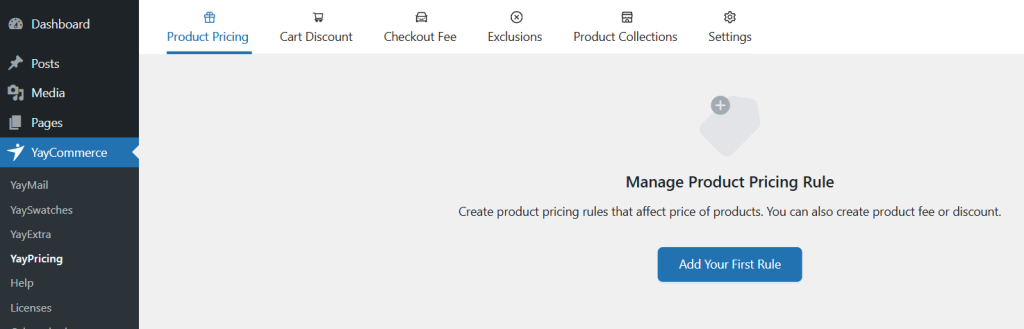
To add fees to specific WooCommerce payment gateways, we will be using the product pricing rule. So, create a new blank campaign under the product pricing rule.

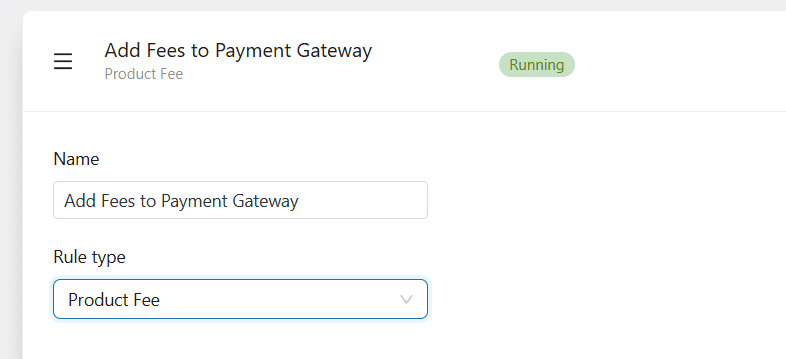
Next, you need to name your campaign. Also, you need to choose the product fee as the rule type.
Next, you have to choose the fee amount.
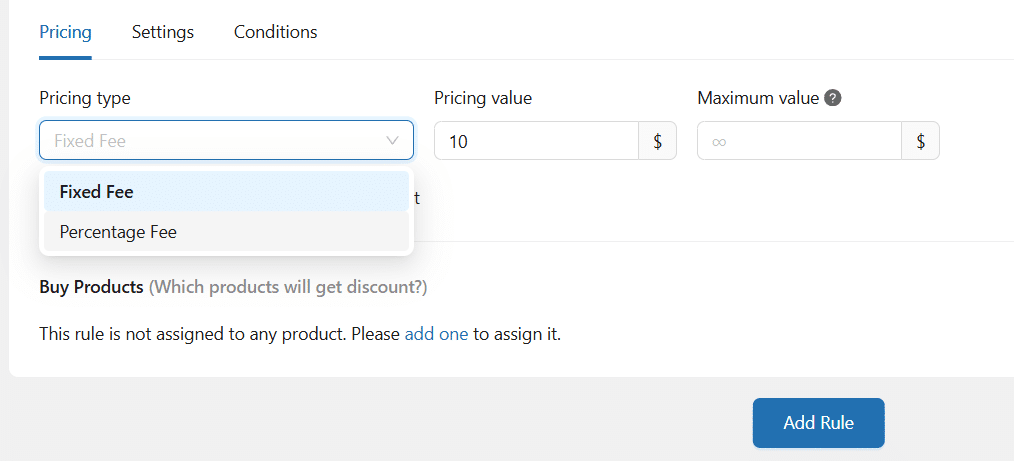
You can either choose a flat fee or a percentage-based fee. If you choose the percentage-based fee, you can set a max cap on the fee, too. In this case, we will use a fixed fee of $10.
Your next option is to add the products to this rule.
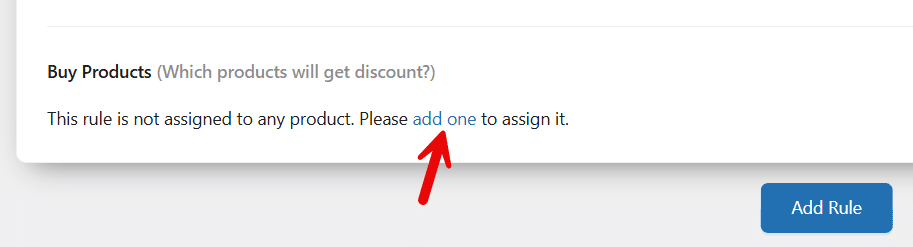
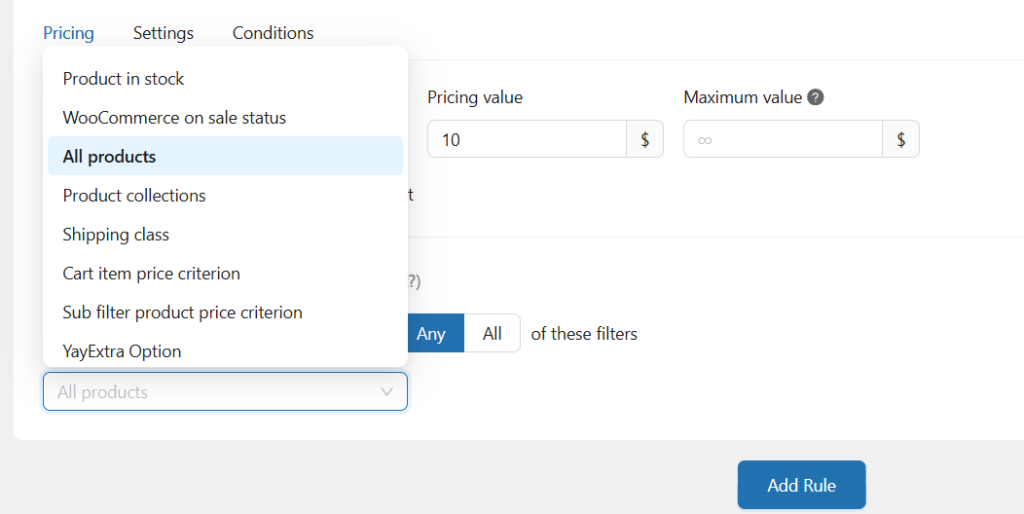
You can choose products based on multiple filters. Here, we will use all products.
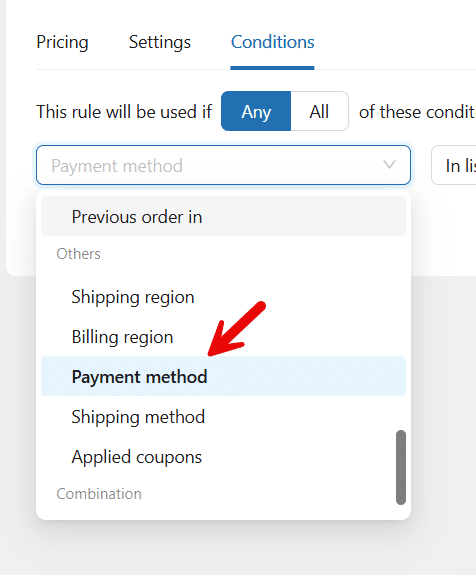
Now the fee is set. The next step is to apply these fees only when a customer uses a specific payment method. To do this, go to the conditions section and add a new condition.

From the dropdown, choose the payment method condition.
Next, add the payment methods you need to include in this campaign to the box. In this case, we will add check payments.
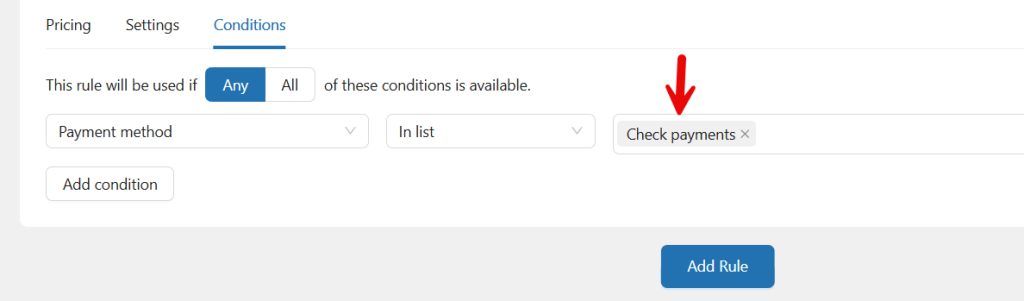
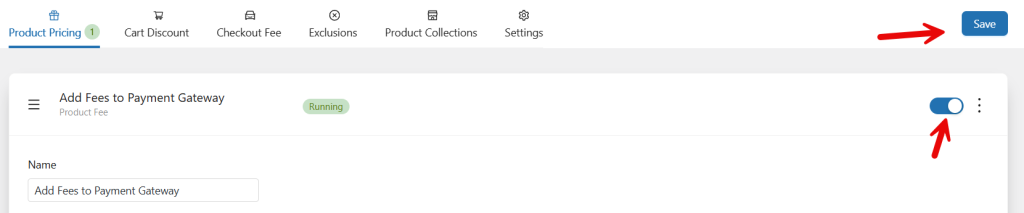
After adding it, save and activate the rule.
Now it is time to test the configuration. Go to your store, add one product to the cart. As you can see, the product’s price is $69.99.
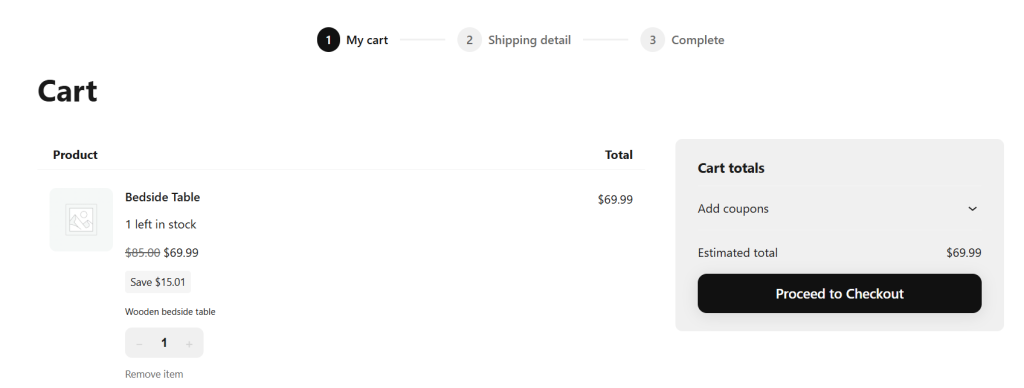
So when you use any payment gateway other than checks, you won’t be charged extra.

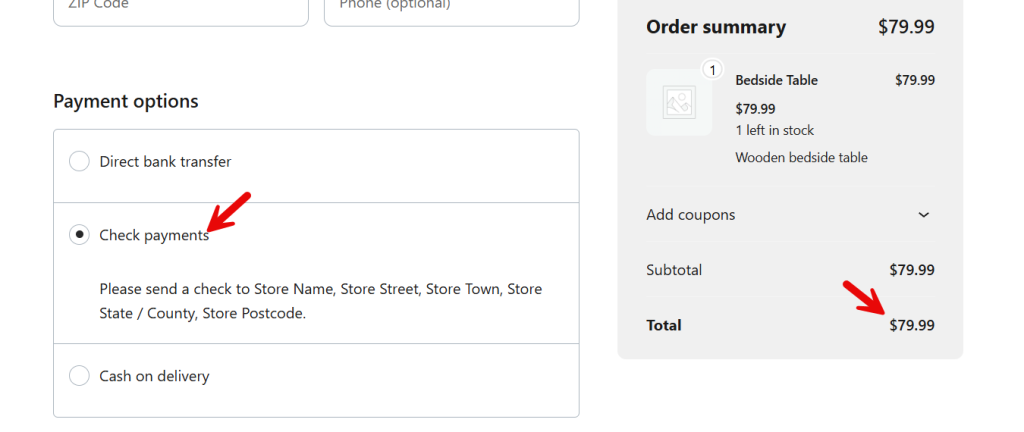
Now if you switch to the check payment method, the extra $10 would be added to the total.
That’s it! This is how you can add custom fees to your WooCommerce payment gateways.
Here are some other articles you might find interesting:
- Cross-Sells vs Upsells vs Order Bumps: Best Practices and More
- Photo & Video Reviews in WooCommerce: Why They Convert Better Than Text
- 7 WooCommerce Discount Strategies That Actually Increase Average Order Value
- How to Get More (and Better) Product Reviews on Your WooCommerce Store
- How to Add a Request a Quote Button to Your WooCommerce Store
Frequently Asked Questions
Now, let’s take a look at some frequently asked questions and answers about this topic.
Yes, WooCommerce allows store owners to add extra fees based on the selected payment gateway. This is usually done by modifying checkout behavior using custom code or a plugin. When a customer selects a payment method during checkout, the system can automatically apply an additional fee to the order total.
The easiest way is to use a pricing or rule-based plugin that supports checkout conditions. For example, a tool like YayPricing allows store owners to create rules that apply additional charges when a specific payment gateway is selected. This approach avoids editing theme files or writing PHP code.
Yes, it is possible to add custom fees without coding. Several WooCommerce plugins provide rule-based pricing options that let you apply fees at checkout. These tools allow store owners to configure payment gateway settings through a visual interface, making setup much easier.
If implemented correctly, payment gateway fees should not negatively affect the checkout experience. Customers simply see the additional fee reflected in the order summary after choosing a payment method. Clear pricing helps maintain transparency during checkout.
Yes, WooCommerce stores can apply different fees for each payment gateway. For example, you may add a fee for credit card payments but not for bank transfers. Using rule-based pricing tools such as YayPricing makes it easier to manage these gateway-specific fee conditions.
Yes, store owners can configure both fixed amount fees and percentage-based fees. This flexibility allows you to match the structure used by many payment processors that charge a percentage plus a fixed transaction cost.
Some payment gateways charge higher processing fees, especially for credit cards or international transactions. Adding custom gateway fees helps store owners offset those costs and maintain consistent profit margins across different payment options.
Conclusion
Adding custom fees to WooCommerce payment gateways is a practical way to manage transaction costs and maintain better control over your store’s pricing strategy.
Instead of absorbing every processing charge, store owners can apply small fees based on the selected payment method during checkout. This approach keeps pricing transparent while helping protect profit margins.
WooCommerce provides flexible customization options, and with the right tools, implementing payment gateway based fees becomes much easier. Plugins such as YayPricing allow you to create rule-based pricing conditions without modifying code.
By configuring these rules correctly, you can automate how fees are applied and ensure the checkout process remains smooth for customers while your store handles payment costs more efficiently.
Which other condition would you configure?
Let us know in the comments.

