
Ever noticed how shoppers often gravitate toward the “most popular” or “best-selling” products when browsing online stores? It’s not just a coincidence. Seeing what others are buying creates instant trust and nudges new customers toward making a purchase. That’s the power of best seller recommendations.
For WooCommerce store owners, adding this type of recommendation is one of the simplest yet most effective ways to boost conversions. Instead of letting visitors scroll endlessly or second-guess their choices, you can highlight products that are already proven winners. This not only improves the shopping experience but also increases your chances of higher sales.
In this guide, we’ll walk through what best seller recommendations are, why they work so well in eCommerce, and how you can easily set them up in your WooCommerce store using plugins.
Table of contents
What Are Best Seller Recommendations?
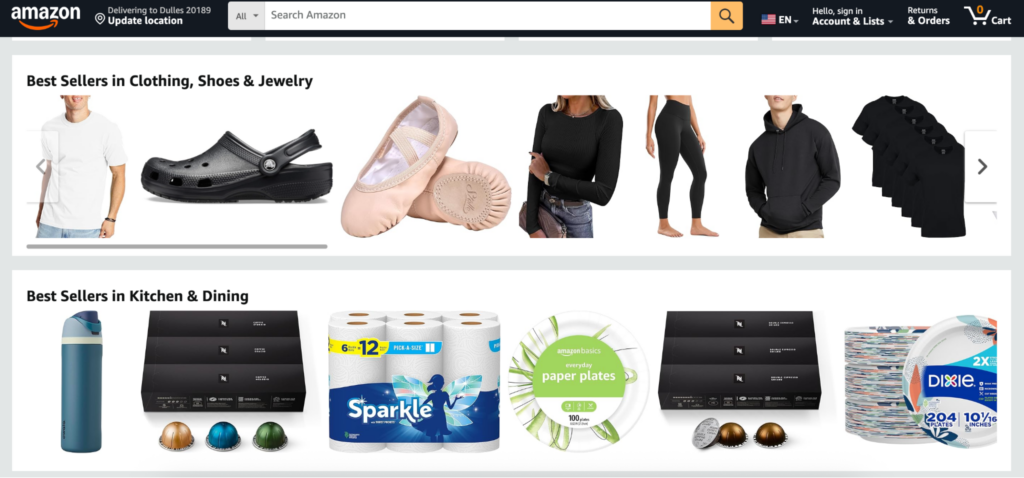
Best seller recommendations are product suggestions that highlight the items selling the most in your store. They act as social proof, showing customers what others are already buying and enjoying. When shoppers see that a product is popular, it instantly builds trust and reduces hesitation because people naturally assume that if many others purchased it, it must be worth considering.
These recommendations usually appear in sections like “Best Sellers” or “Trending Products” on eCommerce websites. Big players like Amazon and Etsy rely heavily on them because they guide customers toward products that are more likely to convert. The same principle applies to WooCommerce stores of any size. By showcasing your top-performing products, you help new visitors discover them quickly without needing to dig through multiple categories.
For store owners, best seller recommendations serve a dual purpose. They not only push high-converting products into the spotlight but also create a sense of urgency and confidence for buyers. Instead of feeling overwhelmed with too many options, shoppers are gently steered toward items that have already been validated by other customers. It’s a simple strategy that combines psychology with smart merchandising to improve both the user experience and your bottom line.
Why Add Best Seller Recommendations in WooCommerce?
Build Instant Trust Through Social Proof
Shoppers often look for signs that a product is worth buying, and nothing does that better than showing what others have already purchased. Highlighting best sellers adds a layer of social proof that reduces hesitation and makes customers feel more confident about their choices.
Improve Product Discovery
Not every visitor knows exactly what they want when they land on your store. A best seller section guides them toward products that are already popular, saving time and making the browsing experience smoother. This also helps new customers quickly find items that are more likely to meet their needs.
Encourage More Conversions
Featuring your top-selling products increases the likelihood of impulse buys. When customers see popular items while browsing, adding to cart, or checking out, they’re more likely to grab them without overthinking. Pairing bestseller recommendations with well-timed discount offers using a tool like Smart Coupons for WooCommerce can make that push even more effective. There’s also a free version of this coupons plugin available in the wordpress repository, if you want to start without any upfront cost. This combination can significantly boost your conversion rate.
Increase Average Order Value
Best seller recommendations aren’t just about helping customers; they’re also a strategic way to grow revenue. By spotlighting proven products, you naturally encourage shoppers to add more items to their carts, which increases the overall order value. You can take this further by offering WooCommerce gift cards alongside your best sellers. Shoppers looking to buy for others tend to spend more, especially when a top-selling product is easy to gift. A free version of the gift cards plugin is also available to help you get started.
Enhance the Shopping Experience
In a crowded eCommerce space, creating a seamless experience is key. Best seller recommendations make shopping easier and more enjoyable while also reinforcing trust in your brand. It’s a small addition that can make a big difference in how customers interact with your store.
How to Recommend Best-Sellers in WooCommerce? Step-by-Step Guide
WooCommerce doesn’t offer a built-in option to display best seller recommendations. You can try using shortcodes, but that usually involves some coding. Since not everyone wants to deal with code, the simplest way is to use a plugin.
The WooCommerce Product Recommendations plugin by WebToffee makes this process effortless. It’s one of the most powerful recommendation tools for WooCommerce stores, allowing you to set up more than 10 types of recommendation campaigns without touching a single line of code.
We’ll go through its standout features later in this article, but first, let’s look at the exact steps to create best seller recommendations in your store.
Step 1: Install WebToffee Product Recommendations Plugin
Since WebToffee WooCommerce Product Recommendations is a premium plugin, you’ll first need to purchase it from the official website. After completing your purchase, download the plugin ZIP file, then upload it to your WordPress dashboard to install and activate it on your store.
Step 2: Create New Recommendation Widget
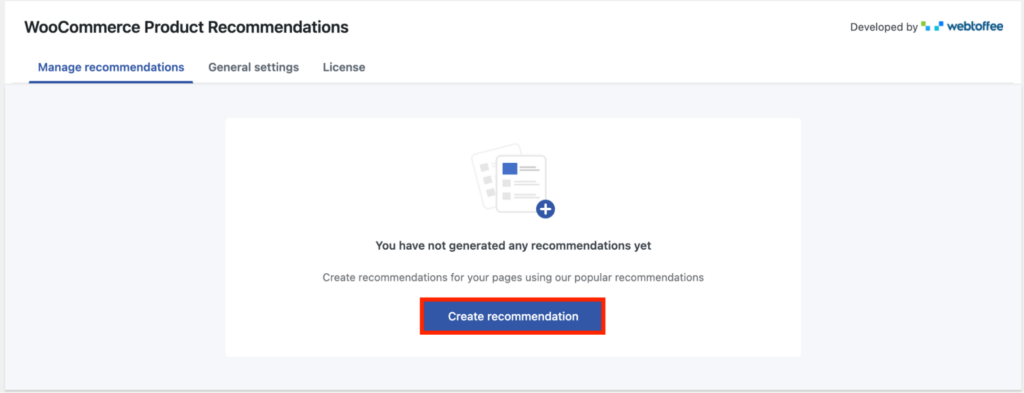
- After activating the plugin, go to WooCommerce > Product Recommendations from your WordPress backend.
- Click on the Create recommendation button.
Step 3: Choose A Page to Show Best Seller Recommendations
- From the Select a page drop-down menu, choose a page to show the best seller recommendation widget.
- We’ll select Single product page, for this tutorial.
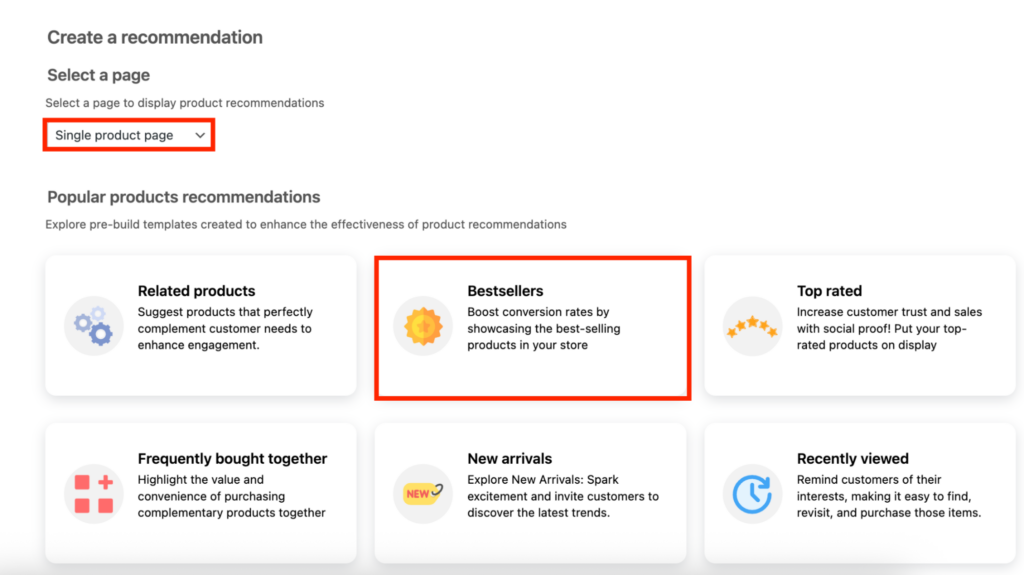
- Make sure you have selected the Bestsellers template from the recommendations list.
Step 4: Configure the Rules and Conditions for Bestsellers
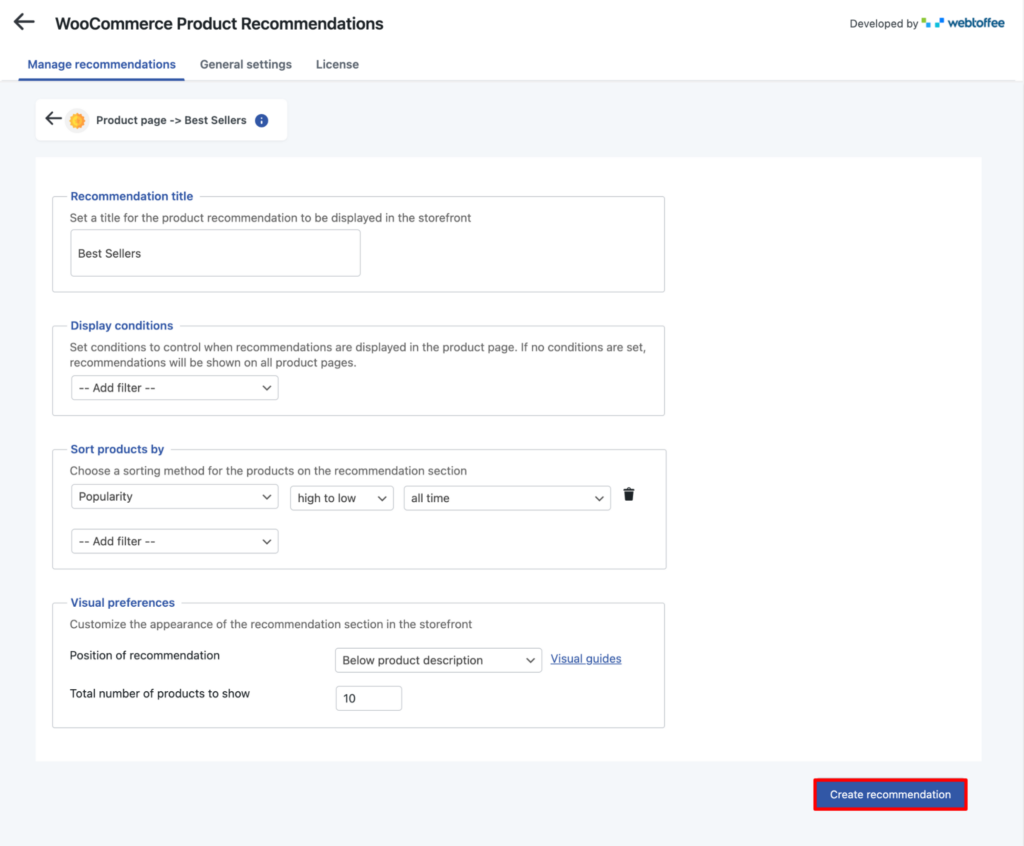
- Enter a Recommendation title (example: Best Sellers) to display on the storefront.
- Under Display conditions, you can add filters if you want to control where the recommendations appear. If no filters are added, they will show on all product pages.
- In the Sort products by section, choose how to rank the products.
- Under Visual preferences, set how the recommendation block appears:
- Once the settings are configured, click the Create recommendation button to save and activate it.
And that’s it! 🎉 You have successfully created best seller recommendations on your WooCommerce store.
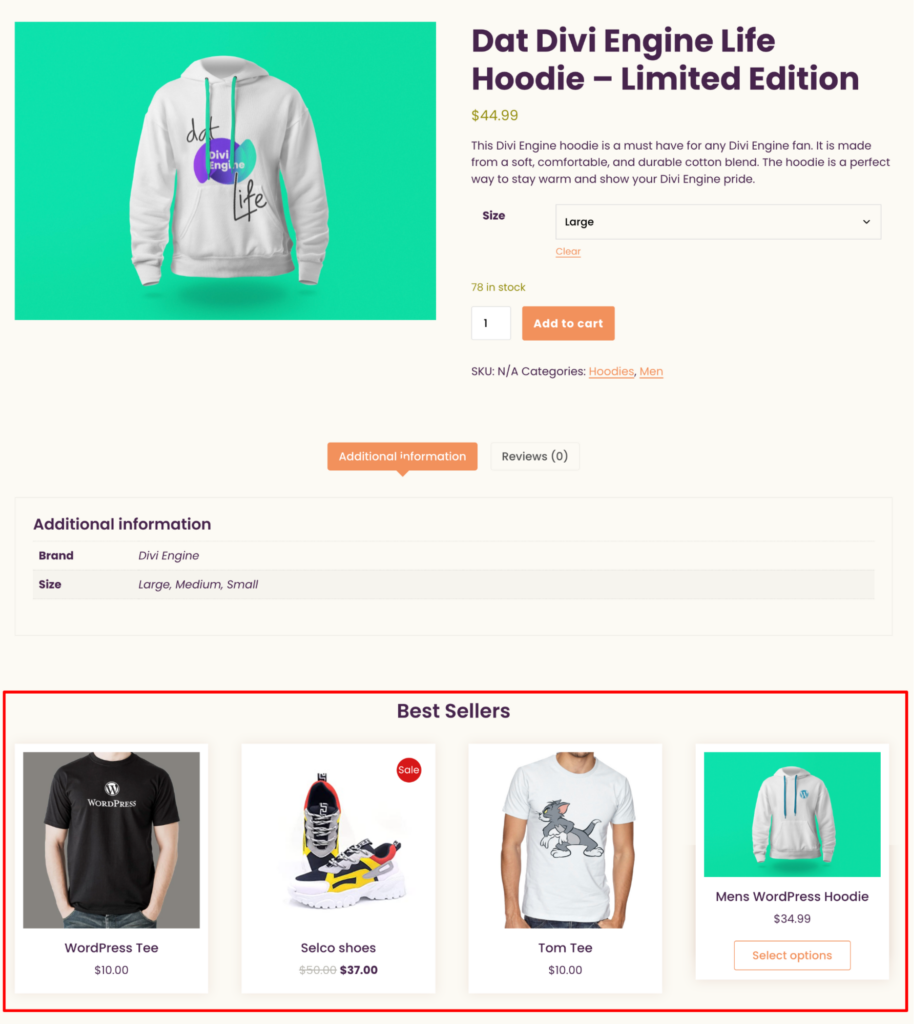
Here’s how it appears on your store page.
Frequently Asked Questions
1. Does WooCommerce have a built-in option for best seller recommendations?
No, WooCommerce doesn’t provide a native feature to display best seller recommendations. You can use shortcodes for basic best seller lists, but for a more flexible and user-friendly setup, a plugin like WooCommerce Product Recommendations is the best option.
2. Why should I add best seller recommendations to my WooCommerce store?
Best seller recommendations act as social proof, guiding customers toward products that are already popular. They improve trust, boost conversions, increase average order value, and create a smoother shopping experience.
3. Where should I display best seller recommendations on my site?
You can place them on product pages, the homepage, cart, or checkout pages. Common placements like below the product description or in a sidebar tend to perform well because they don’t disrupt the browsing flow but still attract attention.
4. Can I customize how the recommendations look?
Yes, with the WebToffee Product Recommendations plugin you can customize the title, number of products displayed, placement on the page, and even set rules for how the products are sorted and filtered. This makes it easy to match your site’s design and strategy.
WebToffee Product Recommendations Plugin – An Overview
WebToffee’s WooCommerce Product Recommendations plugin acts like a smart engine that automatically suggests relevant products to your customers based on their browsing and buying behavior. It offers a variety of recommendation templates including upsells, cross-sells, best-sellers, frequently bought together, recently viewed items, top-rated products, and new arrivals. On top of that, you can create fully custom recommendation campaigns tailored to your store’s needs.
Setting this plugin up is straightforward. It comes with both pre-built templates and custom campaign options, so whether you want a quick “Best Sellers” section or a nuanced campaign based on visitor behavior, you can do it without touching any code. You can also customize where recommendations appear such as product pages, category pages, cart, checkout, or even the “no search results” page, and refine display using conditions and filters.
The plugin offers flexibility in how recommendations look and behave. You can display products in either a grid or a slider, plus choose sorting options such as popularity, ratings, price, or even random. It also dynamically hides out-of-stock items so your store looks clean and current. If you want to go beyond on-site recommendations, WebToffee’s e-commerce email marketing app lets you reinforce them through email automations and popup campaigns, a great way to bring shoppers back to the products they viewed or keep your best sellers top of mind. On top of all that, there is a free version of this product recommendations plugin. Even without upgrading, you can still set up essential recommendation types such as related products, upsells, and cross-sells, which is perfect for store owners just starting out.
Conclusion
Best seller recommendations aren’t just a nice-to-have feature, they’re a proven way to build trust, guide shoppers, and increase sales in your WooCommerce store. By showcasing products that are already popular, you’re tapping into the power of social proof while making your customers’ shopping journey faster and more enjoyable.
With tools like the WebToffee WooCommerce Product Recommendations plugin, setting up best seller sections takes only a few minutes and doesn’t require any coding. Whether you place them on product pages, the homepage, or even the checkout, these recommendations can significantly boost conversions and average order value.
If you haven’t tried it yet, now’s the time to highlight your store’s top performers. A simple “Best Sellers” section could be the difference between a visitor leaving undecided and a shopper confidently clicking “Buy Now.”
