
Are you looking for the best WP Fastest Cache settings for the perfect page loading time on your WordPress website or WooCommerce store? If you are, keep reading this article. Here, we will show you the ideal configuration for achieving the right Core Web Vitals score.
Website speed plays a crucial role in user experience and search rankings. WP Fastest Cache is one of the most popular and effective cache plugins for WordPress.
With the right WP Fastest Cache settings, you can significantly improve loading times, Core Web Vitals scores, and overall site performance. In this guide, we share the best WP Fastest Cache settings to maximize speed.
Whether you are using the free version or WP Fastest Cache Premium, these proven configurations will help you reduce server load, enable proper browser caching, and deliver faster pages to your visitors.
First, let’s take a quick look at WP Fastest Cache and what it offers.
Table of contents
- Why Do You Need a WordPress Caching Plugin
- What to Look for In a WordPress Caching Plugin
- WP Fastest Cache: An Introduction
- The Ideal WP Fastest Cache Settings for WordPress Websites and WooCommerce
- Bonus: Best WordPress Cache Plugins
- WP Fastest Cache vs Other WordPress Optimization Plugins
- Frequently Asked Questions
- Conclusion
Why Do You Need a WordPress Caching Plugin
A fast-loading website is essential for user experience, search engine rankings, and conversions. Without a proper cache system, every visitor request loads your WordPress site from scratch. This increases server load, slows page load times, and hurts Core Web Vitals scores.
A good caching plugin like WP Fastest Cache creates static HTML versions of your pages and serves them instantly to visitors. This dramatically improves loading speed, reduces TTFB, helps with LCP, and lowers server usage.
Whether you use the free version or WP Fastest Cache Premium, proper cache settings can significantly optimize your WordPress site and give you an edge over competitors who ignore speed optimization.
What to Look for In a WordPress Caching Plugin
Choosing the right caching plugin is crucial for maximizing speed and performance on your WordPress site. Not all cache plugins are equal, so you need to know what truly matters before configuring the settings.
Here are the key factors to consider:
- Page Caching & Browser Caching: The plugin should create static HTML files and support proper browser caching to serve pages faster.
- Minification & Optimization: Look for safe minification of HTML, CSS, and JS to reduce file sizes without breaking your site.
- CDN & Cloudflare Integration: Easy support for Cloudflare, Cloudflare APO, or other CDNs for faster global content delivery.
- Image Optimization & Lazy Load: Built-in support for WebP images, lazy loading, and background images.
- Advanced Features: Redis or Memcached support, preload options, exclude rules, and proper handling for logged-in users.
- Ease of Use & Updates: Clean interface, regular updates, and good compatibility with popular themes and plugins.
WP Fastest Cache: An Introduction
WP Fastest Cache is one of the most popular and lightweight cache plugins for WordPress. Since its launch, it has helped thousands of website owners dramatically improve their site speed, reduce server load, and achieve better Core Web Vitals scores.
The plugin offers essential features such as page caching, browser caching, HTML, CSS & JS minification, Gzip compression, and CDN integration. It has both a free version and a powerful Premium (Cache Pro) version that adds advanced features such as image optimization, WebP support, lazy loading, and more.
The Ideal WP Fastest Cache Settings for WordPress Websites and WooCommerce
The plugin comes with options like:
- Settings
- Clear Cache
- Image Optimization
- Premium
- Exclude
- CDN
- DB
We will explain the best configuration for each option below.
1. Settings
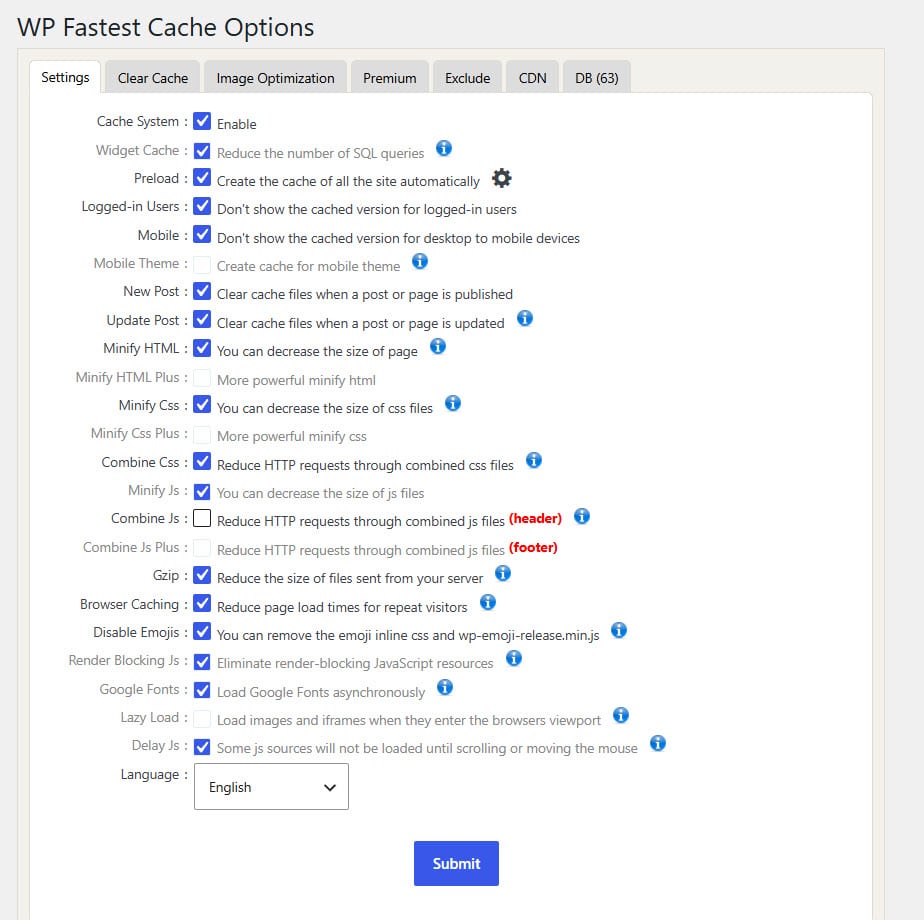
Here is the main configuration of WP Fastest Cache for the ideal website speed:
- Cache System: Enable (You need to enable this option so WP Fastest Cache can start working)
- Widget Cache: Enable (It is a premium feature, but enabling it can reduce the number of SQL queries)
- Preload: Enable (You must enable this option so the plugin can automatically create a cached version of the website)
- Logged-in Users: Enable (If you enable this, the plugin won’t show the cached version to logged-in users. It only serves the cached version to website visitors)
- Mobile: Enable (You do not need to show the desktop cached version to mobile visitors)
- Mobile theme: Disabled (You do not need this option right now. Also, it is a premium feature)
- New post: Depends (If you publish posts daily, enable this option. If you are not that active with blog post publishing, you do not need it)
- Update post: Depends (Like the last time, only enable if you are active with post updating)
- Minify HTML: Enable (It will help you with the website speed)
- Minify CSS: Enable (Like the HTML minification, CSS minification can be helpful)
- Combine CSS: Depends (Test after enabling it. Sometimes, the website design can break if you enable this feature)
- Minify JS: Enable (Remove the extra white spaces from JS files, which can help with the page load time)
- Combine JS: Disabled (Enabling this will cause some issues, so we recommend keeping it disabled)
- GZIP: Enabled (It will help with the overall website’s speed)
- Browser Cache: Enabled (Highly recommended)
- Disable Emoji: Enabled (If you are not using emojis on your website, you should enable this option)
- Render Blocking JS: Enabled (It is a premium feature, but it is recommended for the best page speed)
- Google Fonts: Enabled (Enable this option if you are using Google Fonts. This option will load the fonts asynchronously.
- Lazy Load: Depends (If you are using a dedicated image lazy load plugin, keep this option disabled. Otherwise, enable it)
- Delay JS: Depends (Check if the website is going to function properly after enabling this function)
- Language: Depends (Based on your liking, you can pick a language)
2. Clear Cache
When you need to clear the cache, you come to this page.
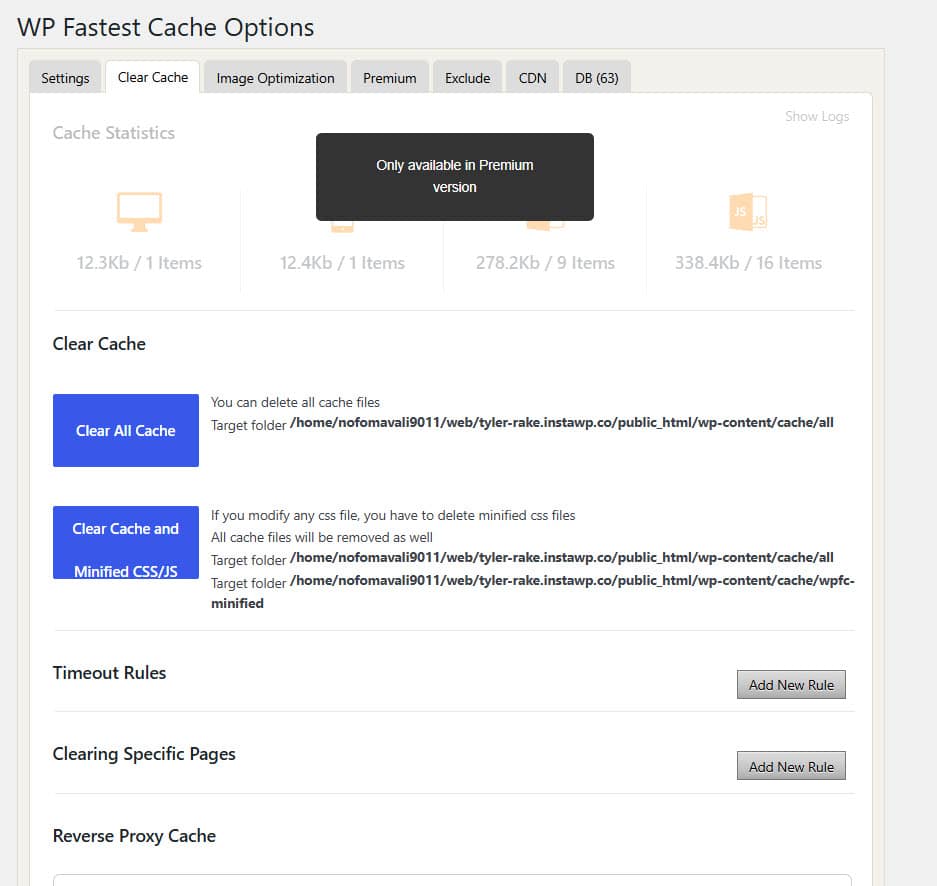
As you can see in the screenshot, you can
- Clear all cache
- Clear cache and minified CSS/JS
- Add new timeout rules
- Add new rules for specific pages
- Do varnish cache
And so on.
If you are looking for a simple way to clear all the cache, you can hit the first or second button. The timeout rules will help you automate the task.
For example, add a new timeout rule.
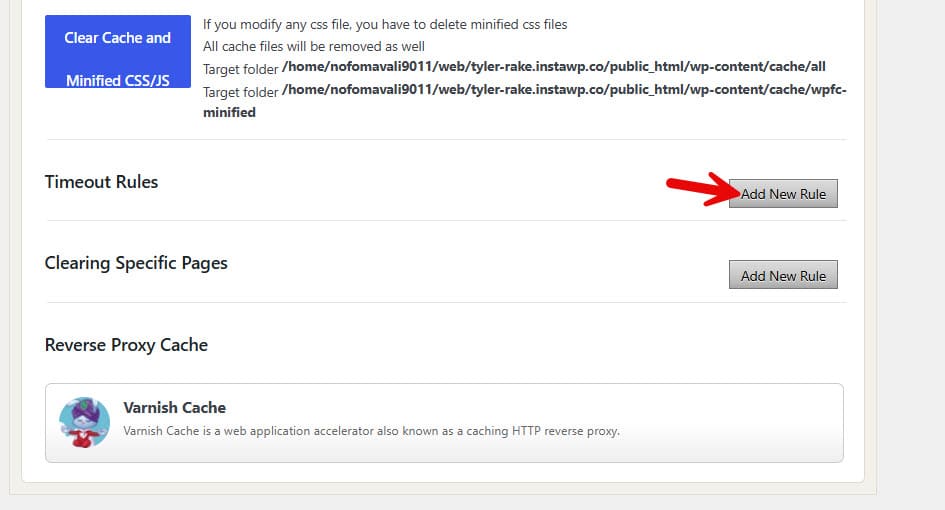
Now, you can customize it further. If you are actively publishing, clearing the cache once a day is ideal. If you are not that active, choose a different interval.
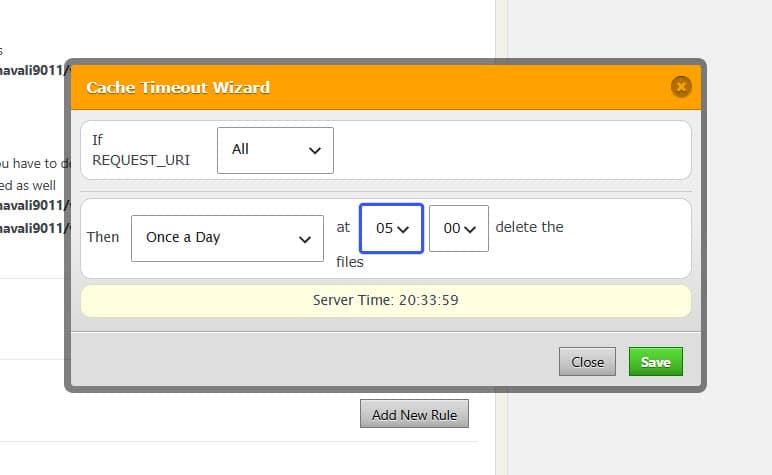
Tweak the options as you need and save the settings.
3. Image Optimization
Image optimization is a premium feature offered by WP Fastest Cache. Without using any third-party plugins or hosted services to compress the image, you can use this built-in feature of WP Fastest Cache.
If you are a Lite version user, you can skip this. If you are using the Pro version plugin, click the Optimize All button and compress your images to save disk space and serve them faster.
4. Premium
Here, you won’t see any configuration options. If you are using the lite version of the WP Fastest Cache plugin, you can see the pricing here:
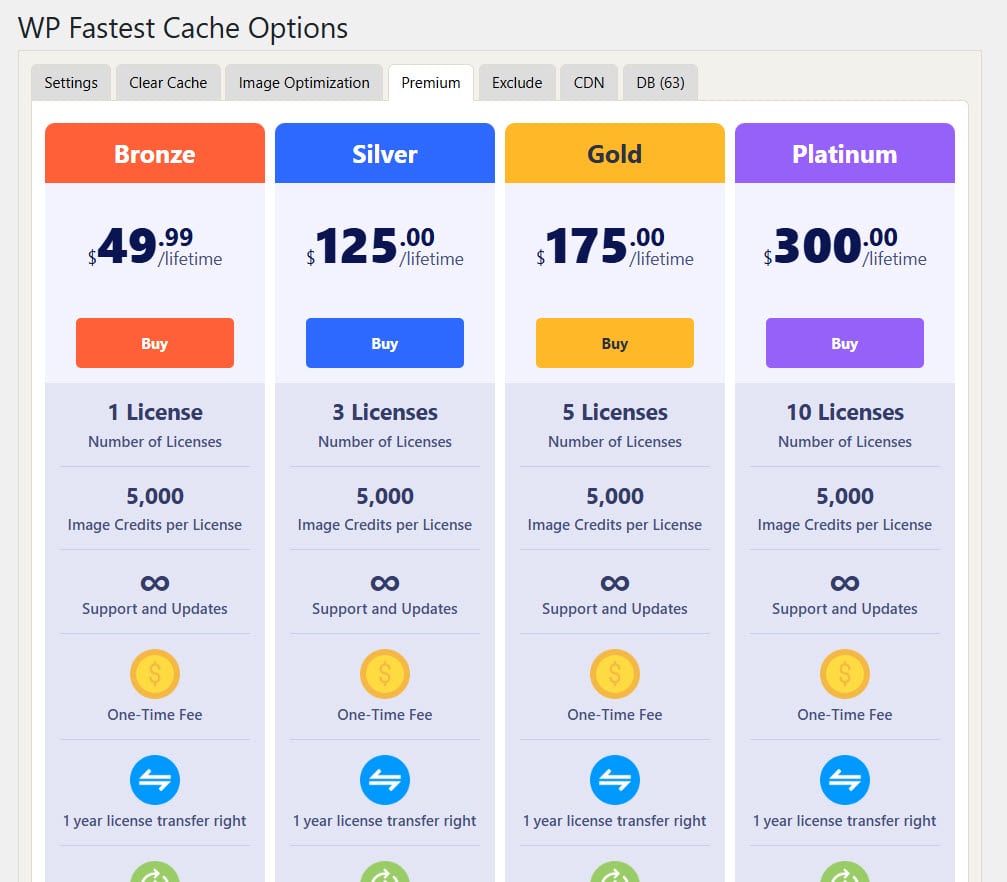
The plugin comes with a lifetime license. So investing in it is a good deal.
5. Exclude
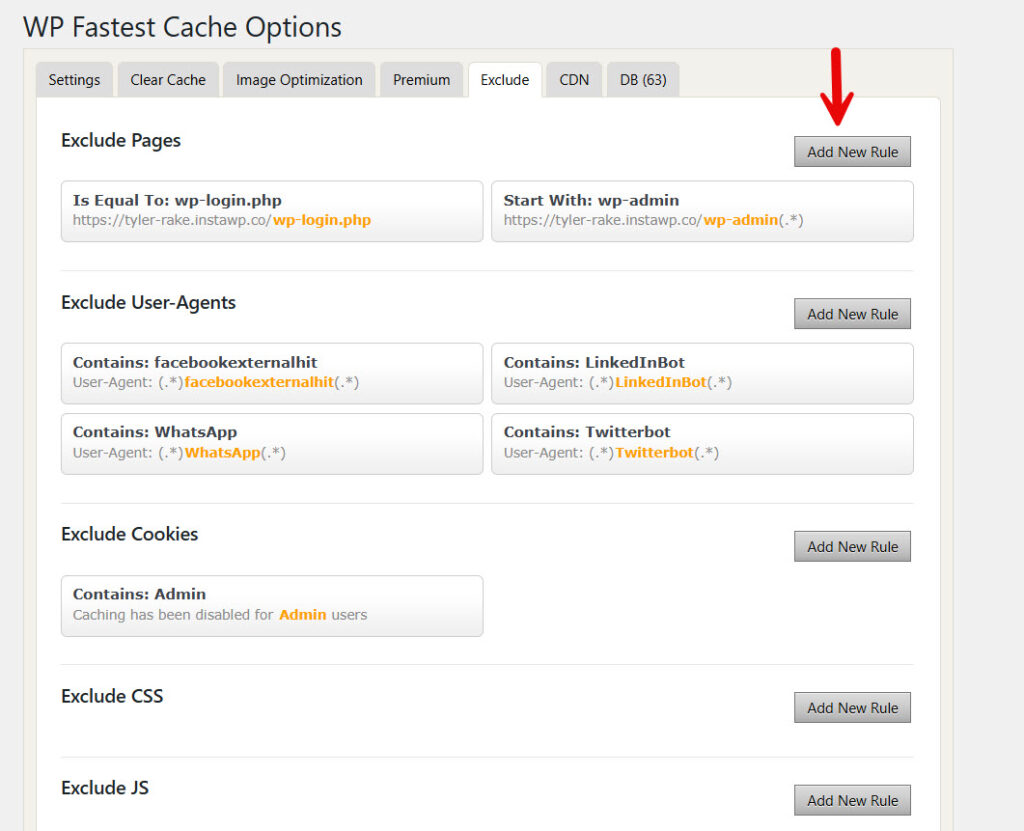
Here, you can exclude specific pages, user-agents, cookies, CSS, and JS from caching.
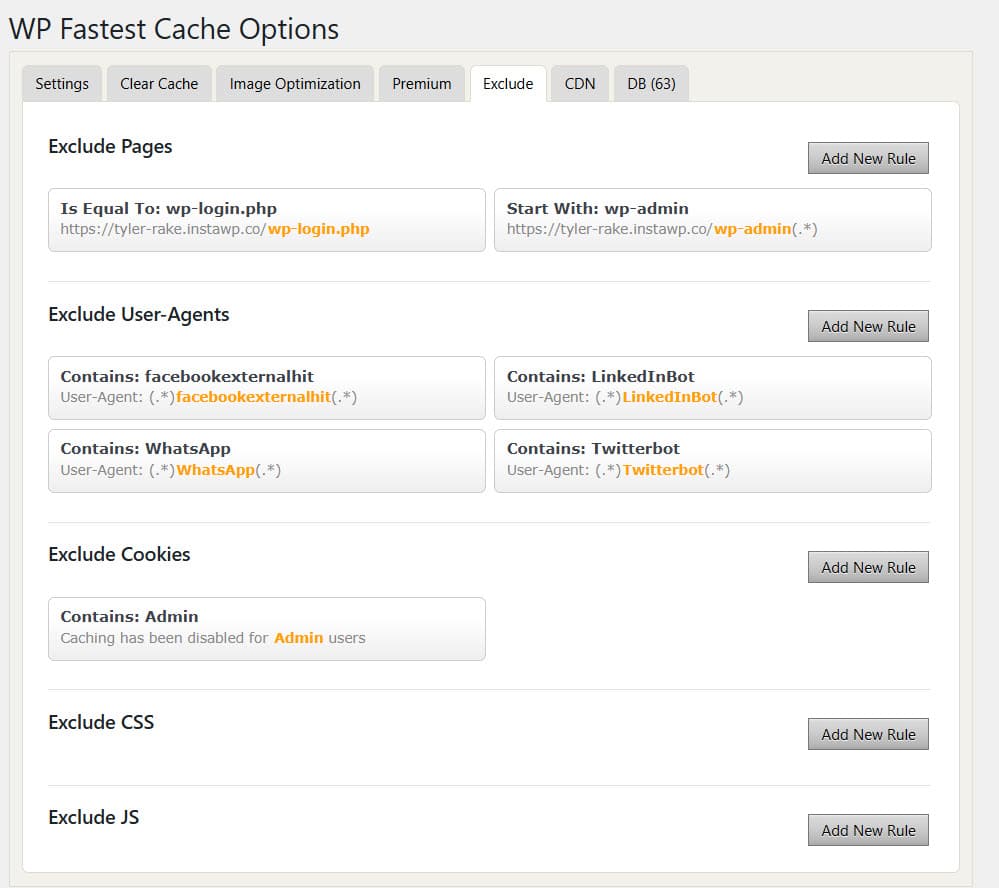
You can add as many pages, user agents, cookies, CSS, and JS to this wizard.
6. CDN
Using a CDN provider for your blog or WooCommerce site is highly recommended. It will make your website faster and safer.
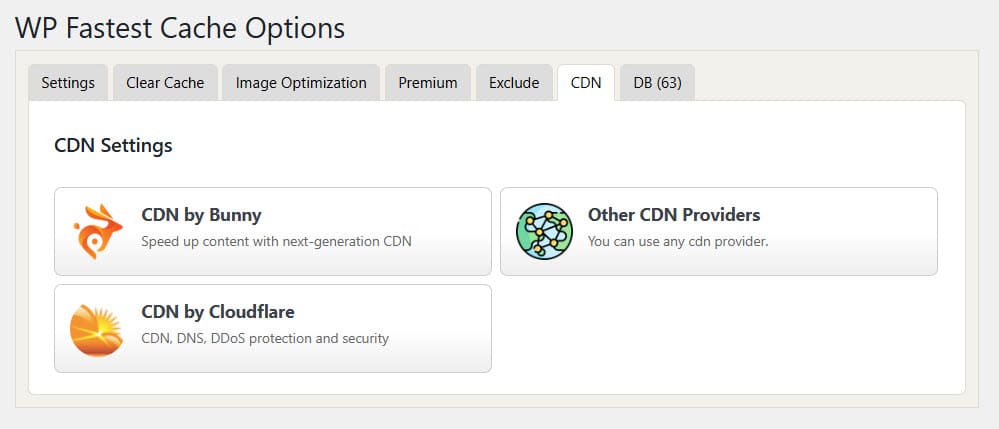
The plugin can be connected with:
- Bunny.net
- Cloudflare
- Others
If you use Bunny.net or Cloudflare, you have direct integration. All you need to do is enter your API token, and that’s it.
If you are using any third-party CDN provider, hit the other CDN provider option.
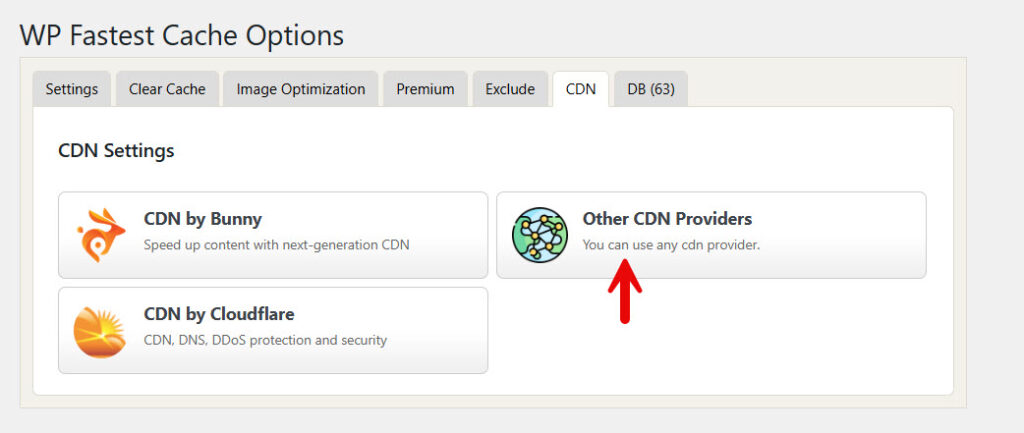
Now enter the CDN URL and Origin URL.
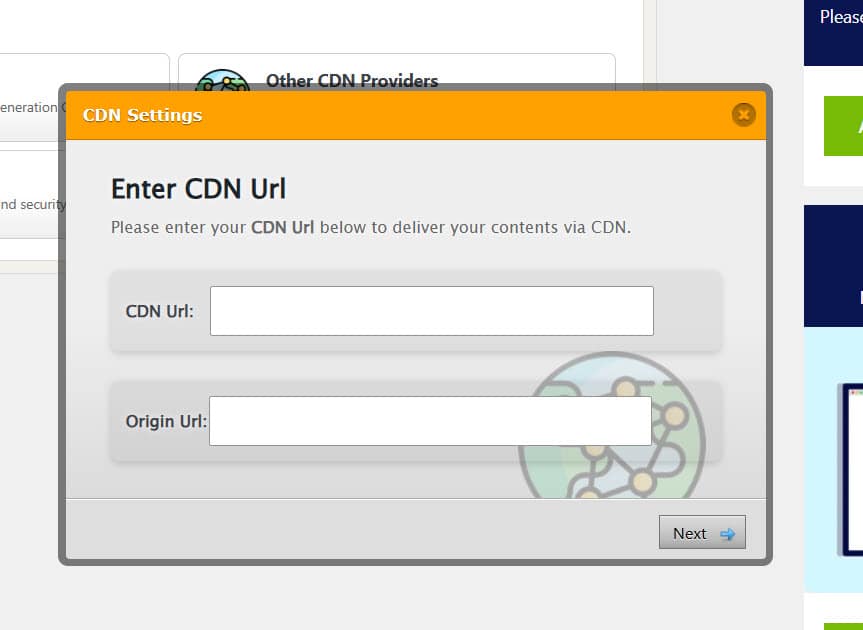
Once you have done this, the CDN integration is successful.
7. DB
The database optimization is the last thing you can do. Without any additional database optimization plugins like WP-Optimize, you can let WP Fastest Cache handle the performance optimization.
Here are the things you could do:
- Clean all the data
- Clean post revisions
- Clean trashed contents
- Clean trashed and spam comments
- Clean pingbacks and trackbacks
- Clean transient options
- Clean orphaned post meta
- Clean orphaned comment meta
- Clean user meta
- Clean orphaned term meta
- Clean orphaned term relationships
You can either clean these individually or hit the Clean All button to get rid of all the unnecessary data quickly.
Your choice.
Bonus: Best WordPress Cache Plugins
Besides WP Fastest Cache, these are the other caching plugins that are worth a shot:
- WP Rocket
- WP Super Cache
- FlyingPress
- NitroPack
Let’s take a closer look at each option below.
1. WP Rocket
WP Rocket is one of the most popular premium cache plugins for WordPress. It is known for delivering excellent speed results with minimal configuration, making it a favorite among developers and site owners who want fast performance without technical hassle.
The plugin offers smart page caching, browser caching, image lazy loading, minification, preloading, and powerful Cloudflare integration. It also includes database optimization, deferred JS, and removal of unused CSS features in the paid version.
Although it has no free version, WP Rocket is frequently ranked among the best cache plugins for WordPress, especially for users focused on Core Web Vitals and maximum optimization.
2. WP Super Cache
WP Super Cache is a free and reliable caching plugin developed by Automattic (the company behind WordPress.com). It is one of the oldest and most trusted cache plugins in the WordPress community.
The plugin works by generating static HTML files of your dynamic pages and serving them to visitors, which significantly reduces server load and improves loading speed. It offers basic page caching, CDN support, and simple settings.
While it does not include advanced features such as automatic image optimization, critical CSS, or lazy-loading background images found in premium plugins, it remains a lightweight and effective free solution for many users who want basic caching without added complexity.
3. FlyingPress
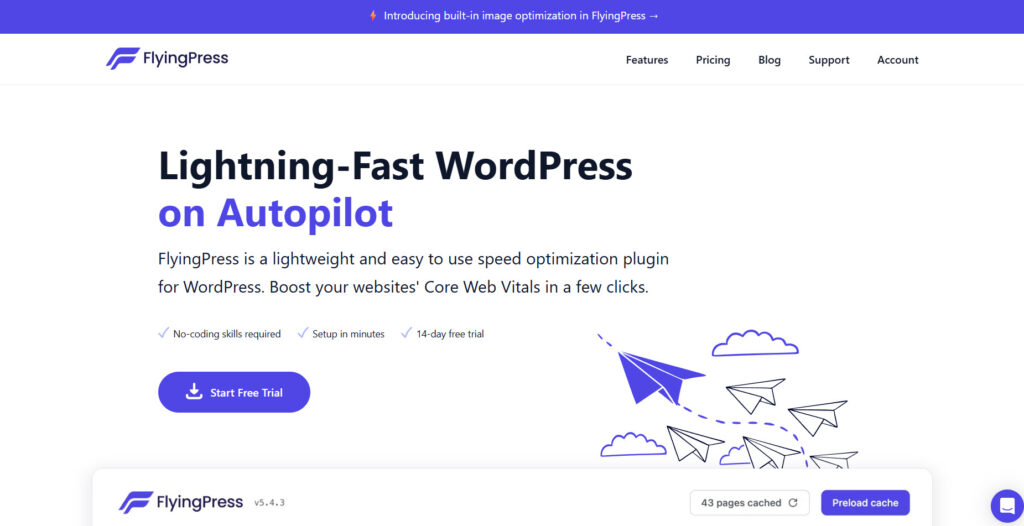
FlyingPress is a modern, high-performance cache and optimization plugin for WordPress. It is designed to deliver excellent Core Web Vitals scores and fast loading times while remaining lightweight.
The plugin offers intelligent page caching, advanced lazy loading (including background images), minification, critical CSS generation, font optimization, CDN support, and smart JavaScript handling. It is particularly known for its powerful preload features and efficient optimization methods.
FlyingPress is a premium plugin with no free version. It is often compared with top plugins like WP Rocket and favored by users seeking cutting-edge speed optimization and modern performance techniques.
4. NitroPack
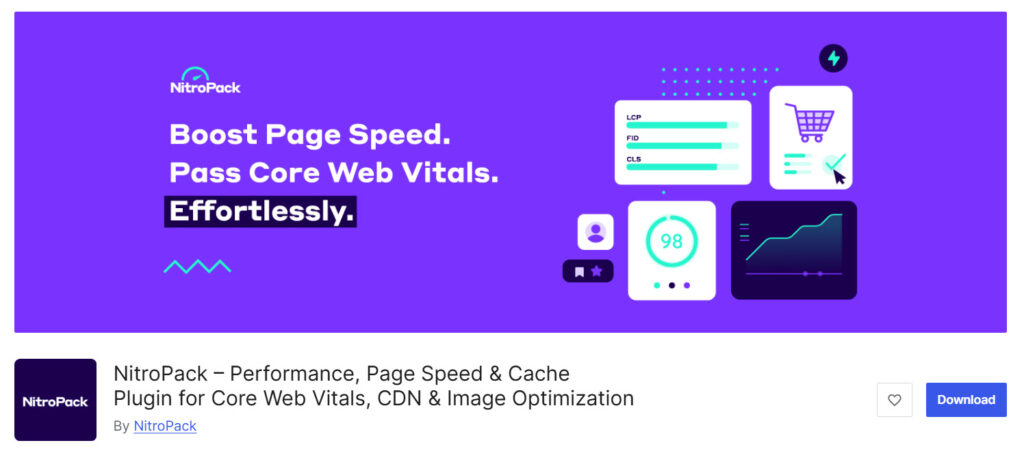
NitroPack is a powerful all-in-one performance optimization platform for WordPress. It combines advanced caching, CDN, and numerous automated optimization features into a single solution.
The plugin offers full-page caching, smart CDN, automatic image optimization, lazy loading, minification, critical CSS generation, and more. It is designed to deliver strong Core Web Vitals scores with relatively little manual configuration.
NitroPack offers a free plan (limited to 1,000 pageviews/month) for testing, along with several premium plans. It is often considered one of the strongest optimization plugins for users who want excellent speed without having to manage multiple tools.
WP Fastest Cache vs Other WordPress Optimization Plugins
| Feature | WP Fastest Cache | WP Rocket | NitroPack | FlyingPress |
|---|---|---|---|---|
| Free Version | Yes (Good features) | No | Limited Free Plan | No (14-day trial) |
| Pricing | Premium $49.99/year | $59/year | Starts at ~$7-8/month | Starts at $59/year |
| Ease of Use | Very Easy | Easiest | Very Easy (Set & Forget) | Easy |
| Page Caching | Excellent | Excellent | Excellent | Excellent |
| Image Optimization | Excellent | Yes | Excellent (Built-in) | Excellent |
| Lazy Load + Background | Yes | Yes | Yes | Excellent |
| Critical CSS / Unused CSS | Limited | Good | Excellent | Very Strong |
| CDN Integration | Good (Cloudflare/Bunny.net) | Good | Built-in Smart CDN | Good + Own CDN |
| Core Web Vitals Focus | Good | Good | Very Strong | Excellent |
| Best For | Budget users | Beginners & Most Sites | Maximum automation | Advanced CWV performance |
Frequently Asked Questions
Now, let’s take a look at some frequently asked questions and answers on this topic.
Start by enabling Page Caching, Browser Caching, and Gzip Compression. Then activate Minify HTML, CSS & JS, Lazy Load, and Preload. For better results, integrate Cloudflare and use the Premium version (Cache Pro) features.
Yes. Proper WP Fastest Cache settings significantly improve loading time, LCP, and TTFB, helping your site achieve better Core Web Vitals and Google PageSpeed scores.
Yes, but test carefully. Minify and Combine options reduce file sizes, but they can sometimes break plugins or themes. Always clear the cache and test your site after enabling them.
Enable Cloudflare integration in the CDN tab. Use Cloudflare APO if available. This combination gives excellent global loading speed and better caching performance.
Enable Lazy Load for images and background images. You can also exclude leading (above-the-fold) images to avoid delaying LCP and improve Core Web Vitals.
The plugin can automatically clear cache when you publish or update a post. For safety, manually delete cache after making major changes or configuring new settings.
Yes, the Premium version unlocks advanced features like better image optimization, WebP support, more powerful minification, and improved preload options that the free version lacks.
Enable “Defer JS” and “Combine JS” options. You can also exclude specific scripts that cause problems. This helps reduce render-blocking JavaScript significantly.
Disabling Emojis and hosting Google Fonts locally can reduce extra requests and improve loading speed. These options are useful for most sites.
It is not recommended to use multiple cache plugins together as they can conflict. Choose one (WP Fastest Cache, LiteSpeed Cache, or others) and configure it properly.
Conclusion
Implementing the best WP Fastest Cache settings is one of the most effective ways to speed up your WordPress site.
By properly configuring page caching, browser caching, Gzip compression, lazy loading, preload, and CDN settings, you can achieve excellent Core Web Vitals scores and faster loading times.
Whether you use the free plugin or upgrade to Cache Pro, these optimization techniques help reduce server load and improve user experience. Remember to clear the cache after updates and test regularly. With the right WP Fastest Cache configuration, your website will perform significantly better and rank higher in search results.
Would you use WP Fastest Cache or any other caching plugin?
Let us know in the comments.
We hope you found this article helpful and enjoyed reading it. If you need to learn more WooCommerce tips and tricks, check out the YayCommerce blog. Also, feel free to check out our social media handles, such as Facebook, X, Instagram, and YouTube, for more interesting content.