Are you looking for the best WordPress offload media plugins? In this post, we’ll show you the top 7 media offload plugins worth a shot.
As your WordPress media library grows, large media files can slow down your site and fill up server space fast. Offloading media to external cloud storage solves this by moving files off your server while still serving them quickly through a CDN.
Media offloading is the process of transferring your WordPress media library to services like Amazon S3, Cloudflare R2, Google Cloud Storage, or DigitalOcean Spaces. The right media offload plugin handles the upload, rewrites media URLs, and keeps everything in sync.
In this guide, we compare the best WordPress offload media plugins so you can find the best fit for optimized storage, faster performance, and smoother media workflows.
First, we will cover what WordPress media offload plugins are and why you need one.
Table of contents
What Are WordPress Media Offload Plugins
WordPress media offload plugins help you move your media files to cloud storage so they no longer sit on your server. A media offload plugin uploads images, videos, and documents to a cloud storage provider such as Amazon S3, Cloudflare R2, Google Cloud Storage, DigitalOcean Spaces, or Wasabi.
Once the files reach the cloud, the plugin rewrites the media URLs and can serve media through a CDN for faster delivery. This process is especially useful when your media library is getting large. Offloading your media frees up server space, reduces load, and can speed up your website.
Most plugins support automatic uploads for new files and can sync your existing media library. Some also offer image compression, WebP conversion, or advanced media offloading with extra controls.
Popular options include tools like WP Offload Media, Media Cloud, and Next3 Offload. Many offer a free version or free plugin tier, while others focus on S3-compatible storage and providers like Cloudflare R2.
For WordPress users with extensive media, WooCommerce stores, or sites that need better media management and media delivery, a solid offload solution keeps storage costs down and performance steady.
What to Look for In WordPress Media Offload Plugins
When you need a WordPress media offload plugin, the right features make the difference between smooth media management and constant headaches.
Focus on tools that handle large media libraries well, support popular cloud storage, and keep your website’s performance strong.
- Cloud provider support: Choose a plugin that works with the storage you prefer, such as Amazon S3, Cloudflare R2, Google Cloud Storage, or other S3-compatible options including an R2 bucket.
- CDN integration: Look for built-in or easy CDN connections so the plugin can deliver your media faster after you offload your WordPress media.
- Existing media handling: A good media offloader should sync and move your current media library without forcing you to re-upload everything by hand.
- Automatic uploads: New media files should go straight to the cloud provider as soon as you upload them in WordPress.
- WooCommerce compatibility: If you run a store, confirm the plugin handles product images and other WooCommerce media files cleanly.
- Free version or trial: Many WordPress users prefer starting with a free plugin or limited free tier before committing to a paid plan.
7 Best WordPress Media Offload Plugins to Try
| Plugin | Free Version | Starting Price | Main Cloud Providers | Existing Media Support | CDN Support | WooCommerce | Best For |
|---|---|---|---|---|---|---|---|
| WP Offload Media | Yes (Lite) | $39/year | Amazon S3, DigitalOcean Spaces, Google Cloud | Pro only | Yes | Yes (Pro) | Reliable, established setups |
| Media Cloud Sync | Yes | Free | S3, Google Cloud, DigitalOcean, Cloudflare R2, S3-compatible | Yes | Yes | Yes | Free multi-provider option |
| Next3 Offload | No | $63/year | 20+ including S3, R2, Bunny, Wasabi, Google Cloud | Yes | Yes | Yes | Feature-rich with optimization tools |
| Advanced Media Offloader | Yes | Free | S3, Cloudflare R2, DigitalOcean, Backblaze B2, Wasabi, MinIO | Yes | Yes | Limited | Flexible free S3-compatible choice |
| Offload Media | Yes | Free | S3, Google Cloud, Cloudflare R2, DigitalOcean | Basic | Yes | Yes | Simple free offloading |
| Yctvn Media Offload for Cloudflare R2 | Yes | Free | Cloudflare R2 only | Yes | Yes (R2 CDN) | Basic | R2-focused simple setup |
| Infinite Uploads | Yes (plugin) | $16/month | Infinite Uploads cloud (bundled) | Yes | Built-in | Yes | All-in-one storage + CDN + video |
1. WP Offload Media

WP Offload Media is one of the most established WordPress offload plugins for moving media files to cloud storage.
The free Lite version handles new uploads to Amazon S3, DigitalOcean Spaces, or Google Cloud Storage and rewrites media URLs so files load from the cloud or a CDN.
The Pro version adds tools to offload your existing media library, manage files from the Media Library, and support private media for WooCommerce or membership sites. It is a reliable choice for WordPress users who want a proven media offload plugin with strong documentation and CDN support.
Features
- Automatic offload of new media files to Amazon S3, DigitalOcean Spaces, or Google Cloud Storage
- URL rewriting for cloud or CDN delivery
- Option to remove local files after upload to free server space
- Bulk offload tool for existing media library
- Media Library controls for managing offloaded files
- WooCommerce and Easy Digital Downloads integration for private files
- Assets Pull addon to serve CSS, JS, and fonts from a CDN
Pros and Cons
| Pros | Cons |
|---|---|
| Reliable and well-maintained | Setup can feel technical for beginners |
| Strong documentation and support | |
| Solid WooCommerce and private media support | |
| Good CDN flexibility |
Pricing
Free Lite version available on WordPress.org. Pro plans start at $39 per year.
2. Media Cloud Sync
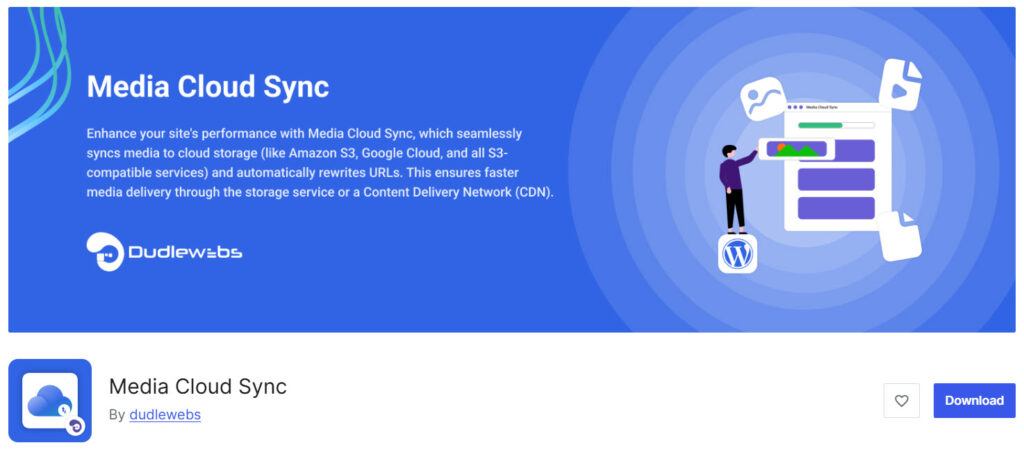
Media Cloud Sync is a free WordPress plugin that offloads media files to cloud storage and rewrites the URLs so everything continues to load normally on your site. It supports Amazon S3, Google Cloud Storage, DigitalOcean Spaces, Cloudflare R2, and other S3-compatible services.
You can sync both new uploads and your existing media library, then optionally remove the local copies to free up server space. It also works with custom CDNs, offers object versioning, and includes basic WooCommerce and Advanced Custom Fields support.
For WordPress users looking for a straightforward free media offload plugin with solid cloud provider coverage, this is a practical option.
Features
- Offloads media to Amazon S3, Google Cloud Storage, DigitalOcean Spaces, Cloudflare R2, and S3-compatible services
- Syncs existing media library with a built-in migration tool
- Automatically deletes local files after successful cloud upload
- Custom URL structure and base path options
- Custom CDN support for faster media delivery
- Object versioning to protect files
Pros and Cons
| Pros | Cons |
|---|---|
| Completely free with no paid upgrade required | Fewer advanced controls than some premium plugins |
| Supports Cloudflare R2 and multiple S3-compatible providers | Limited documentation compared to longer-established tools |
| Handles existing media library migration |
Pricing
Free on WordPress.org. No Pro version available at this time.
3. Next3 Offload
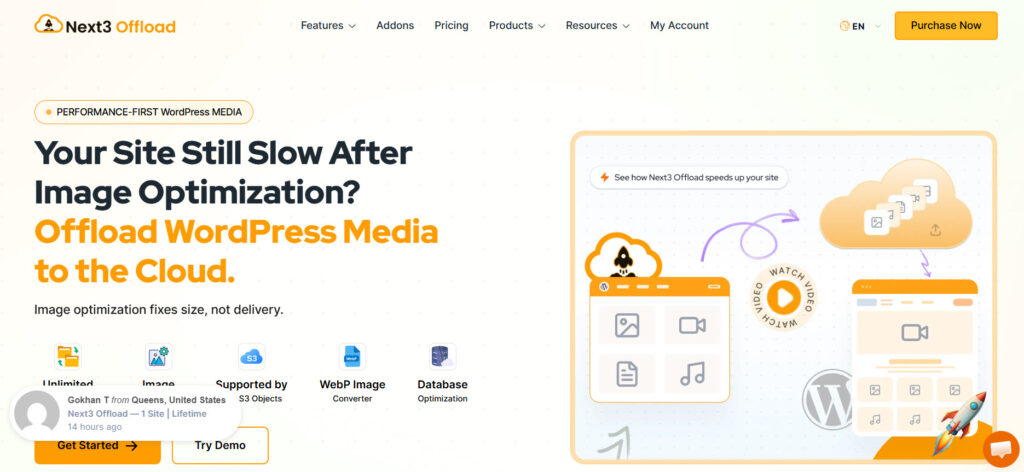
Next3 Offload is a full-featured WordPress media offload plugin focused on moving files to cloud storage while adding image and database optimization tools. It supports more than 20 providers including Amazon S3, Cloudflare R2, Bunny Storage, Google Cloud, Wasabi, DigitalOcean Spaces, and other S3-compatible services.
You can offload both new and existing media, rewrite URLs automatically, remove local copies to free server space, and even migrate from other plugins like WP Offload Media.
Extra tools for WebP conversion, image compression, and database cleanup make it useful for sites that want more than basic offloading.
Features
- Offloads media to 20+ cloud providers including Amazon S3, Cloudflare R2, Bunny Storage, Wasabi, and Google Cloud
- Bulk offload for existing media library with progress tracking
- Automatic URL rewriting and local file cleanup
- Built-in image compression and WebP conversion
- Database optimization tools
- CSS and JS asset offloading
Pros and Cons
| Pros | Cons |
|---|---|
| Wide cloud provider support including Cloudflare R2 and Bunny | No free version available |
| Includes image optimization and database cleanup tools | Interface can feel busy with many options |
| Easy migration from other offload plugins |
Pricing
Starts at $63 per year. No free version.
4. Advanced Media Offloader
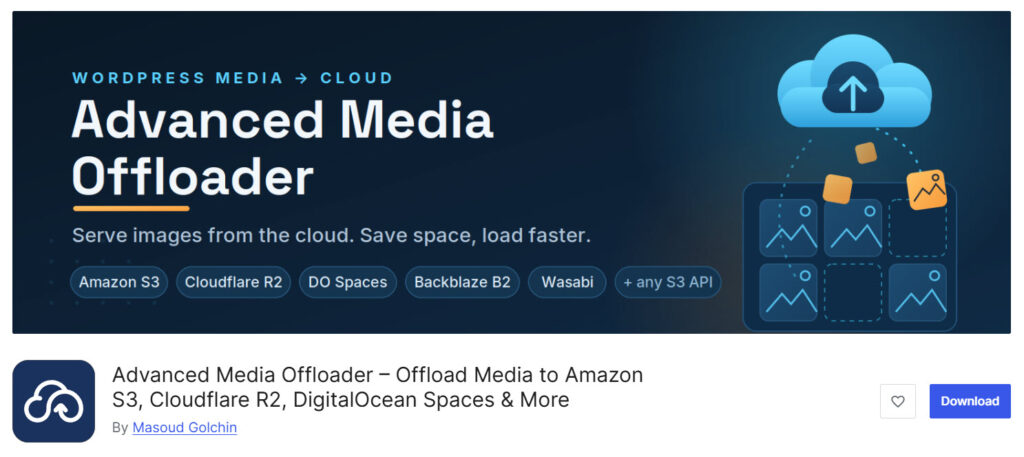
Advanced Media Offloader is a free WordPress plugin that moves your media library to cloud storage and serves the files from there. It works with Amazon S3, Cloudflare R2, DigitalOcean Spaces, Backblaze B2, Wasabi, MinIO, and any other S3-compatible service.
New uploads go to the cloud automatically, and you can bulk-migrate your existing media library from the dashboard or with WP-CLI. Flexible retention policies let you keep local copies, clean them up smartly, or go fully cloud-only.
Smart URL rewriting, file versioning, and clear offload status badges in the Media Library make it practical for everyday use.
Features
- Automatic offload of new media uploads
- Bulk migration of existing media library (dashboard + WP-CLI)
- Support for Amazon S3, Cloudflare R2, DigitalOcean Spaces, Backblaze B2, Wasabi, MinIO, and other S3-compatible storage
- Flexible retention policies (keep local, smart cleanup, or full cloud migration)
- Smart URL rewriting for all media sizes and srcset
Pros and Cons
| Pros | Cons |
|---|---|
| Completely free with strong core features | No premium support options yet |
| Excellent Cloudflare R2 and S3-compatible support | |
| Flexible retention policies and WP-CLI tools |
Pricing
Advanced Media Offloader is a free plugin. No paid version is available at this time.
5. Offload Media
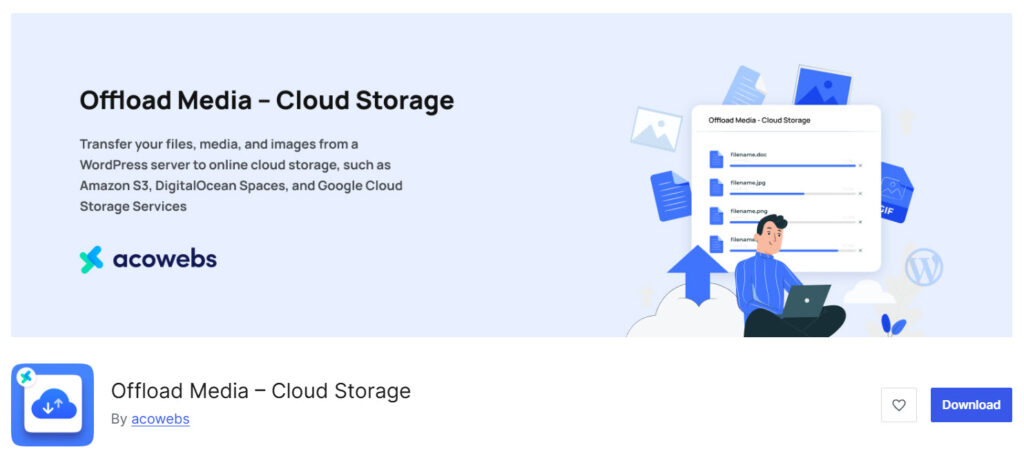
Offload Media is a free WordPress plugin that moves media files to cloud storage and rewrites the URLs so they load from the cloud or a CDN. It supports Amazon S3, Google Cloud Storage, Cloudflare R2, and DigitalOcean Spaces.
New uploads can be sent to the cloud automatically, and you can choose to delete the local copies afterward to free up server space. Extra options include custom base paths, URL structures, object versioning, custom CDN delivery, and pre-signed URLs. It also works with WooCommerce and Advanced Custom Fields.
Features
- Syncs media to Amazon S3, Google Cloud Storage, Cloudflare R2, and DigitalOcean Spaces
- Option to delete local files after successful cloud upload
- Customizable base path and URL structure
- Object versioning to reduce cache invalidation issues
- Custom CDN support for media delivery
- Pre-signed URLs for secure access
Pros and Cons
| Pros | Cons |
|---|---|
| Completely free with useful core features | Limited advanced tools compared to more mature plugins |
| Supports Cloudflare R2 alongside major providers | |
| Simple setup for basic offloading needs |
Pricing
Offload Media is a free plugin. No paid version is available at this time.
6. Yctvn Media Offload for Cloudflare R2
Yctvn Media Offload for Cloudflare R2 is a free, focused plugin built specifically for offloading WordPress media to Cloudflare R2. It automatically uploads new media files to your R2 bucket, rewrites URLs so files are served through Cloudflare’s CDN, and includes a bulk sync tool for existing media.
It supports all image sizes, responsive srcset attributes, and can rewrite image URLs inside post content. You can also choose to delete local copies after upload to free up server space. Setup is straightforward with clear visual guidance, making it a solid choice if you only need R2 support.
Features
- Automatic upload of new media to Cloudflare R2
- One-click bulk sync for existing media library
- CDN URL rewriting for R2 or custom domain
- Full support for all WordPress image sizes and srcset
- Post content image URL rewriting
- Option to delete local files after successful upload
- AWS Signature V4 authentication
Pros and Cons
| Pros | Cons |
|---|---|
| Completely free and simple to set up | Works only with Cloudflare R2 |
| Clean interface with good visual setup guides | Limited advanced features compared to multi-provider plugins |
| Handles bulk sync and responsive images well |
Pricing
Yctvn Media Offload for Cloudflare R2 is a free plugin. No paid version is available.
7. Infinite Uploads

Infinite Uploads is a free WordPress plugin that pairs with its own cloud storage and CDN service to offload media files and videos. Instead of connecting to Amazon S3 or Cloudflare R2 yourself, you link your site to the Infinite Uploads cloud.
New and existing media move off your server, get delivered through a global CDN, and can include video encoding with a custom player. It supports unlimited sites under one account, bulk migration of your media library, and tools for organizing files.
For WordPress users looking for a simple media offload plugin without managing separate cloud providers, this is a convenient all-in-one option.
Features
- Offloads media and videos to Infinite Uploads cloud storage
- Built-in global CDN for faster delivery
- Bulk migration of existing media library
- Video hosting, encoding, and custom player
- Unlimited sites and unlimited file uploads under one plan
- Media library folders, sorting, and enhanced search
Pros and Cons
| Pros | Cons |
|---|---|
| Free plugin with bundled storage and CDN | Requires paid Infinite Uploads cloud plan to use offloading |
| Unlimited sites and simple setup | Less flexible if you already prefer a specific cloud provider |
| Strong video features and media organization tools |
Pricing
Infinite Uploads is a free plugin. Cloud storage and CDN plans start at $16 per month (billed annually).
Common Mistakes to Avoid While Using a WordPress Offload Media Plugin
Using a media offload plugin can free up server space and speed up your WordPress site, but a few common mistakes can create problems. Avoid these issues to keep your offloaded media working smoothly.
- Skipping a full backup before offloading. Always back up your site and media library first so you can restore files if something goes wrong during the move to cloud storage.
- Forgetting to test URL rewriting. After connecting a cloud provider, check that images and files load correctly from the new URLs on both the frontend and in the Media Library.
- Removing local files too early. Wait until you confirm the offload is complete and media is serving properly from the CDN before deleting copies from your server.
- Ignoring CDN configuration. Offloading media without a proper CDN setup can still leave files loading slowly for distant visitors.
- Overlooking WooCommerce or membership file protection. If you sell digital products or restrict media, make sure the plugin supports private files and signed URLs.
- Choosing a plugin without checking existing media support. Some free tools only handle new uploads, leaving your current media library stuck on the server.
- Not monitoring storage costs. Cloud storage is usually cheaper than hosting upgrades, but bandwidth and request fees can add up if you do not watch usage.
Here are some related articles you might like:
- What’s New in YayExtra 2.1.0
- Why WhatsApp Blocked My Number and How to Unblock
- What’s New in Brandy Blocks 2.0
- WooCommerce vs Shopify: Key Differences for Your Online Store
- How to Create a Notification Bar in WordPress (Notibar Tutorial)
Frequently Asked Questions
Now, let’s take a look at some of the frequently asked questions and answers regarding this topic.
A media offload plugin moves your WordPress media files from the local server to external cloud storage. It then rewrites the URLs so images, videos, and documents load from the cloud or a CDN instead of your hosting account.
Offloading media files frees up server disk space, reduces load on your host, and often improves page speed. This is especially helpful for sites with large media libraries or high traffic.
Most plugins rewrite media URLs so files are served through a CDN after they reach cloud storage. This delivers content from locations closer to visitors and speeds up loading times.
Yes. Many plugins support WooCommerce product images and downloadable files. Some also offer private file protection or signed URLs for digital products.
Several solid options exist depending on your needs. Media Cloud Sync, Next3 Offload, Advanced Media Offloader, and Infinite Uploads are popular choices that support different cloud providers and feature sets.
Popular choices include Amazon S3, Cloudflare R2, Google Cloud Storage, DigitalOcean Spaces, and Wasabi. Cloudflare R2 is often preferred because it has no egress fees.
No. Some free plugins only handle new uploads. Look for tools that include a bulk migration feature if you need to move your current media library.
It is safe once you confirm the files are correctly uploaded and serving from the cloud. Always keep a backup until you have tested everything thoroughly.
Check supported cloud providers, existing media migration tools, CDN options, WooCommerce compatibility, and pricing. Also review how the plugin handles URL rewriting and local file cleanup.
Any site owner dealing with a growing media library, limited hosting storage, or slow image loading can benefit. It is especially useful for blogs, WooCommerce stores, and membership sites with lots of media.
Conclusion
Choosing the right media offload plugin helps you keep your WordPress site fast and your server storage under control.
The seven options in this guide cover different needs, from free tools focused on Cloudflare R2 to full-featured solutions with built-in CDNs and video support. Review the cloud providers you want to use, check whether the plugin can handle your existing media library, and test URL rewriting before you fully commit.
A solid offload setup reduces server load, improves delivery speed, and makes growing media libraries much easier to manage. Pick the one that fits your workflow and start moving files to the cloud with confidence.
We hope you found this article helpful and enjoyed reading it. If you need to learn more WooCommerce tips and tricks, check out the YayCommerce blog. Also, feel free to check out our social media handles, such as Facebook, X, Instagram, and YouTube, for more interesting content.