
Do you want to move WooCommerce orders to a top-level menu in the WordPress admin page? If you are looking for a simple guide, you can follow this tutorial.
Managing orders efficiently is a key part of running any WooCommerce store, especially as your order volume grows. By default, WooCommerce places orders under a submenu in the WordPress admin, which can slow down daily tasks and add unnecessary clicks for store owners and managers.
In this guide, you will learn how to move WooCommerce orders to a top-level menu in the WP Admin, making order management faster, cleaner, and more intuitive while keeping your admin dashboard organized and easy to use.
First, let’s see why you should move WooCommerce orders to a top-level menu.
Table of contents
Why You Should Move WooCommerce Orders to Top-Level Menu
Moving WooCommerce orders to a top-level menu in the WP Admin helps streamline daily store management and improves overall efficiency.
When orders are easily accessible from the main admin menu, you reduce the time spent navigating through multiple submenus and can focus more on processing and fulfilling purchases.
A top-level menu placement makes order management more intuitive, especially for store owners and staff who frequently handle orders. It provides quicker access to order details, status updates, and customer information, which is essential for maintaining a smooth workflow as your store grows.
This approach also improves usability for non-technical users. Team members can locate the orders section instantly without needing to understand the default WooCommerce menu structure. As a result, training time is reduced, and the risk of errors caused by confusion in the admin area is minimized.
Overall, moving WooCommerce orders to a top-level menu creates a cleaner WP Admin experience, accelerates routine tasks, and enables better order management at scale.
How to Move WooCommerce Orders to Top-Level Menu
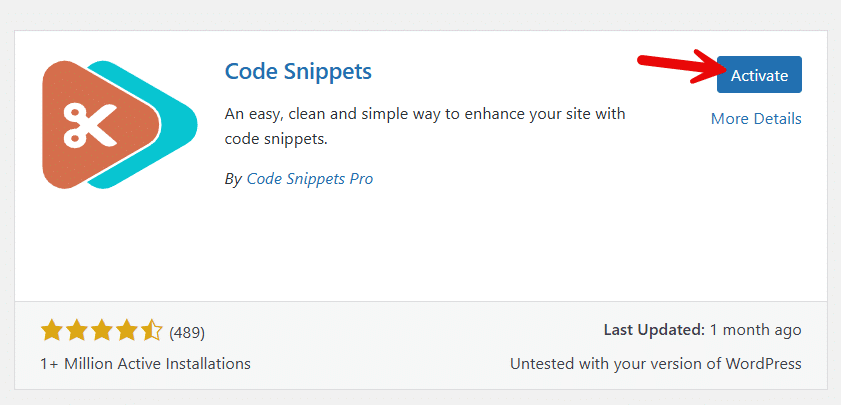
Now, let’s see how you can move WooCommerce orders to a top-level menu. We will be using a simple snippet for this task. You need to use a child theme or a site-specific plugin for this task. In this case, we will use the Code Snippets plugin.
First, install and activate the plugin on your website.
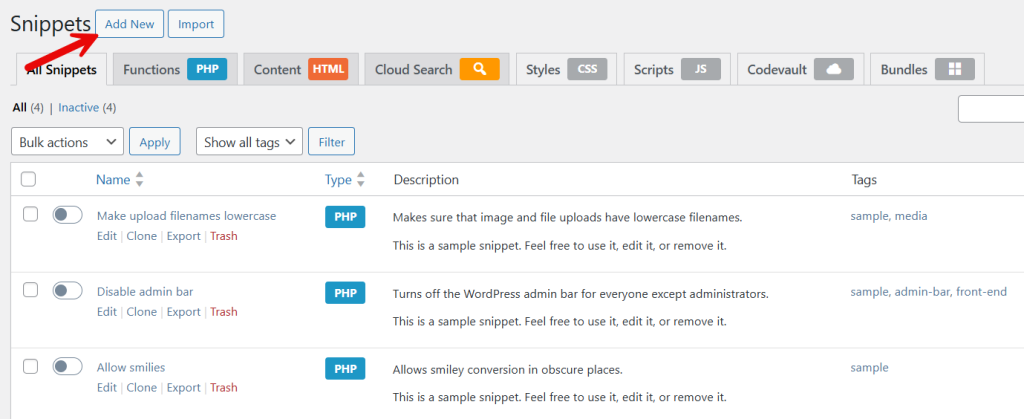
Now, you need to add a new snippet.
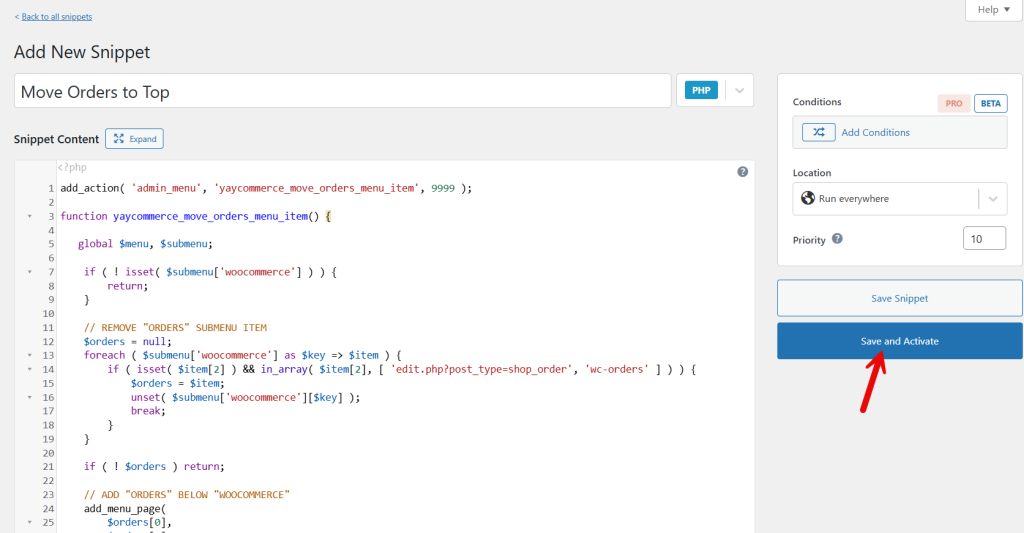
The code you need to be using is:
add_action( 'admin_menu', 'yaycommerce_move_orders_menu_item', 9999 );

function yaycommerce_move_orders_menu_item() {

   global $menu, $submenu;

    if ( ! isset( $submenu['woocommerce'] ) ) {
        return;
    }

    // REMOVE "ORDERS" SUBMENU ITEM
    $orders = null;
    foreach ( $submenu['woocommerce'] as $key => $item ) {
        if ( isset( $item[2] ) && in_array( $item[2], [ 'edit.php?post_type=shop_order', 'wc-orders' ] ) ) {
            $orders = $item;
            unset( $submenu['woocommerce'][$key] );
            break;
        }
    }

    if ( ! $orders ) return;

    // ADD "ORDERS" BELOW "WOOCOMMERCE"
    add_menu_page(
        $orders[0],
        $orders[0],
        $orders[1],
        $orders[2],
        '',
        'dashicons-cart',
        55.5
    );

}
Once you have pasted the code, activate it.
After activation, you can see the orders have now moved to the top-level menu!
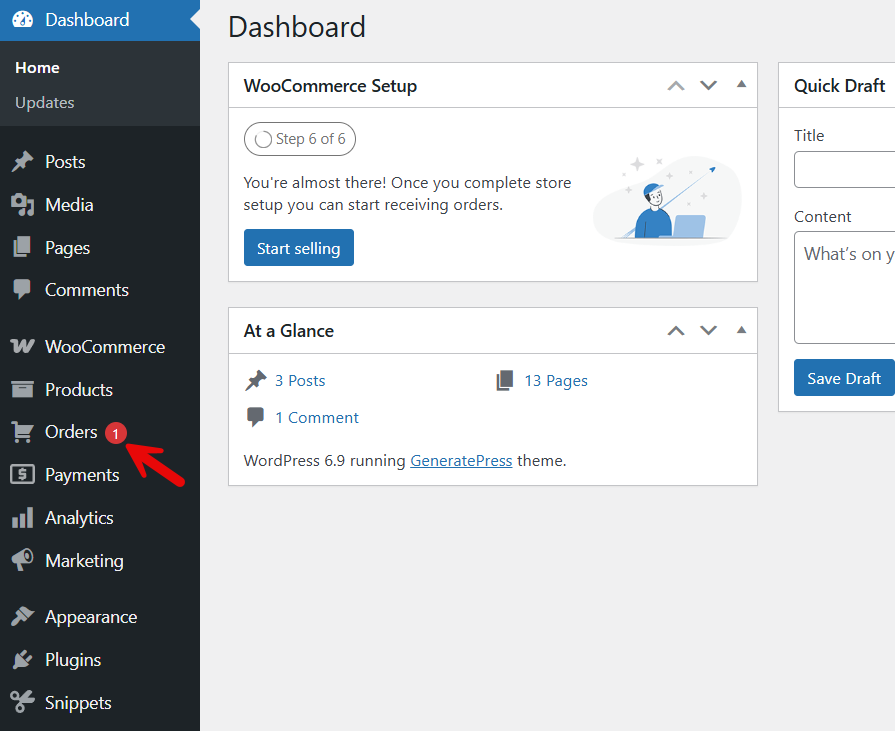
As you can see, this would be so convenient, and you can work on the orders easily this way.
That’s it!
This is how you can move WooCommerce orders to a top-level menu in WordPress admin.
Best Practices When Modifying the WP Admin Menu
Modifying the WP Admin menu can improve workflow and usability, but it should be done carefully to avoid conflicts or confusion for store managers and administrators.
- Always test changes on a staging site first: Admin menu customizations affect core WordPress behavior. Testing in a staging environment helps prevent accidental access to the live site.
- Limit menu changes to necessary user roles: Apply menu modifications only to relevant roles such as administrators or shop managers. This keeps the WordPress dashboard clean and avoids confusing non-technical users.
- Use proper capability checks: Ensure the menu item respects WooCommerce and WordPress capabilities.: This prevents unauthorized users from seeing or accessing order-related pages.
- Avoid removing default menu items completely: Instead of removing core WooCommerce menus, reposition them logically. This reduces the risk of breaking future WooCommerce updates.
- Keep menu labels clear and consistent: Use familiar terms, such as “Orders,” so users can quickly understand the menu’s purpose without relearning navigation.
- Document custom code changes: Add comments in your theme or custom plugin files explaining why the admin menu was modified. This helps with future maintenance and troubleshooting.
- Recheck compatibility after updates: WooCommerce and WordPress updates can change admin menu behavior. Always verify that your custom menu placement still works after updating.
Following these best practices ensures your WP Admin menu remains user-friendly, secure, and compatible with future WooCommerce updates.
Frequently Asked Questions
Now, let’s take a look at some of the frequently asked questions and answers regarding the topic.
Moving WooCommerce orders to a top-level menu improves navigation inside the WordPress admin area. It reduces clicks, saves store managers time, and improves order management efficiency, especially for stores that process orders daily.
No, this change only modifies the position of the orders menu in WP Admin. All WooCommerce order features, including viewing, editing, refunding, and updating order statuses, continue to function normally.
Yes, it is safe when the modification is done using proper WordPress hooks and role-based permissions. Following best practices helps ensure compatibility with WooCommerce and avoid admin dashboard issues.
The visibility depends on user roles and capabilities. You can restrict the top-level WooCommerce Orders menu to administrators or shop managers, preventing other users from seeing it.
WooCommerce updates do not overwrite custom code added through WordPress hooks. Still, it is a good practice to test the admin menu after updates to confirm everything works as expected.
Adding the code to a custom plugin is recommended. This keeps the admin menu change active even if you switch or update your WordPress theme.
Yes, you can reorder, rename, or reposition other WooCommerce admin menu items using similar methods. This allows you to tailor the WP Admin menu to match your workflow and store management needs.
Conclusion
In conclusion, moving WooCommerce orders to a top-level menu in the WP Admin streamlines store management and improves daily workflows.
This small adjustment makes order access faster, reduces unnecessary navigation, and creates a cleaner admin experience for store owners and shop managers. When implemented using proper WordPress hooks and best practices, the change is safe, update-friendly, and easy to maintain.
By organizing the admin menu around how your store actually operates, you can manage WooCommerce orders more efficiently and focus on processing sales rather than searching through menus.
How else would you customize your WooCommerce store?
Let us know in the comments.
