
Do you want to insert or manage an order withdrawal button in WooCommerce? In this article, we will show you a step-by-step guide to doing it properly.
From June 19 2026, all WooCommerce stores selling to customers in the European Union must provide a clear option to withdraw an order. This is part of the updated EU consumer protection law. The default WooCommerce system does not include this feature.
Many store owners are now looking for a simple and reliable way to add and manage an Order Withdrawal Button.
In this guide, we show you step by step how to add and manage the withdrawal button using the EU Order Withdrawal Button for WooCommerce plugin. You will also learn best practices and important compliance tips.
First, we will learn more about the EU withdrawal button requirement.
Table of contents
Understanding the EU Withdrawal Button Requirement
From June 19 2026, all online stores selling to customers in the European Union must follow new consumer protection rules. One of the main requirements is to provide a clear, easy way for customers to request an order withdrawal.
This rule is part of the updated EU Consumer Rights Directive. It gives buyers the legal right to cancel their order within 14 days of receiving the product without providing a reason. To support this right, stores must display a visible withdrawal button or link on their website.
The withdrawal button helps customers easily submit a cancellation request. Without this feature, stores risk non-compliance, potential fines, and damage to customer trust. This requirement applies to all WooCommerce stores that sell to EU customers, whether they sell physical products or eligible digital goods.
Default WooCommerce vs Dedicated Withdrawal Plugin
| Feature | Default WooCommerce | Dedicated Withdrawal Plugin (EU Order Withdrawal Button) |
|---|---|---|
| Withdrawal Button | Not Available | Available (Easy to add) |
| Customer Withdrawal Request Form | Not Available | Built-in form |
| Automated Email Notifications | Not Available | Yes (to customer and admin) |
| Request Management in Dashboard | Not Available | Yes (Dedicated dashboard) |
| EU Compliance (2026 Law) | Not Compliant | Fully Compliant |
| Customization Options | Very Limited | Good (Button text, placement, styling) |
| Partial Withdrawal Support | Not Available | Available |
| Ease of Setup | Not Possible | Very Easy |
| Best For | Basic stores (Non-EU) | Stores selling to EU customers |
How to Insert or Manage an Order Withdrawal Button in WooCommerce
Now, let’s see how to implement this feature on your WooCommerce store. The first thing you need to do is install and activate the EU Order Withdrawal Button for WooCommerce plugin.
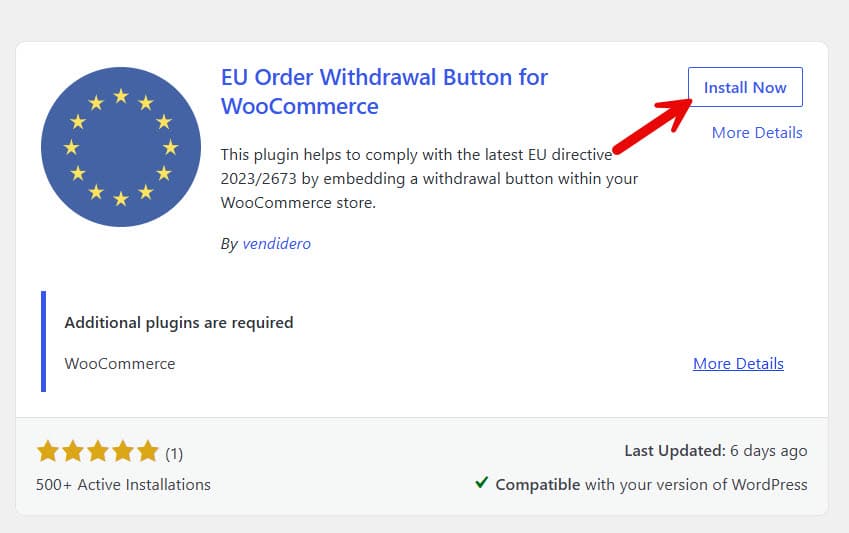
Once you have installed it, activate the plugin.
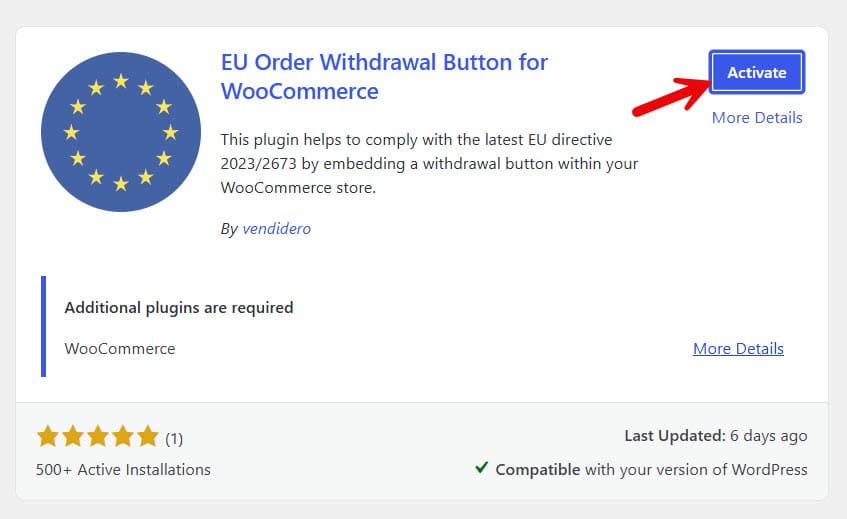
After activating the plugin, we can begin configuring it. You can view the plugin’s settings under WooCommerce Settings > Advanced > Withdrawals.
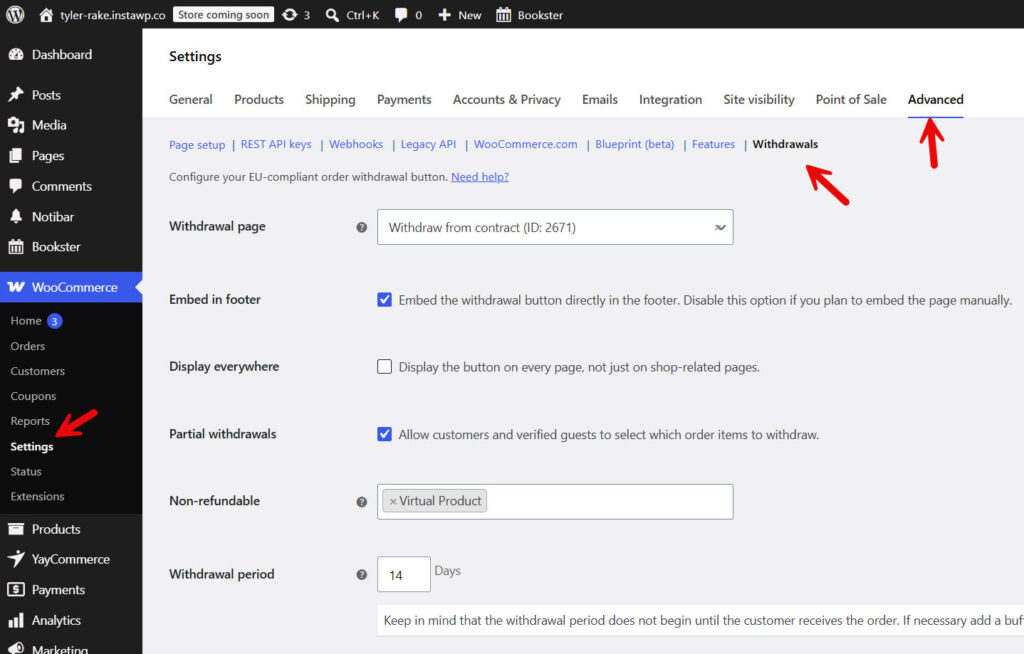
There, you can see options like:
- Withdrawal page
- Embed in footer
- Display everywhere
- Partial withdrawals
- Non-refundable
- Unverified requests
- Contact email
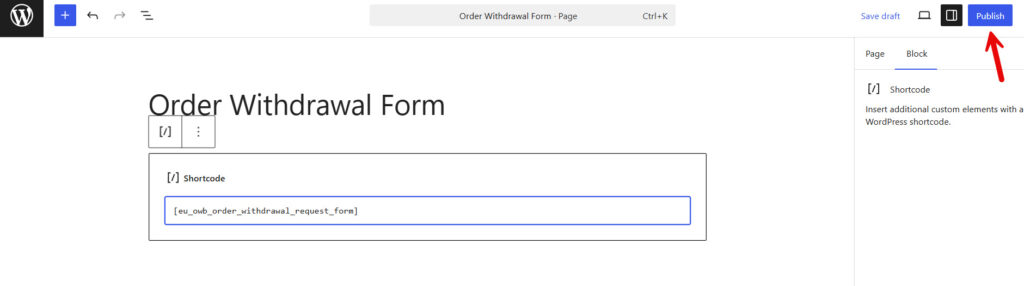
The default configuration options available in the plugin are alright. But you can always tweak them according to your preferences. The only thing you need to do is create a new page and enter the shortcode to render the withdrawal form.
The shortcode you can use is:
[eu_owb_order_withdrawal_request_form]
Paste the shortcode and publish the page.
Now go to the plugin’s settings and select the correct order page from the dropdown.

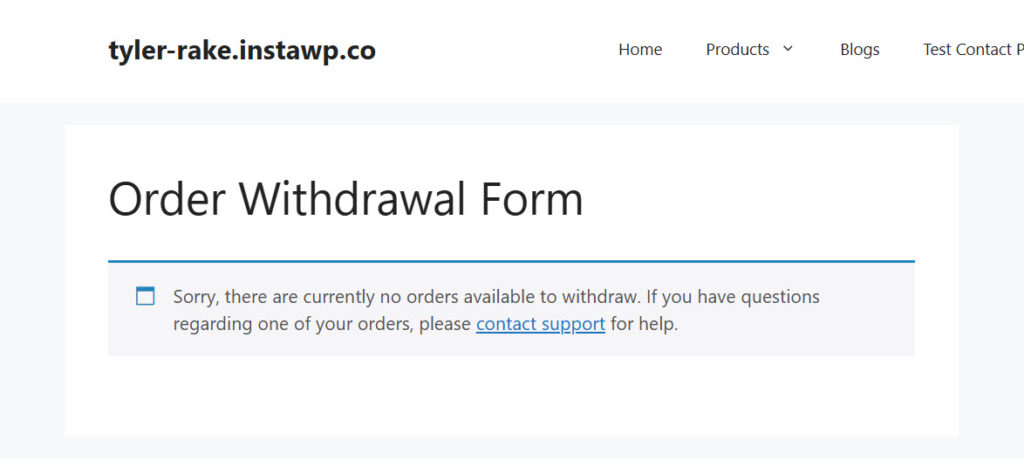
Save the settings after that. Now, you can visit the page. If you do not have any orders attached to your user account, you won’t see the form.
On the other hand, if a customer has past orders, they will see this screen:
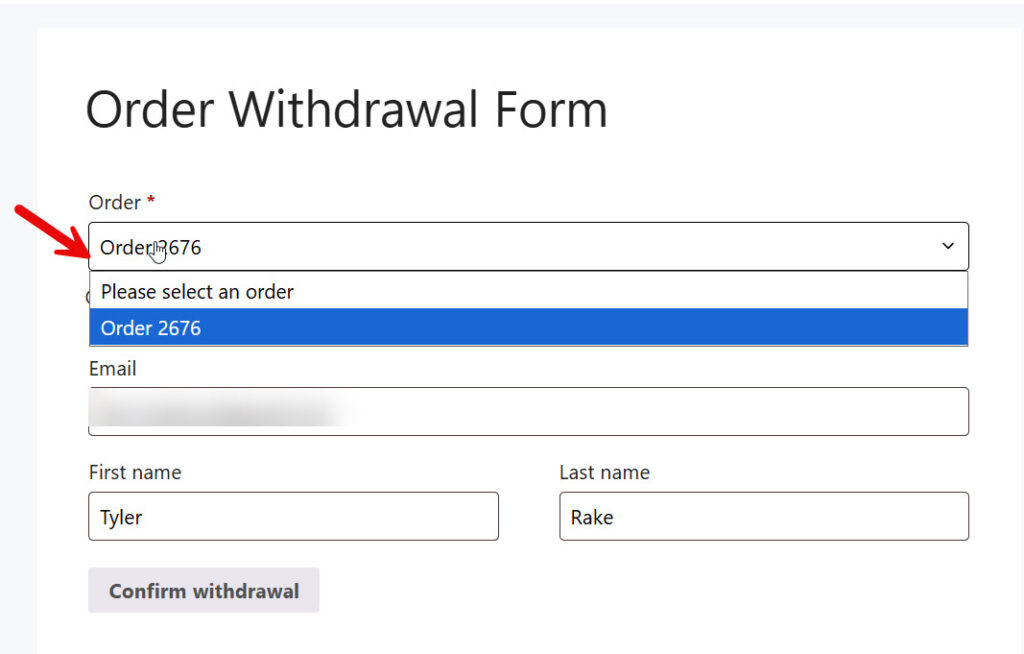
They can choose the order number from the dropdown and confirm the withdrawal. Once a customer has requested a withdrawal, the store admin can view it on the order details page.
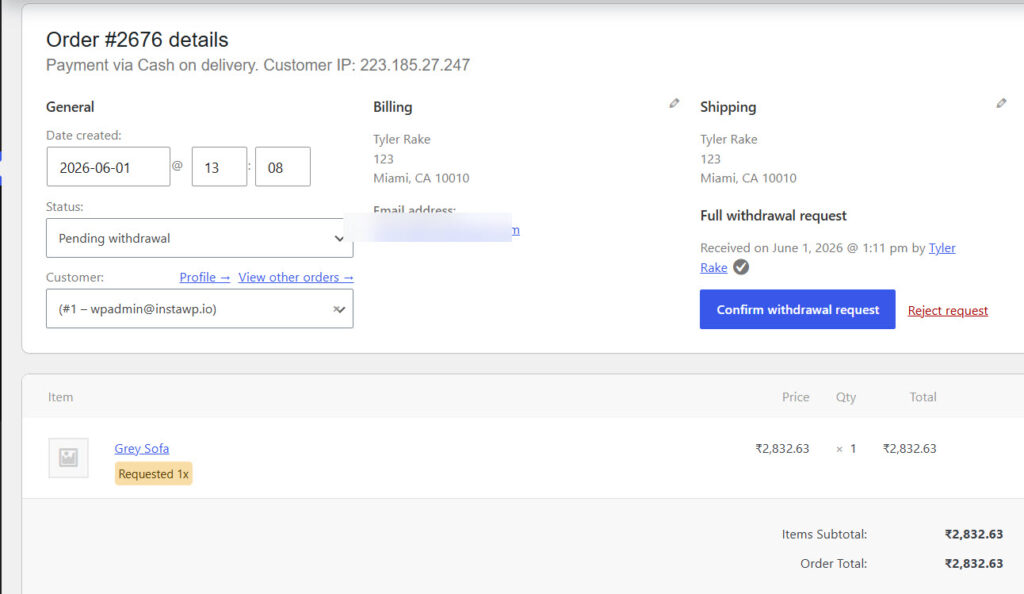
The owner can confirm the withdrawal request and either issue a refund or reject it. Last time, we did it with only one product in the order. But what if we have multiple products in the same order?
Let’s see what happens.
After placing an order with multiple products, users can still ask for a withdrawal. When there is more than one product in the order, the plugin will allow them to choose each product individually (you have to enable partial withdrawals in the plugin settings).
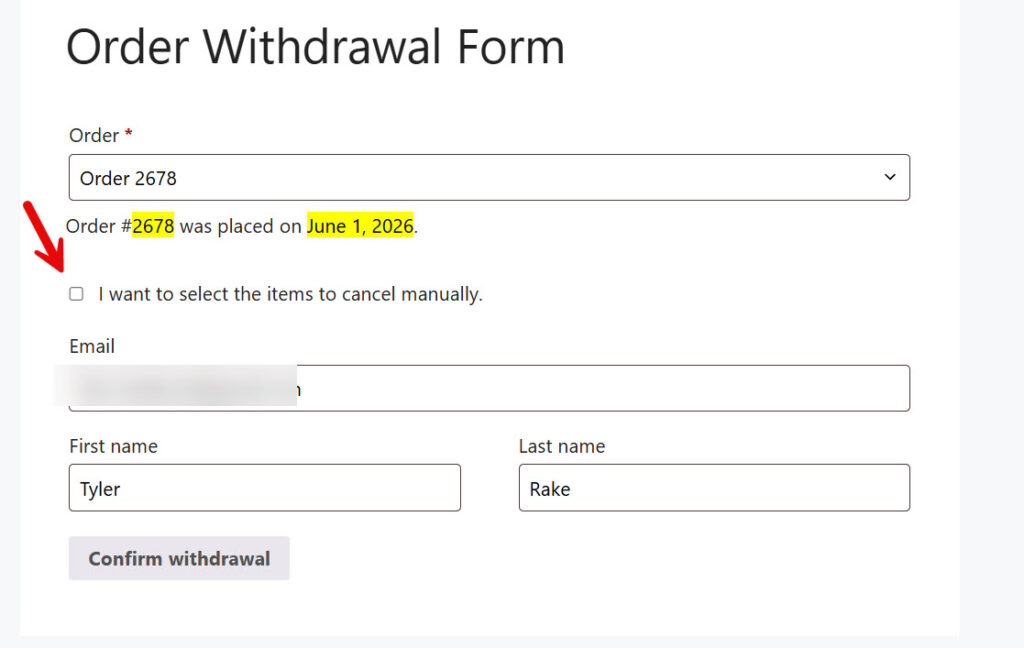
Then, in a table, you can see all the items in your order.
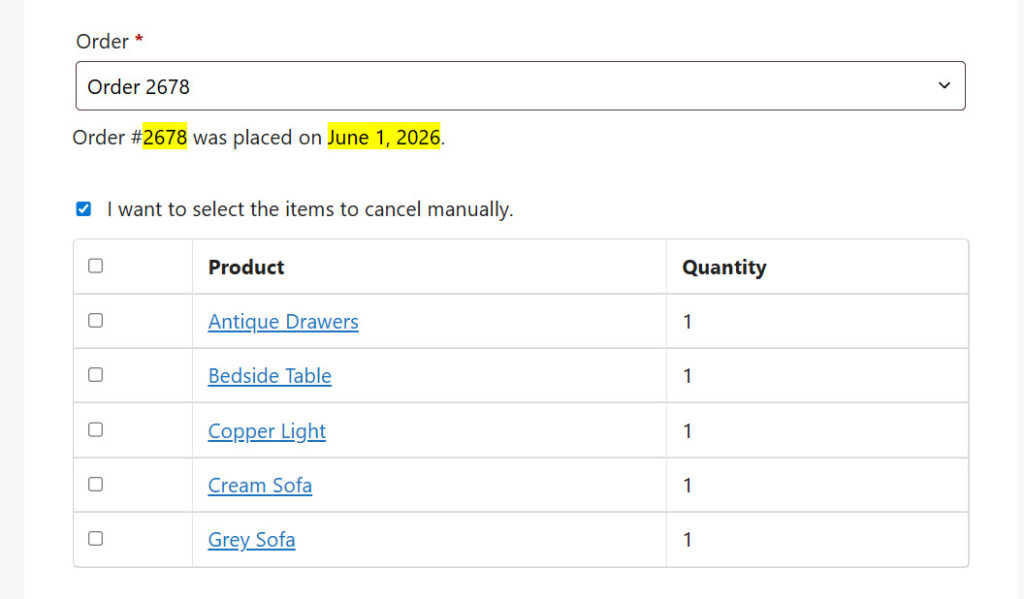
Select the items you do not need and hit the withdrawal button. If you check the order details page, you can see the partial withdrawal option.
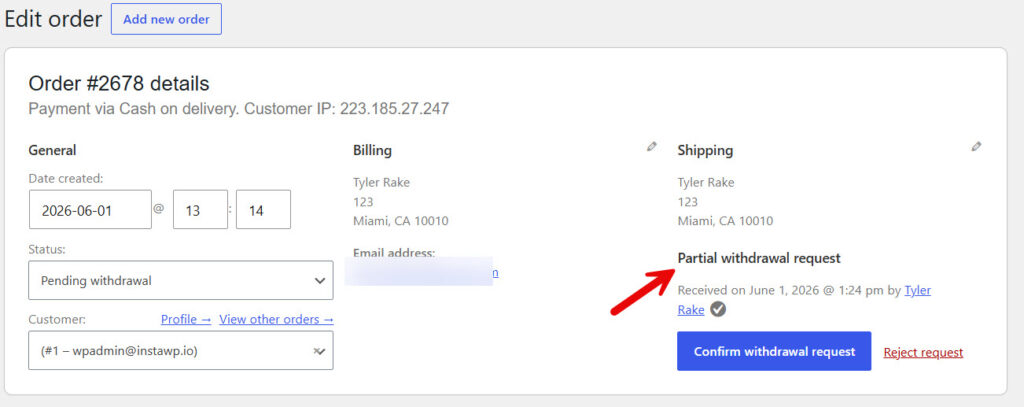
You can either confirm or reject the withdrawal request.
That’s it.
This is how you can insert or manage an order withdrawal button in WooCommerce.
Here are some similar articles you can check:
- Cross-Sells vs Upsells vs Order Bumps: Best Practices and More
- Photo & Video Reviews in WooCommerce: Why They Convert Better Than Text
- 7 WooCommerce Discount Strategies That Actually Increase Average Order Value
- How to Get More (and Better) Product Reviews on Your WooCommerce Store
- How to Add a Request a Quote Button to Your WooCommerce Store
Frequently Asked Questions
Now, let’s take a look at some frequently asked questions and answers on this topic.
The EU Order Withdrawal Button is required for all WooCommerce stores selling to customers in the European Union. Starting June 19, 2026, stores must provide a clear button or link that allows buyers to request cancellation of their order within 14 days of receiving the product.
No. The default WooCommerce system does not have any built-in withdrawal button or request form. You need to use a dedicated plugin to add this feature and stay compliant with EU law.
The EU Order Withdrawal Button for WooCommerce plugin is currently the best and most straightforward solution. It is specifically built to meet the new EU regulation and offers easy setup with good customization options.
You can add the button using the EU Order Withdrawal Button plugin. After installation, the plugin automatically creates the necessary pages and shortcodes. You can then place the button in the footer, on the account page, or on the order details page via the plugin settings.
Yes. The EU Order Withdrawal Button plugin supports partial withdrawals. Customers can request cancellation of only specific items in their order, rather than the entire order.
The best places are the customer account page, order details page, and the website footer. These locations make the button easy for customers to find while meeting EU visibility requirements.
Yes. The plugin automatically sends email notifications to both the customer and the store admin whenever a withdrawal request is submitted.
The plugin has a free version that covers the core functionality needed for basic compliance. Premium features such as advanced customization and priority support are available in the paid version.
No. The plugin is lightweight and optimized. It adds almost no extra load to your website and does not slow down page loading speed.
The request appears in your WordPress admin dashboard. You can review it, approve or reject the request, and the order status will update accordingly. The customer also receives a confirmation email.
Conclusion
Adding a clear Order Withdrawal Button is now essential for any WooCommerce store that sells to customers in the European Union. From June 19 2026, this feature becomes a legal requirement under the updated EU consumer protection rules.
The EU Order Withdrawal Button for WooCommerce plugin offers the simplest and most reliable way to meet this requirement. It allows you to easily add the withdrawal button, manage customer requests, send proper notifications, and stay fully compliant.
By following the steps shared in this guide, you can implement the withdrawal button quickly and professionally. This not only helps you avoid potential fines but also builds better trust with your customers. Do not wait until the last minute.
Install the plugin today, set it up properly, and make sure your store is ready for the new EU regulations.
We hope you found this article helpful and enjoyed reading it. If you need to learn more WooCommerce tips and tricks, check out the YayCommerce blog. Also, feel free to check out our social media handles, such as Facebook, X, Instagram, and YouTube, for more interesting content.
