
Do you want to enable WooCommerce photo reviews for products on your store? In this post, we will show you how to properly enable photo and video reviews on your WooCommerce site.
In 2026, text-only reviews are no longer enough. Customers want to see real photos and videos of products before they buy. Products with photo reviews build significantly higher trust and can increase conversion rates by up to 30 percent compared to text reviews alone.
However, enabling photo and video reviews in WooCommerce is not straightforward with the default system. That is why most successful store owners use a dedicated plugin to streamline the process and improve efficiency.
In this ultimate guide, you will learn how to enable WooCommerce photo reviews step by step using YayReviews. YayReviews is one of the best and lightest review plugins available. We will also share 5 powerful pro tips to help you collect more visual reviews and turn them into a major sales driver for your store.
Whether you sell fashion, beauty products, electronics, or home goods, this guide will help you quickly and effectively set up a professional photo review system.
First, we will see why you should enable photo reviews on your WooCommerce store.
Table of contents
- Why You Should Enable Photo Reviews on Your WooCommerce Store
- Default WooCommerce Reviews vs Photo Reviews
- How to Enable WooCommerce Photo Reviews Using YayReviews (Step-by-Step Guide)
- Advanced Configuration & Customization
- 5 Pro Tips to Maximize Photo & Video Reviews
- Common Mistakes to Avoid
- How to Migrate Existing Reviews + Photos to YayReviews
- Frequently Asked Questions
- Conclusion
Why You Should Enable Photo Reviews on Your WooCommerce Store
Photo and video reviews have become one of the most effective ways to build trust and increase sales in WooCommerce stores. Here is why enabling them should be a priority for your business:
- Builds Much Higher Trust: Customers trust real photos and videos from other buyers far more than text reviews or professional product images. Visual reviews make your products feel authentic and reliable.
- Significantly Boosts Conversions: Products with photo reviews often see 25-30% higher conversion rates. Shoppers feel more confident buying when they can see the product in real-life use.
- Reduces Return Rates: Photo reviews help customers understand the product’s actual size, color, texture, and quality. This leads to better buying decisions and fewer returns.
- Improves SEO Performance: Google loves fresh user-generated content. Photo reviews with proper schema can help your products appear in image search results and rich snippets.
- Gives You a Competitive Edge: While most stores still rely on basic text reviews, enabling photo reviews helps your store stand out, especially in visual niches like fashion, beauty, electronics, furniture, and home decor.
In 2026, stores that offer photo and video reviews clearly outperform those that do not.
Default WooCommerce Reviews vs Photo Reviews
Here is a clear comparison that shows why most serious WooCommerce stores move beyond the default review system:
| Feature | Default WooCommerce Reviews | Photo Reviews (with YayReviews) |
|---|---|---|
| Review Format | Text + Star Rating only | Text + Customer Photos + Videos |
| Trust Level | Average | Very High |
| Conversion Impact | Moderate | 25-30% higher |
| Customer Experience | Basic | Modern and engaging |
| SEO Benefits | Limited | Strong (Image search + Rich Snippets) |
| Moderation Tools | Basic | Advanced with spam protection |
| Display Options | Simple tab | Beautiful widgets, carousels, and galleries |
The default WooCommerce review system is too limited for today’s customers. Enabling photo and video reviews with a plugin like YayReviews transforms your review section from basic to powerful, helping you build trust and increase sales.
How to Enable WooCommerce Photo Reviews Using YayReviews (Step-by-Step Guide)
Now let’s see how to enable WooCommerce product reviews using YayReviews.
The first thing you need to do is install and activate the plugin on your WooCommerce site. You can do it quickly. If you haven’t bought this plugin, please visit its page and buy a subscription that suits you.
Once you have purchased the plugin, it is time to activate it on your website. You should also verify your license key to receive priority support and updates from our team.
The YayReviews settings can be found on the left-hand side.
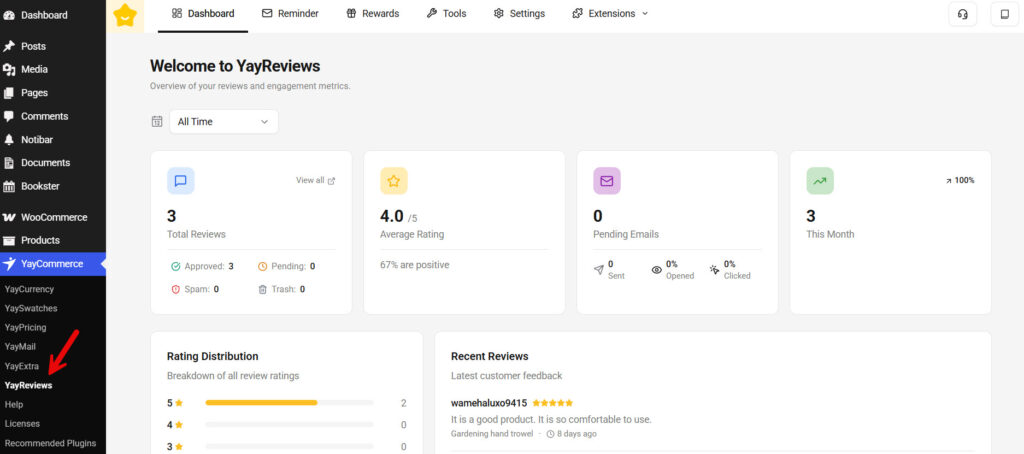
Once you have activated the plugin, the default WooCommerce product review option will be replaced with YayReviews. As of now, the review form would look like this:
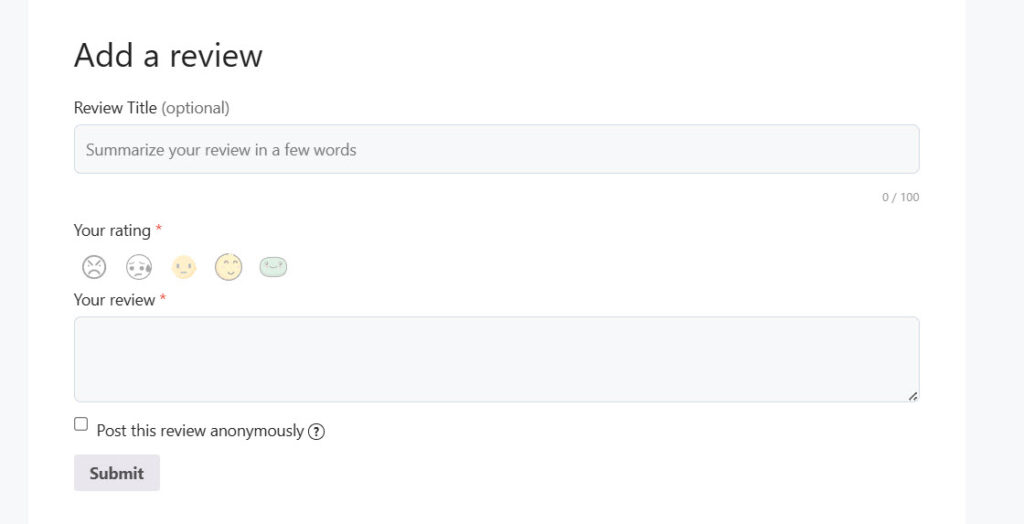
As you can see, there are:
- Review title
- Rating
- Review
Let’s add a media option to the form. To do this, go to Settings > Media Settings.
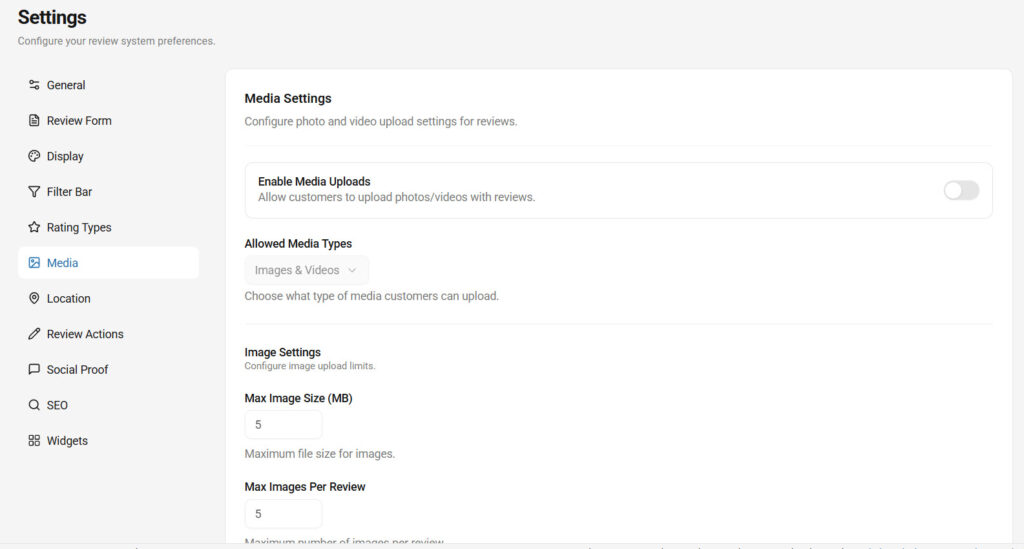
By default, the media uploads are disabled. The first thing you need to do is enable the media uploads.
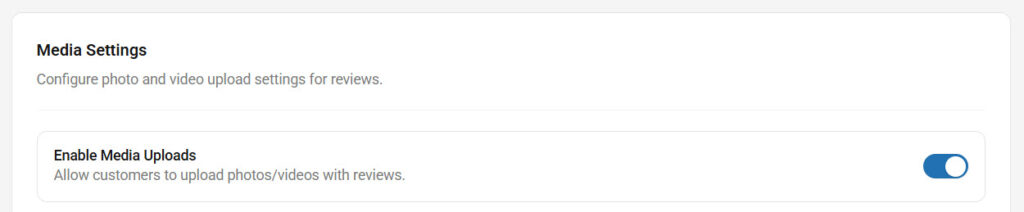
Next, select the types of media users can upload.

We recommend choosing an option depending on your preferences. If you are selling fashion products, enabling both options might be a good idea.
Now scroll down to the image settings.
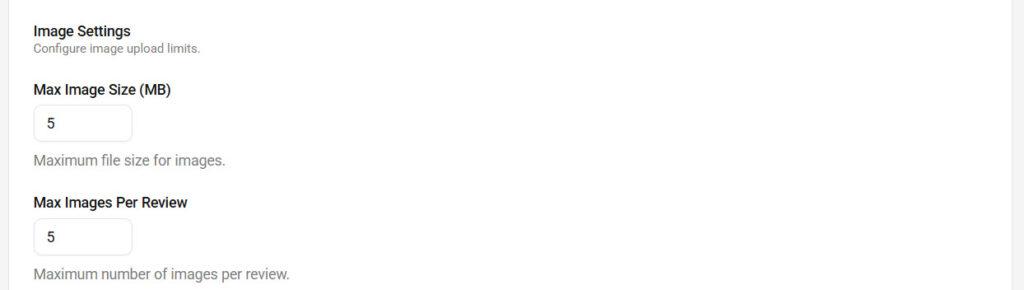
As you can see in the screenshot, you can set the maximum file size for images and the maximum number of images allowed in a review. Choose these options based on your liking.
Scroll down again, and you’ll see the video settings.
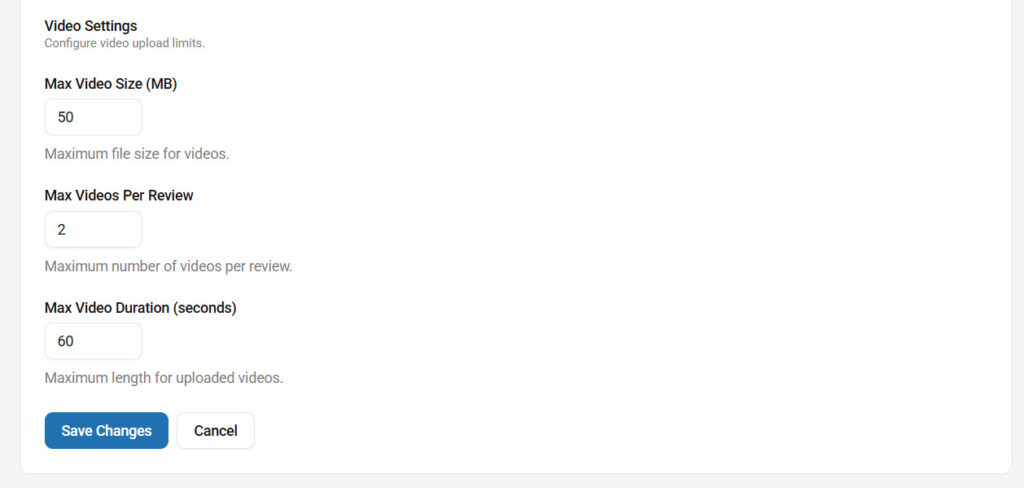
You have options like:
- Maximum video size
- Maximum video per review
- Maximum video duration
You need to configure these carefully if you are using a shared web hosting provider. Shared hosting companies are known for limiting available storage and bandwidth. So, limit it based on your available resources.
Once you have configured both, save the settings and check the review form in the front end.
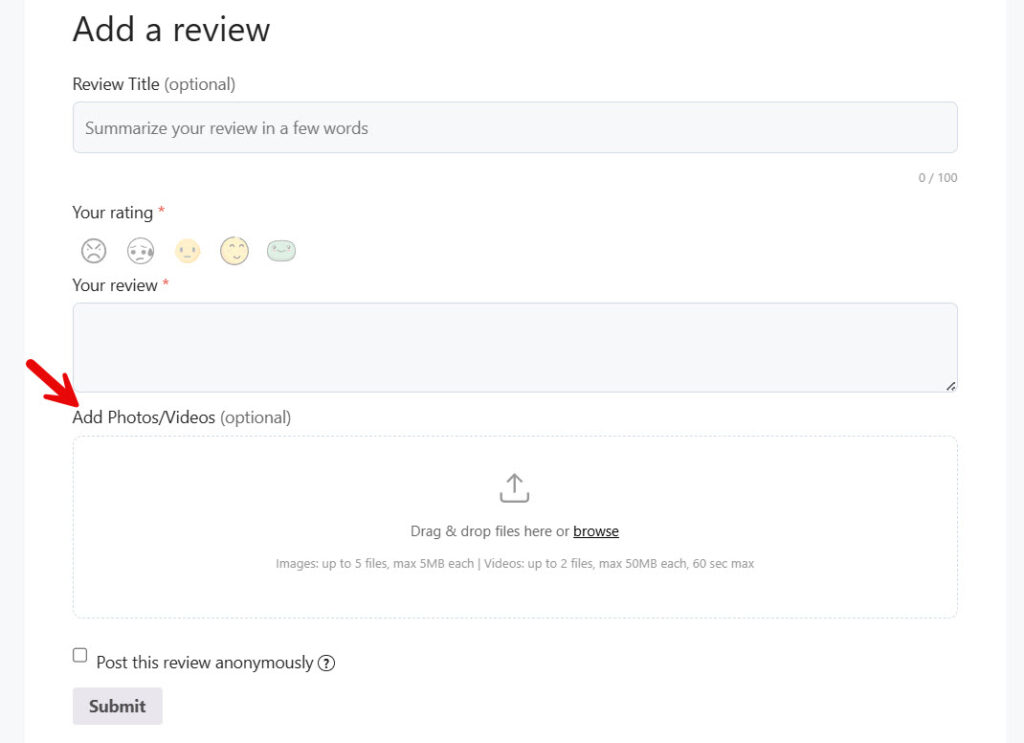
As you can see in the image, a new photo/video option is available. From now on, people can upload images or videos in reviews and it will be displayed in the review tab.
That’s it!
This is how you can add WooCommerce product reviews using YayReviews.
Advanced Configuration & Customization
Once you have basic photo reviews enabled with YayReviews, you can take things further with advanced settings to improve user experience and results.
1. AI-Powered Review Summaries
YayReviews can automatically generate smart AI summaries based on all customer reviews and photos. This shows a quick overview at the top of the review section, such as “Most customers loved the fit and quality – 89% would recommend.” It helps visitors understand the overall feedback without having to read every review.
2. Verified Buyer Badges
Enable verified buyer badges to show that a review (with photo) comes from a real customer who purchased the product. This significantly increases trust and makes your photo reviews more credible.
3. GDPR & Privacy Controls
Set consent checkboxes for photo uploads and control how customer data is stored and displayed to stay fully GDPR compliant.
These advanced features help you create a professional, trustworthy, and highly engaging photo review system that stands out from basic setups.
5 Pro Tips to Maximize Photo & Video Reviews
Now, here are the 5 best tips to keep in mind to maximize photo and video reviews on your store.
1. Make Photo Uploads Easy and Encouraged, Not Mandatory
Forcing customers to upload photos often reduces review submissions. Instead, make photo and video uploads optional but highly encouraged.
In YayReviews, you can add a friendly message, such as “Bonus: Add a photo or video to help other customers,” next to the upload button. This approach usually results in higher overall review rates and more visual content.
2. Offer Targeted Incentives for Visual Reviews
Customers are more likely to upload photos when there is a clear benefit. Offer a slightly better reward (example: 15% off instead of 10%) for reviews that include at least one photo or video. YayReviews allows you to automate this incentive so customers receive the coupon only after submitting visual content.
3. Optimize the Review Form for Mobile Users
Most photo reviews are submitted from mobile phones. Make sure your review form is fast and user-friendly on mobile. With YayReviews, test the form on different devices and keep the upload button large and clearly visible. Reducing the number of steps also helps increase completion rates.
4. Showcase Photo Reviews Prominently
Do not hide customer photos at the bottom of the page. Place them near the top of the review section using large thumbnails or carousels. YayReviews makes it easy to create beautiful photo galleries that grab attention and encourage new customers to add their own photos.
5. Use Customer Photos in Your Marketing
Turn submitted photos into marketing assets. With permission, repost the best customer photos on your social media, email campaigns, and product pages. This not only builds social proof but also motivates more customers to upload their own photos in future reviews.
Common Mistakes to Avoid
Enabling photo reviews can greatly improve your store, but many store owners make these mistakes that reduce results. Here are the most important ones to avoid:
- Making the Review Form Too Complicated: Requiring too many fields or making photo uploads mandatory often leads to lower submission rates. Keep the form simple and make photo uploads optional but encouraged.
- Ignoring File Size Limits: Not setting proper file size and quantity limits can cause slow loading times or server issues. Always set reasonable limits (e.g., 2-5 MB per image).
- Poor Moderation of Customer Photos: Allowing low-quality, blurry, or inappropriate images can damage your store’s credibility. Always review photos before they go live or use good moderation tools.
- Not Promoting the Photo Review Feature: Many stores enable photo reviews, but never tell customers about them. Clearly mention in order confirmation emails and review request messages that customers can upload photos.
- Bad Mobile Experience: A large number of reviews are submitted from mobile phones. If your photo upload process is not smooth on mobile, you will miss out on many visual reviews.
Avoiding these mistakes will help you get higher-quality photo reviews and better overall performance from your review system.
How to Migrate Existing Reviews + Photos to YayReviews
If you are using another WooCommerce product review plugin and want to move to YayReviews without losing any data, follow these steps. First, go to the tools section.
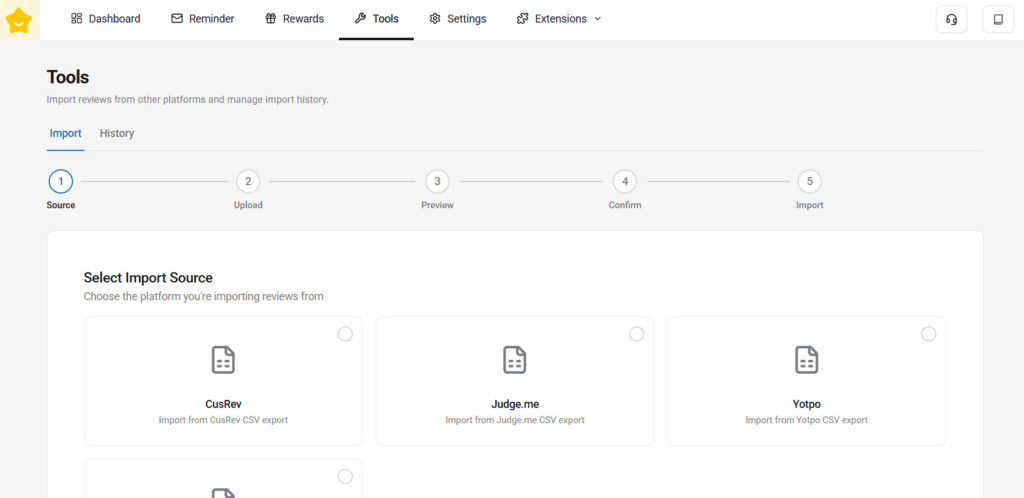
As you can see in the screenshot, you can directly import product reviews from plugins like
- CusRev
- Judge.me
- Yotpo
- Custom CSV
Depending on the plugin you are using for reviews, you can pick an option or import all existing customer reviews. The process won’t take that much time.
Here are some other posts you might be interested in:
- Photo & Video Reviews in WooCommerce: Why They Convert Better Than Text
- 7 WooCommerce Discount Strategies That Actually Increase Average Order Value
- How to Get More (and Better) Product Reviews on Your WooCommerce Store
- How to Add a Request a Quote Button to Your WooCommerce Store
- What’s New in YayExtra 2.1.0
Frequently Asked Questions
Now, let’s take a look at some frequently asked questions about this topic.
The default WooCommerce system does not support photo or video reviews. You need to use a dedicated plugin, such as YayReviews. After installing YayReviews, go to the plugin settings, enable photo and video uploads, and configure the review form. The whole process usually takes less than 10 minutes.
Yes. YayReviews is one of the best choices in 2026 because it is lightweight, easy to use, and offers excellent photo and video review features along with automated reminders and beautiful display options. It performs well without slowing down your store.
The best way is to send clear review reminder emails that specifically ask for photos. You can also offer a small incentive, such as a discount coupon, for reviews that include images. YayReviews makes it easy to automate this entire process.
This is a common issue caused by poor email deliverability. Installing YaySMTP solves this problem by sending emails through professional servers like Gmail, SendGrid, or Amazon SES, which dramatically improves inbox delivery rates.
Yes. YayReviews fully supports both photo and video uploads. You can set limits on file size and the number of files per review. Video reviews are especially powerful for demonstrating product features and usage.
YayReviews offers multiple display options, including carousels, grids, and galleries. You can place them prominently on the product page so customers can easily see real customer photos without having to scroll too much.
Yes. Photo reviews add fresh user-generated content and images to your site. With proper review schema markup (which YayReviews adds automatically), your products can appear with rich snippets and perform better in Google image search.
YayReviews includes strong moderation tools. You can approve photos manually before they go live or set automatic rules. This helps maintain quality and prevents inappropriate or low-quality images from appearing on your store.
Yes. YayReviews has built-in import tools that allow you to migrate all your old reviews, ratings, and images from the default WooCommerce system or other review plugins without losing any data.
YayReviews offers a generous free version on WordPress.org that includes core photo-review features. The Pro version is affordably priced ($99 a year) and unlocks advanced features such as unlimited reminders, video reviews, AI summaries, and priority support.
Conclusion
Enabling photo and video reviews can significantly improve trust and boost sales in your WooCommerce store. In 2026, customers expect to see real images from other buyers before making a purchase. Stores that offer this feature have a clear advantage over those that rely only on text reviews.
YayReviews makes the entire process simple, fast, and effective. From easy photo and video uploads to beautiful display options and smart automation, it gives you everything you need to collect high-quality visual reviews without slowing down your store.
Take the first step today. Follow the setup guide in this article, apply the pro tips, and start turning your customer experiences into powerful social proof.
We hope you found this article helpful and enjoyed reading it. If you need to learn more WooCommerce tips and tricks, check out the YayCommerce blog. Also, feel free to check out our social media handles, such as Facebook, X, Instagram, and YouTube, for more interesting content.
Ready to upgrade your product reviews?
Install YayReviews now and give your store the visual edge it deserves.
