
Do you want to add a Request a Quote button to your WooCommerce store? In this post, we will show you how to add a button to make more sales as a wholesaler.
A request a quote button helps a WooCommerce store that sells custom work, bulk orders, or products without a fixed price.
Shoppers can add products to a quote list instead of the cart, then submit a quote request form. The store owner reviews the list and sends a custom quote. Priced items can still use Add to Cart and WooCommerce checkout.
This guide covers the WooCommerce Request a Quote plugin’s options, quote buttons on the product page, and how to let customers request a quote without having to guess the final price.
First, let’s see why you should add a request a quote button to your WooCommerce store.
Table of contents
Why You Should Add a Request a Quote Button to Your WooCommerce Store
A request-a-quote button gives shoppers a clear path when the product price is not fixed. Custom work, bulk orders, and B2B catalogs do not always fit the Add to Cart flow.
A WooCommerce request-a-quote plugin adds quote buttons, an Add to Quote option, and a quote list page, so customers can request a quote and the store admin can send an accurate quote.
- Custom-priced products: Some WooCommerce products cannot display a price until the store owner selects a size, finish, or quantity. A request-a-quote option lets customers add the product and submit a quote request, rather than having to guess.
- Bulk and B2B orders: Buyers who need large quantities often prefer volume-based pricing. Quote functionality lets them add multiple products to a quote list and wait for a custom quote, rather than using WooCommerce checkout at retail.
- Hide Add to Cart where it does not fit: A flexible plugin can hide the Add to Cart button on specific products or show a quote button for all products. That keeps priced items in the cart and quote items on a separate request option.
- Clearer product pages: Quote buttons and custom button text such as Get a Quote or Add to Quote tell the customer what happens next. The quote button allows a quote request without forcing a purchase.
- Control for the store admin: After you activate and configure the plugin, the store admin can review a new quote, filter by user roles, and send a quote from WordPress and WooCommerce. Third-party plugins such as YITH WooCommerce Request a Quote or ELEX WooCommerce Request a Quote are common WooCommerce solutions for this flow.
- Fewer abandoned carts on custom work: When customers cannot add products to the cart at a fair price, they leave. A quote request plugin simplifies the path: add products, open the quote page, submit a quote request form, and wait for the store owner to reply.
How to Add a Request a Quote Button to Your WooCommerce Store
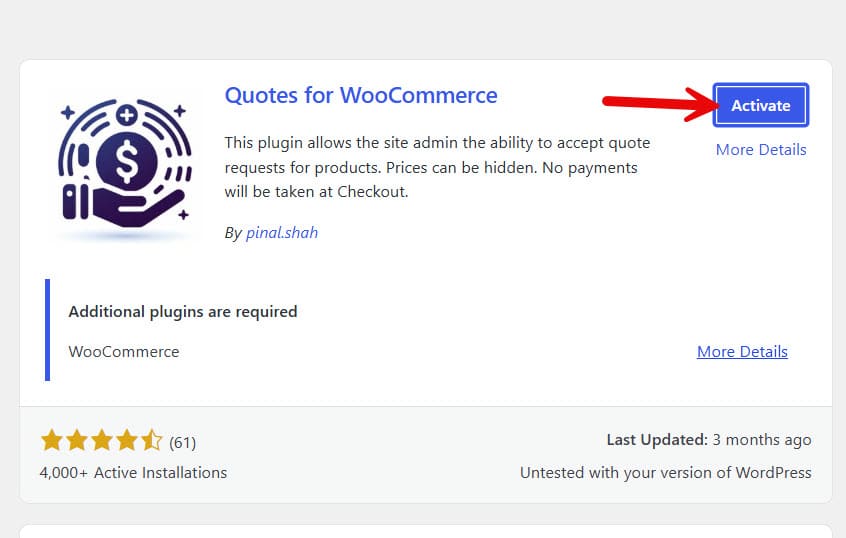
For this tutorial, we will be using a plugin called Quotes for WooCommerce. It is a freemium plugin. Here, we will use the free version of the plugin.
The first thing you need to do is install and activate the plugin.
After activation, you can see the plugin’s configuration under WooCommerce settings > Quotes.
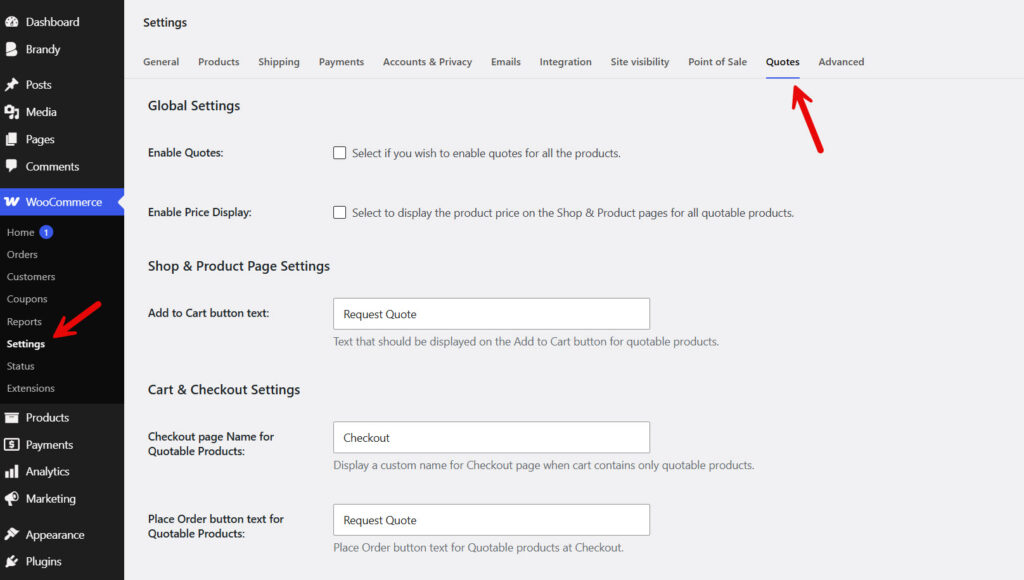
The configuration available is:
- Global Settings
- Enable Quotes
- Enable Price Display
- Shop & Product Page Settings
- Add to Cart button text
- Cart & Checkout Settings
- Checkout page Name for Quotable Products
- Place Order button text for Quotable Products
- Cart page Name for Quotable Products
- Proceed to Checkout button text
- Hide Address fields at Checkout
Let’s see what each configuration will do.
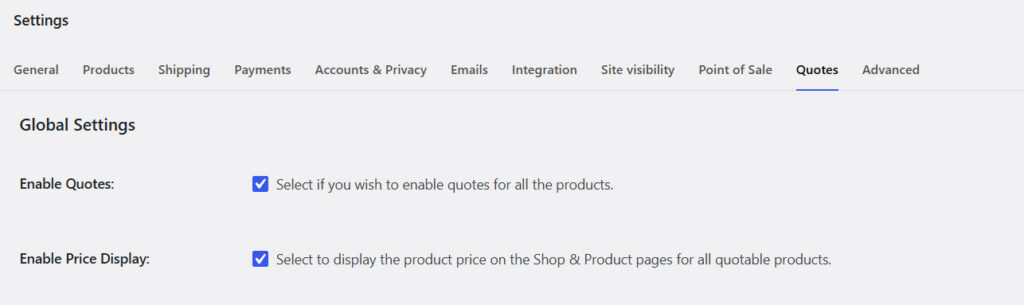
1. Global Settings
From here, you can enable the wholesale option for all products. You can also display the price on shop and individual product pages.
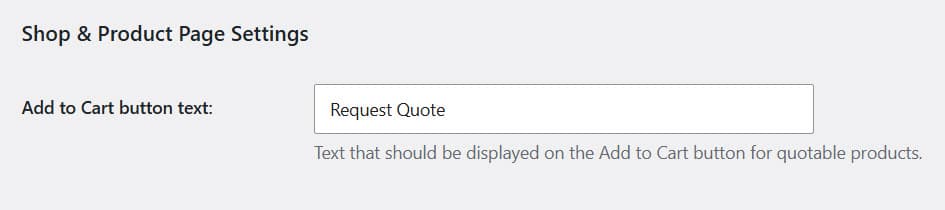
2. Shop & Product Page Settings
From here, you can tweak the label of the add to cart button.
3. Cart & Checkout Settings
From here, you can choose the name for cart and checkout elements. Additionally, you can hide the billing and shipping address fields on the checkout page.
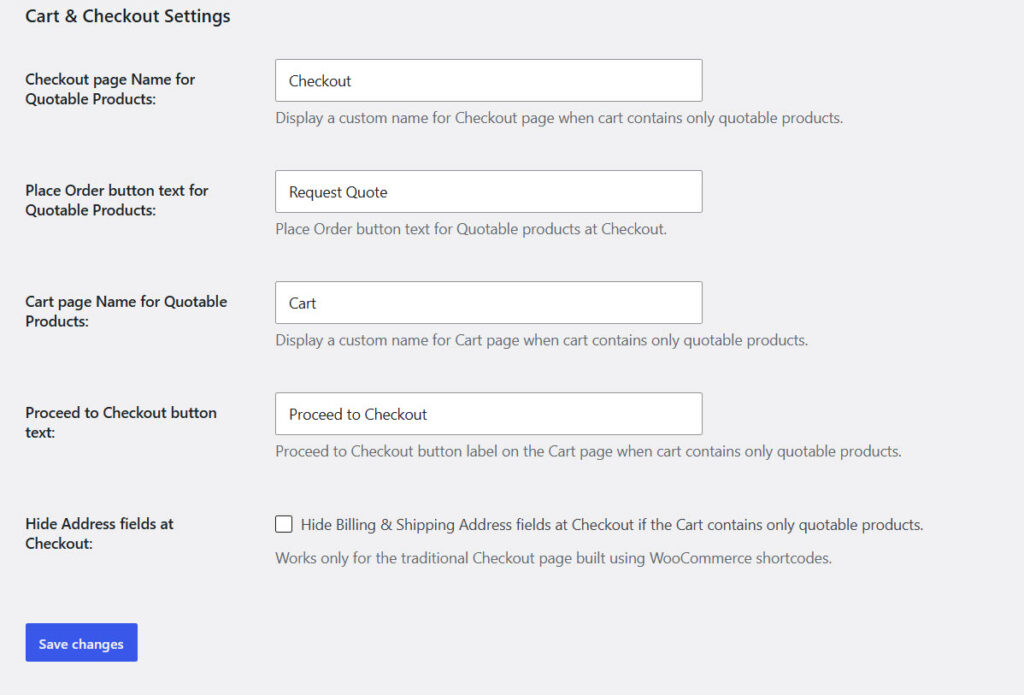
Once you are done with the configuration, save the changes. You can now visit any product page. Instead of the add-to-cart button, you will see the quote button.

Add the products to the cart, then move to checkout. Instead of the traditional payment methods, you will see an option labeled “Ask for Quote.
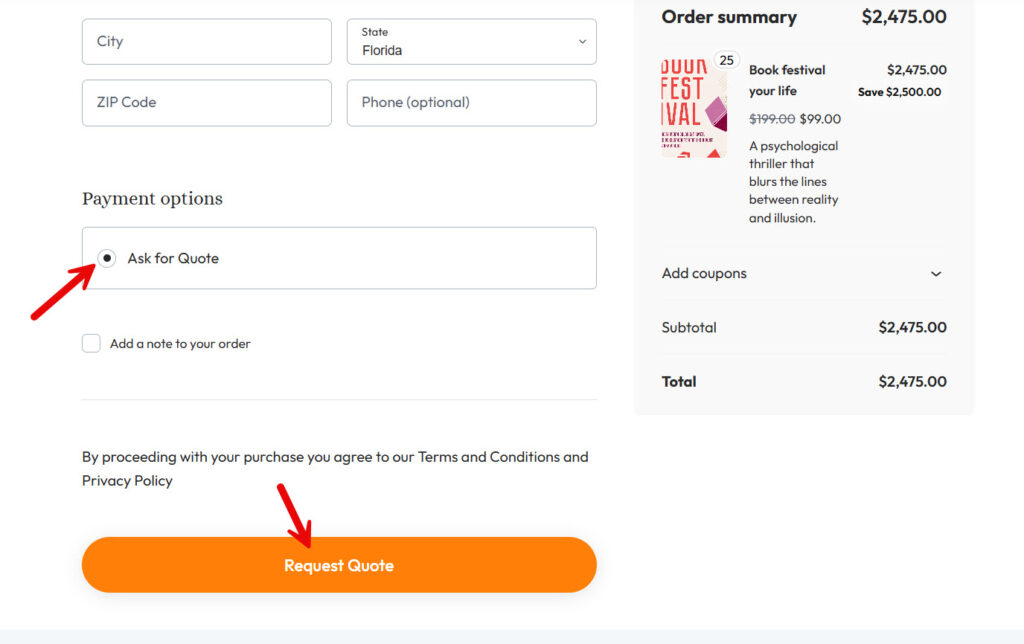
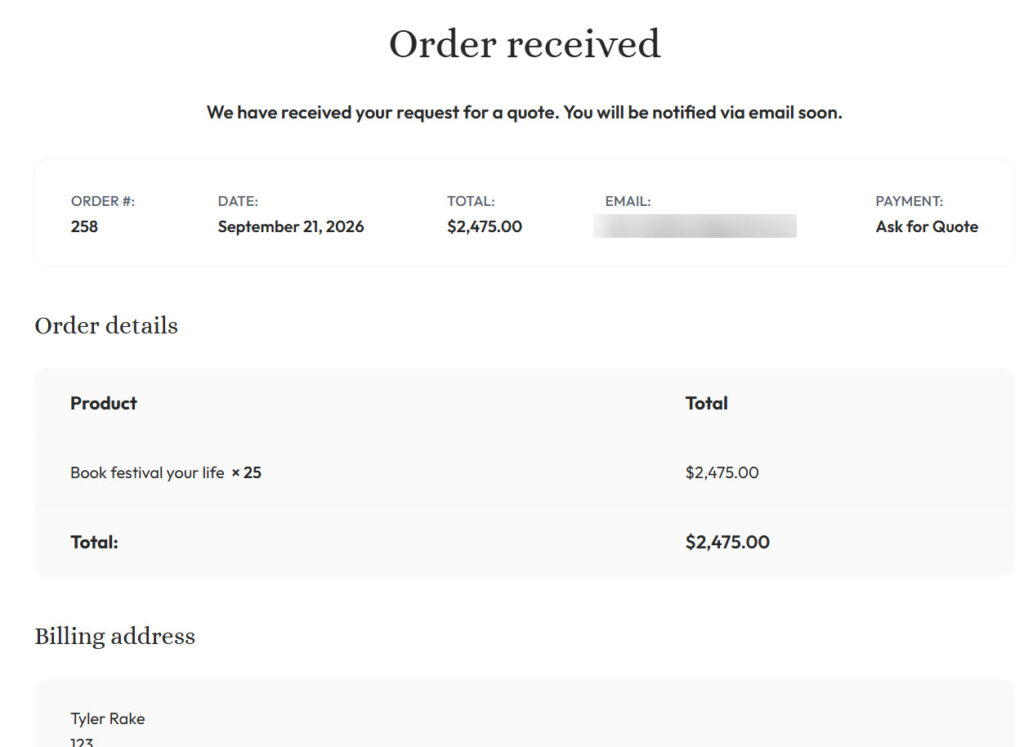
Once the user completes the order, they will see a confirmation page like this:
As the WooCommerce admin, you can see the same order details in your backend.
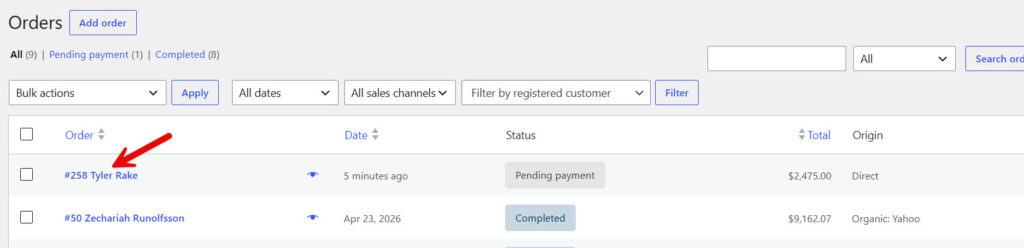
Open the order to see further options.
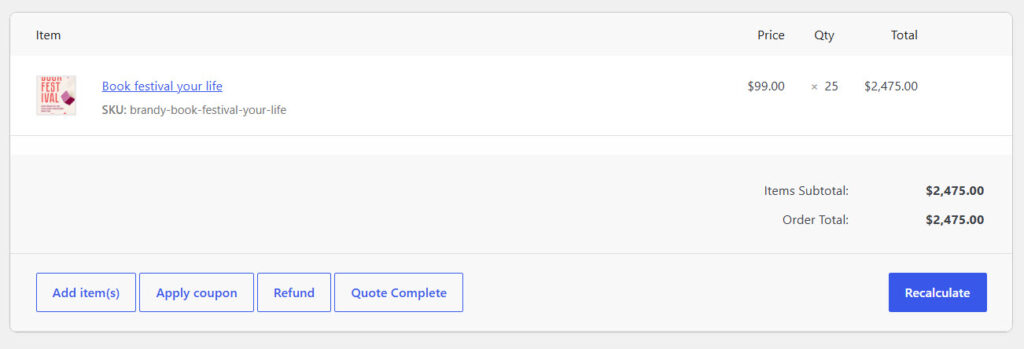
You can apply new coupons, add more items, and mark the quote as completed. And once you complete the quote, it will be emailed to the customer’s registered email address.
That’s it!
This is how to add a request a quote button to your WooCommerce store.
Common Mistakes You Need to Avoid While Adding a Request Quote Button
Adding a request a quote button is simple. The mistakes show up after customers try to use it. A WooCommerce request-a-quote plugin can transform your WooCommerce store, but only if the quote option matches the product or service and the quote process is easy to complete.
- Leaving “Add to Cart” next to every quoted product: If the product needs a custom price, two buttons confuse the shopper. Use the plugin settings that let you hide the Add to Cart button on individual product pages and keep an Add to Quote button there instead.
- Using the same quote button for every catalog item: A quote button for specific products is enough for custom or bulk orders. Showing a WooCommerce request-a-quote button on priced items adds extra steps. Customers who only want to check out will bounce.
- Vague button text: Get a Quote, Add to Quote, and Request a Quote are clear. Soft labels that do not say quote leave people unsure. Customize the button text so customers know they are requesting a quote, not placing an order.
- No path after Add to Quote: The quote button gives shoppers a list. If there is no quote page, no form, and no way to submit quote requests, the quote in WooCommerce dies there. Let customers request a quote and show the list of quotes before they leave.
- Ignoring who can request: Some stores need a request-a-quote option only for trade accounts. If the plugin allows user roles and you skip that, retail shoppers will send quote requests the store cannot price. Match the request option to the customer needs.
- Installing a third-party plugin and skipping setup: Activate the plugin, then configure emails, the quote request option, and pricing-based rules. A quote plugin for WooCommerce, such as one from Motif Creatives or another WooCommerce plugin, will not help if the store owner never tests a full request for a quote.
Frequently Asked Questions
Now, we will look at some frequently asked questions and answers on this topic.
A quote request is a way for shoppers who cannot purchase at the listed product price. They use quote buttons to build a list, then send a quote request. The store reviews the list and replies with a custom price. Priced items can stay in the normal cart and proceed to checkout.
Yes, if you want an Add to Quote button, a quote list, and emails without custom code. A WooCommerce request-a-quote plugin adds a request-a-quote option to the product page. It also lets you hide the Add to Cart button on items that need a quote.
Add to Cart sends the product into checkout at the listed price. Add to Quote parks the product on a quote list. Customers can add products, submit the form, and wait. The quote button in WooCommerce is for custom work and bulk lists, not instant payment.
Most plugins let you customize labels such as Get a Quote, Request a Quote, or Add to Quote. You can change colors, placement, and the form fields. Clear button text helps customers request a quote without thinking they have placed an order.
Use a custom price when size, finish, quantity, or service details change the total. A request-a-quote button keeps those products out of the fake checkout total. Pricing based on the real brief is more accurate than a placeholder number on the product page.
Place a WooCommerce request a quote button on the product page. After they add items, send them to a quote page with a form. That quote system should collect contact details, notes, and the list so the store can show the quote later.
It allows customers to request volume pricing without using retail checkout. Trade buyers can add multiple products, then wait for a WooCommerce quote. Retail shoppers can keep the Add to Cart button on items that already have a fixed price.
No. A WooCommerce quote is a proposed price. The customer has not paid. After you accept the request for a quote and send terms, they can turn it into an order. Keep quote language on the button so no one thinks checkout has started.
The plugin should notify the store, store the list, and let you reply. A good quote in WooCommerce flow shows the quote to the customer and records the next step. If the plugin offers status labels, use them so requesting a quote does not vanish in email.
Pick a WooCommerce quote plugin that can add a request-a-quote button, hide the Add to Cart button, and handle a quote list. YITH, ELEX, and similar plugins cover this. Test one product first. Confirm customers can add products and complete a request for a quote before you roll it out storewide.
Which quote plugin for WooCommerce should I start with?
Pick a WooCommerce quote plugin that can add a request-a-quote button, hide the Add to Cart button, and handle a quote list. YITH, ELEX, and similar plugins cover this. Test one product first. Confirm customers can add products and complete a request for a quote before you roll it out storewide.
Conclusion
A request a quote button keeps custom work out of a broken cart flow. Add a WooCommerce request a quote plugin, place quote buttons on products that need a custom price, and let customers add products to a quote list.
Keep the Add to Cart button on priced items. Use an Add to Quote button where shoppers should submit a request for a quote.
Customize the quote option, test the quote system, and ensure the store can display the quote and allow replies. WooCommerce plugins from YITH, ELEX, or a plugin by Motif Creatives can add a WooCommerce request a quote button and hide Add to Cart when needed.
Pick the quote plugin for WooCommerce that matches how you price work, then let customers request quotes without guessing.
